Showing posts with label Gunk. Show all posts

Friday, September 14, 2018

Why I Don't Like Windows 10 and MS


In quite a few articles on this blog I have referred to, quoted from or linked to one of the web sites I regularly draw information from; I am talking about Tech Support Alert aka Gizmo's Freeware.

Two days ago they published an article titled "Windows 10 connects to these websites after a clean installation". Since many of my customers are not very technically minded let me quote some points that I consider to be the important details. 

IMHO it is, to say the least, misleading to use Microsoft's wording "telemetry" when our Windows 10 systems talk to Microsoft [MS] all the time without ever having asked our permission. They even don't ever tell us about the simple fact that they do that; you have to be a technology geek and read lots of very technical stuff to even become aware of what is going on.

The article lists 20 web sites that Windows 10 connect to when you start a brand new Windows 10 system. All these sites collect technical information about our computers and about us. As a simple example: Why does MS want or need to know where I am? That is information I personally would only disclose to the police if they ever wanted or needed to know that.

Here is list from above mentioned article. I have added the bold typeface in Line 1.
Windows 10 connects to one or more websites in these categories:
  • Cortana and Search
  • Certificates
  • Device authentication
  • Device metadata
  • Diagnostic data
  • Font streaming
  • Licensing
  • Location
  • Maps
  • Microsoft account
  • Microsoft store
  • Network connection status indicator (NCSI)
  • Office
  • OneDrive
  • Settings
  • Skype
  • Windows Defender
  • Windows Spotlight
  • Windows Update
  • Microsoft forward link redirection service (FWLink)
All this can on slower Internet connections add significantly to the time it takes for the system to start up. I have experienced that quite often when a sluggish or outright slow system all of a sudden works with normal reaction times after all that got turned off.

And to top it off, the program I use to turn off this talking back to MS is from a well reputed company and totally free.

Any questions or comments? Pleas use the Comment feature of this blog.

Please stay safe.

Thursday, April 7, 2016

2016-04-07 WBKV Talking Points


This is the first time ever in 12 years of regular radio shows that I do not have a set agenda for the 15 minutes ahead of us.

Listeners, please call in with ANY kind of question you may have around your PC and MS Windows.

Other than that only the standards;

    - Use common sense!
    - Read and think(!) before you click.

    - Update ALL programs you use.

   - Ransomware.

    - Backup your data and your system!

And stay safe.

Wednesday, March 23, 2016

2016-03-24 WBKV Talking Points


Today nothing but viruses, malware and currently acute dangers.
  • Ransomware (so far mainly from infectious MS-Office documents)
    Record ransom paid; 17 million US$ 
     -  -
  • now infectious advertisements on BIG company web sites with 100s of millions of visitors every day:
    - -
    New York Times (nyt.com)
    AOL.com
    ESPN.com
    MSN.com (MicroSoft Network)
    NFL.com (yes, National Football League)
    TheWeatherNetwork.com
    TheHill.com
    Yahoo.com  and many more.
I feel like a prayer wheel:
   If you see advertisements in your web browser your computer is at risk!

Firefox web browser with Adblock Plus and WOT are the browser protections you should use!

No, not Goggle Chrome, Safari or Edge or Internet Explorer!

Saturday, March 19, 2016

Skype Users Be Warned


If you use Skype PLEASE read through this article about two conversations triggered by Skype friend requests. I will let that speak for itself.

For the less geeky of my readers, a spam bot is program or robot programmed to "have a conversation".

You are warned.

Stay safe.

Wednesday, March 9, 2016

2016-03-10 WBKV Talking Points


Part 2: Stay Safe on the Internet

Be aware that trustworthy companies, especially Microsoft and it’s affiliates, will never contact you because of a supposed technical problem of any kind.
The following will definitely be scams:
  • Phone calls
  • Advertisements for technical support for any software product on search engines like Google, Yahoo or Bing
  • Pop-ups for tech support from social web sites (Facebook! or LinkedIn)
  • Pop-ups for tech support that promote phone based tech; these usually require a previous malware infection or an unsafe web browser.
Scam avoidance 101:
  1. Never completely trust someone you don’t know who called you.
    Listen to them, if you like.
  2. Ask questions, if you feel like it, but NEVER EVER give them access to your PC
  3. NEVER EVER give them any payment information.
  4. Tell them that you will let your local tech look into it (even if you don’t have one).
  5. If the caller hangs up – good for you.
  6. If he/she gets impolite or abusive it’s your time to hang up!
Afraid of a real problem? Do the research yourself or contact a trusted tech support person.

Chances are there’s nothing to see at all.

If you have handed over payment information, you’ve just given that information to a complete stranger. Immediately put your credit card or payment provider on fraud alert. If you allowed the scammer to access your computer things can get ugly. Do NOT use the computer; you usually have no idea what they did. You need a trusted technician to check out your machine.
This IS a common scam right now and the best defense is to not fall for it in the first place.

Another currently growing threat: MS-Word, Excel or Powerpoint files sent as attachments! When these files are opened you mostly see the request “... to turn protection on ...” or similar tricks. Don’t do it, don't believe it, it's a trick!  Many very nasty ransomware viruses use this trick! If you do not have a current backup YOU PAY! You either pay the crooks to get your files back and/or a trusted technician to re-build all the software on your computer.  And if you don't have install disks for Windows  - b.t.w. they do NOT come with computers any longer - you have even more problems.

Stay safe.

Wednesday, February 24, 2016

2016-02-25 WBKV Talking Points

Stay Safe on the Internet
  1. Always install Operating System updates
     
  2. Keep your installed applications up-to-date
     
  3. Do not use the same password at every site
     
  4. Install and be sure to update your anti-virus software

  5. Additionally install a free anti-malware scanner and use it(!) regularly
     
  6. Use a firewall (the FW built-in to Windows is good enough!)
     
  7. Backup your data!
     
  8. Enable the display of file extensions
     
  9. Do not open attachments from people you do not know (especially Word files, Locky ransomware travels in Word files! Use MS's Word and Powerpoint viewers to check files)
     
  10. Delete emails that say you won a contest or a stranger asking for assistance with their inheritance or money transfer
     
  11. Watch out for online and phone support scams
     
  12. Ignore and close web pop ups saying your computer is infected or has a problem (use ALT+F4)
     
  13. Ignore and close web pop ups that pretend to be a Windows alert (use ALT+F4)
     
  14. Some types of web sites are more dangerous than others
     
  15. Be extra vigilant when using Peer-To-Peer Software (torrents!)
     
  16. When installing software, watch for "bundled" tool bars and programs you don't want
     
  17. Read the End User License Agreement (EULA) Lol, I know!  


Wednesday, February 10, 2016

2016-02-11 WBKV Talking Points


Today I want to talk only (or mainly) about modern malware and how it gets in our computers.

Pull up this web page and you have the detailed blueprint for today's talk.

The 10 worst offenders are (IMHO #1 is by far the worst one):
  1. Download portals
  2. Fake updates (e.g. Java, Adobe Flash, Yahoo!) 
  3. Installer programs (mainly from download portals)
  4. PuPs downloading and installing more PuPs
  5. Express installation (expressway to an infected computer)
  6. Custom Install abused with confusing EULAs
  7. Home page and search provider changed
  8. Forced install (e.g. Inbox Toolbar)
  9. Other people(!) using your computer (visitors, relatives)
  10. Researching PuPs; do it ONLY in a virtual machine! 

Saturday, February 6, 2016

Top 10 Ways PUPs Sneak Onto Your Computer. And How To Avoid Them.


Disclaimer: I copied the title literally from this blog post.

And that is all I want to say here; this article is simply a MUST READ if you ever had PuPs installed or had to call me because everything got so slow or whatever problem you had.

95% or more of all computer problems I encounter nowadays are initially caused by a PuP! The authors of these PuPs have gotten very clever and constantly invent new tricks to dupe the unsuspecting computer user.

Only permanent vigilance, caution and attention to detail can ultimately somewhat protect us and our computers. 

Please note the use of the word "somewhat" in the previous paragraph! 

For the first time ever I will directly recommend a piece of commercial security software. 

If you want the IMHO best automatic protection against all kinds of malicious programs including PuPs then you will have to pay some money, currently just shy of $40 per year for a single computer. You find details about Emsisoft Anti-Malware here.

Another disclaimer: I am in no way at all associated with Emsisoft or any of their distributors or resellers!

If you don't want to pay that is fine, you just have to DIY (do it yourself). MSE or Defender in conjunction with Malwarebytes Free will do it just as well but you have to regularly do more yourself.

Whether you want to pay for Emsisoft Anti-Malware or not doesn't really matter, IMHO you simply HAVE TO READ this article.

 Stay safe.

Wednesday, August 19, 2015

Yahoo! - Helps to Distribute Malware


I have said it to countless customers and I say it again, publicly and absolutely clear:
If you see advertisements while browsing the internet
then your computer is not set up safely!
I have said it to countless customers and I say it again, publicly and absolutely clear:
Stay away from Yahoo!
And I mean Yahoo! everything; email, finance, sports, EVERYTHING that comes from Yahoo! 

Here is a literal quote from NetworkWorld.com (bolding and links added by yours truly):
Malwarebytes Labs recently uncovered a large malvertising attack on the Yahoo! advertising network that started on July 28. Malwarebytes estimates that up to 6.9 billion readers could have been affected, making it one of the largest malvertising attacks Malwarebytes Labs has seen recently.
Malvertising is defined as crafted advertisements that intentionally infect the computers of anyone who visits the site. A tiny piece of code hidden deep in the ad will reroute your computer to criminal servers without your knowledge, which then determines how exposed your computer is and decides which piece of malware to send you.

In the case of the Yahoo ad, victims are infected with ransomware via the Angler Exploit Kit, but it’s possible that anything from banking Trojans to additional advertising fraud is also being used in this attack.

Malwarebytes said that the infection included Yahoo's main site, as well as subgroups like News, Finance, Sports, Celebrity, and Games. The ads route users to a site on Microsoft Azure, which eventually leads to the Angler Exploit Kit.

But, according to a friend at Malwarebytes, when you are running Adblock Plus or any other ad blocker, then the ad never plays, so no payload is delivered to your PC. So the malware doesn't ever get to touch your PC. Even if you don't click on the ad, the fact is it loads and becomes saved in your browser cache, so it does get onto your PC without the blocker.
My customers do not need to worry about malvertising, they all have Adblock Plus installed. All others please listen up:

If you use ANYthing from Yahoo! and/or
if you see advertisements when web surfing
then your computer is UNSAFE!

Do yourself a favor, get your computer cleaned up and secured.
As usual I welcome comments and suggestions right here in the blog. Thank you in advance.

For whatever reason the darned TOC (table of contents) feature that I got from Google does not work any longer, sorry.

Tuesday, April 28, 2015

Bye bye Viruses, Hello Carelessness


It's almost like in the Everly Brothers song "Bye Bye Love" from 1957. They sang
Bye bye happiness, hello loneliness...
I am enticed to, no, don't be afraid, not sing but say
Bye bye viruses, hello carelessness...
In August 2014 I wrote in this blog the 2014 Update On Malicious Programs. Everything in this article is still valid today – which in the fast changing world of computers is astonishing all by itself. Self replicating viruses that "find and infect" our computers by their own accord have gone almost extinct.
What has massively changed though are the tricks and methods used by miscreants to foist their malicious junk software on our computers. It is so bad that I feel compelled to say
Do NOT click on any link in any email,
do NOT open any email attachment
and NEVER click in any advertisement.
Does that sound extreme to you? Good, because it is extreme. We are in an extreme situation and it's getting worse so extreme measures seem appropriate.
In the meantime you have learned to immediately delete emails with an unfamiliar sender address. But what about the email from that buddy of yours who always sends all the jokes? My advice is to IGNORE it! Just hit the Delete button. If that email really was from him and if he were a nice guy he would have told you in the email why and what he sends there. If he does not have the decency to do that you better err on the side of caution and delete that email; you may “miss” a joke but what is that compared to $100 or $200 cost for a good clean-up job?
Another way how modern malware (called PuPs) is distributed are dirty tricks pulled on us when we apply required updates. Even big, well known companies participate in these schemes; names that come to mind as examples are Oracle, Norton, McAfee and Adobe. Some visual examples are here.
And don't get me going on advertisements. Listen up:
If you see advertisements on your computer screen then you computer most likely already is compromised. Get it cleaned up!
And then the sneaky methods that well known download web sites like Download.com, Cnet.com and other use. You want to download that nice free little program and what they give you is a specially crafted downloader program that in turn is supposed to download the program you actually want. But what you get are one or several PuPs and then the program you really wanted.
The only method to help here is to watch for the tricks, traps and deceptions. 
In July 2013 I published my 10 Commandments Of Safe Computing. To heed the first of these has become more important than ever before; it reads:
Thou shalt read and think(!) before you click.
Be vigilant, pay attention to details and always remember: If it sounds too good to be true it usually is not true; especially in this day and age on the Internet.

As usual I welcome suggestions and comments right here in the blog.

Click here for a categorized Table Of Contents.


Sunday, February 1, 2015

2015-02-02 WTKM Talking Points (February 2nd 2015)

Confirmed sensation: Microsoft will allow all Win 7 & 8 users to upgrade to Win10 for free – for one year (only?). But then the licensing will kick in? A rented operating system? Home user be careful! Microsoft does not give anything away for free; that is the first concrete step to get us all to accept a licensing model, that means yearly payments. This way Microsoft will in the medium and long run make oodles of money more than by selling the software.

New dangerous bug in Adobe Flash Player is exploited via Facebook! Current version is 16.0.0.296!The catch: Many fake updates around! Mostly the user is tricked to download/install a fake plugin that then installs a keylogger to collect log in info & passwords. User beware!

Renewed warning: CryptoWall (new CrypotoLocker variant) spread through advertising networks.

When you see advertisements your computer is already infected!It is more important than ever to have a backup routine in place AND TO DO IT!

Finally: Microsoft takes on scam tech support phone call organizations (PDF).
If MS succeeds I expect the crooks to move off-shore and do the same from India.
Microsoft Digital Crimes Unit attorney Courtney Gregoire has an article and a video about these scams on this blog.

If anyone calls you and claims to be in any way affiliated with Microsoft IT IS A SCAM!
Here is Microsoft's own advice for such a case:
  • Do not purchase any software or services.
     
  • Ask if there is a fee or subscription associated with the “service.” If there is, hang up.
     
  • Never give control of your computer to a third party unless you can confirm that it is a legitimate person you personally know and trust and/or are already a customer or when you personally  initiated a support call with Microsoft.
     
  • Never provide your credit card or financial information to someone claiming to be from Microsoft tech support.
     
  • Take the caller’s information down and immediately report it to your local authorities.
EBKAC errors are the most common ones and no program protects against that!

The supposed hack attack on French news media after the Charlie Hebdo shooting was no attack at all. It was a simple server cockup.

In Canada it is now illegal to install computer programs without consent. Why not in the US?

375 of the 500 largest companies do not protect their web sites from typosquatters. That causes real danger when you mistype a web address in your browser. Be careful!

As usual I welcome suggestions right here in the blog.
Click here for a categorized Table Of Contents.


Monday, October 13, 2014

How To Spot Socially Engineered Emails


For quite some time I wanted to give information about how to spot spam emails. That is quite a sizable field and I wavered too long. This time to my  and I believe to your advantage the wait pays off.

I discovered that KnowBe4.com already had done an excellent job and published the result as a one page fact sheet much better and more concise than I could ever have done it. The paper is called Social Engineering Red Flags. This link should show the information in your browser or in your reader application for PDF files.

I recommend to print it as a handy reference guide.

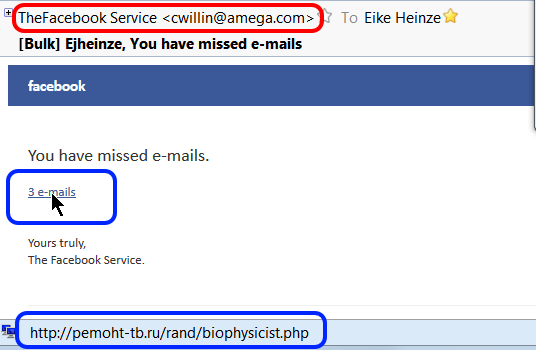
And here is a real life example; just this morning (10-20-2014) I received an email that looks on first glance like it came from Facebook, optically quite convincing. It is such a "classical" example that I took a screen shot to show it to you:


For me it goes without saying that I do NOT just click on a link in ANY email, no matter who the sender is supposed to be, no matter how "familiar" it looks.

The first clue is the sender address. Bad, simple forgery, not even an attempt to disguise the forgery; maybe that is even the miscreant's real email address. This is one of the times where I regret not to be a security researcher because I would love to mess a bit with this guy.

Then I did what for me by now has become second nature: I rested my mouse on the link (see the cursor). The translation of where the link would have taken my computer to in the status line (bottom left corner of the picture) confirmed my suspicion: The link goes to a web site in Russia. Did you see "http://pemoht-tb.ru/rand..."? ".ru" is the country code for Russia!

If you handle your email with programs or techniques that do not show you all the information from this example then you live dangerously. Imagine a teenager; they would blindly click on the link and voilà, the computer is infected and maybe you even loose all your files!

Oh well, more work for me... (tongue in cheek!_).


As usual I welcome suggestions and comments right here in the blog.

Click here for a categorized Table Of Contents.


Monday, October 6, 2014

Java - Yes or No?


On January 14 2013 I wrote about Java. This artcle should explain what Java is.

There mainly are two opposing views about Java on home computers around.

The first one says that Java is needed so rarely that it should not be on a home computer at all.

The second one just delivers it pre-installed on all computers sold over-the-counter in case you need it.

My personal view about Java is the following:
Have it installed for the (maybe rare) case that you need it.
My reasons are:
  • If we are about to do something and get interrupted we tend to react somewhat frustrated. At this time we are very likely to get directed to the "wrong" web site for the download and we will probably get some sort of "blind passenger" or gunk software that we really neither need nor want.
    You doubt that? See the real life examples in this article.
     
  • Over the years I had several very frustrated customers calling me and asking why Java was not installed. In every single case some well meaning but ill advised relative, friend or computer technician had removed Java.
     
  • The few MB of disk storage space that Java needs are not an argument anymore; we are in  the age of 500GB and 1TB disk drives that a home user never will fill up. It is many years since I have seen a really full disk drive.
The price we have to pay is simple:
Keep Java up-to-date - and use common sense!

In What To Update from September 18 2011 I wrote:
Here is the list of the most important things that have to be kept up to date.
Added for this article:If you don't have any of these programs installed just ignore the entry in this list:
  1. Windows (better: all Microsoft software)
  2. Security programs
  3. ‏Firefox web browser 
  4. Firefox add-ons
  5. Java
  6. Adobe Reader
  7. Adobe Flash
  8. Adobe Shockwave
  9. Thunderbird email client
  10. Thunderbird add-ons
My conclusion:
  • It is very easy to keep Java up-to-date when you do that regularly anyway and are not stressed.
     
  • At a time where you will be frustrated and impatient (you want to get back to what you were doing when you got interrupted!)  you are more likely to get tricked to inadvertently allow some unrelated gunk to get on your computer.
For the non-technical home user I install Java and admonish the user to keep it up-to-date.

Naturally it always is my customer's computer so in the end the customer has to decide if they want to live with or without Java. Uninstalling Java is easy:
Control Panel > Programs and features > Highlight Java > Right Click > Click Uninstall.

Please uninstall all versions of Java that you eventually see. Old out-of-date versions are a HUGE security risk!

As usual I welcome suggestions and comments right here in the blog.

Click here for a categorized Table Of Contents.


Monday, October 28, 2013

How Malware Gets Installed


You hear from me that your computer got infected with malware, especially PuPs, and you ask:
"How did that stuff get on my computer? I did not download or install it".
Sorry, but in most cases you did give permission to install that garbage alongside some legitimate install or update. You did not do it consciously, you got duped or tricked into allowing the installation. See this article for just one all too common example.

These tricks can have many different shapes and forms. They all are designed to trick or fool us into allowing the garbage to get installed alongside a legitimate program or update. User beware!

One of the more and more common forms is a legitimate install or update that asks something along the lines of

  • Default (or Express) install (recommended)
  • Custom install (for experienced users)
No matter whether you consider yourself to be experienced or not, if you click Default (which always is pre-selected!) or just click on the Next button you likely get PuPs installed. By now even software from well known names does that! Just as an example: Oracle's Java and Adobe Reader are bundled with PuPs; most downloads from well known download portals are by now loaded with PuPs. Why is that happening?

Simple answer: Money! The authors of PuPs pay for their stuff being bundled with legitimate software. There is a lot of money to be made from advertising!

Distributing viruses is illegal, distributing "search helpers"  or tool bars is not!

My advice: When you have to choose between Default and Custom installs always(!) click Custom; it is the only way to check for PuPs because so far at least they are being offered with some sort of a choice to decline or skip them.

If you are in doubt take a screen shot of the window(s) that sparked your suspicion, postpone the install and ask me in an email about it; don't forget to attach the screen shot please.

As usual I welcome suggestions and comments right here in the blog.

Click here for a categorized Table Of Contents.

Wednesday, September 18, 2013

PUPs - No Virus But Just As Nasty


Updated Oct. 27th, 2013

The latest and fast growing trend of cyber crime against the unsuspecting user of a Windows PC is a new breed of malware, so called PuP programs (Potentially Unwanted Program).

These programs technically are not viruses; that is why anti virus programs don't find them - although there are some special programs for geeks and technicians that can clean this stuff from your computer.

You can easily check your computer for at least a few the most commonly encountered names.
  1. Open the Control Panel
  2. Set "View by" in the right top corner to Small Icons and 
  3. Open Programs and Features
You find names of PuPs that I have encountered in this list. Warning: The list is long, by it's very nature incomplete and it keeps growing almost every week. Please be aware that spelling, capitalization, prepended or appended numbers or syllables and inserted or omitted spaces are common and still denote the "main offender" as worthy of removal.

The somewhat good news: Many of these pieces of trouble can be uninstalled, that is removed, from right there in the Programs and Features window where you just found them.

The really BAD news: Even if you uninstall them successfully there will be leftovers in web browsers and other important locations in the operating system.; especially Google Chrome seems to be likely to retain some of that. These leftover entries can be numerous, affect functioning of web browser(s) and significantly hamper the computer; they can only be removed with some specially written very detail oriented clean-up programs.

Well, you know who can help, don't you?

Please remember: Toolbars are forbidden, no matter who promises what, no matter how tempting the name and no matter who made the tool bar! If you find any toolbars remove them right away.

If you find folders with names from random letters or numbers like for example:
         pgmfkblbflahhponhjmkcnpjinenhlnc
you have a clear indicator of malicious software. You know who can help, don't you?

If you wonder how all this stuff got on the computer then please read the explanation  here.

As usual I welcome suggestions and comments right here in the blog.

Click here for a categorized Table Of Contents.


Tuesday, September 17, 2013

Cybercrime


If you ever wondered about the how and why of virus programs, cyber crime and all that nasty stuff then please take 18 minutes out of your busy schedule and watch this video.

As usual I welcome suggestions and comments right here in the blog.

Click here for a categorized Table Of Contents.


Sunday, July 7, 2013

Gunk - Everyday Examples


On September 16, 2012 I wrote about a very bad example of a useful program trying to trick us into installing lots of unwanted software; admittedly this was an exceptionally bad example. 

Last week I got my most beloved question about malicious and unwanted programs one too many times. It is the question "But how does this sort of program get on my computer? I certainly did not install it."

Here is my reaction to all this: Dear customer, you did it, I bet!

Let me show you some examples. Today I deliberately used the automatically appearing reminder to update Java; I used the mechanism that every unsuspecting computer user gets offered. The first program downloaded was a downloader which then in turn downloads the actual update.

This and other "download" programs download not only the real updater program that you want and need, no, they almost always offer some unrelated software sort of disguised as part of the actual update, here Java. The installer for the Java update showed several common windows to select the location for the install, agree to the ubiquitous End User License Agreement and so on. And among all these small windows was this one:


The title shows clearly that Java Setup is running, see the blue marking. If you read the text in the window, and you should read it, you see that they, whoever that may be, "... recommends insrtalling the FREE Browser Add-on from Ask, see the green marking. And then it comes:

Two lines that very clearly state what the gunk software wants to do:
  • Install the Ask Toolbar and
  • "Set and Keep" Ask as the default search provider.
And the check boxes in front of the text are pre-selected, naturally! Please see the red marking.

The "Set and Keep" is really tricky. Not only do they change your default search provider, they also tell the web browser not to allow future change.That means you can not just go in and set the browser back to the search provider of your choice. 


Every single of my customers has heard me saying: Toolbars are POISON for computers, no exceptions and no matter whose name they carry, no matter where they come from, no matter who made them and no matter what they promise.

We have to read these little windows, see that there are pre-selected check marks and let our common sense tell us that the Ask Toolbar and Search Page have absolutely nothing to do with Java. We need to un-check both check marks or our web browser will be messed up - and then it will get worse and worse and in the end effect some of you will call me for help.

Update 2014-01-16:

Here are more examples of the same process with different optics and different "gunk" to be foisted on our computers.


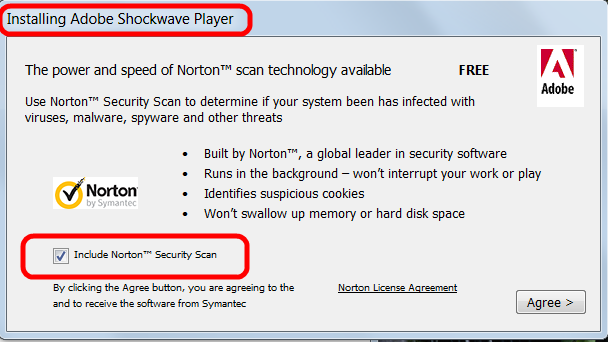
Updating Adobe Shockwave player would install Norton Security Scan.

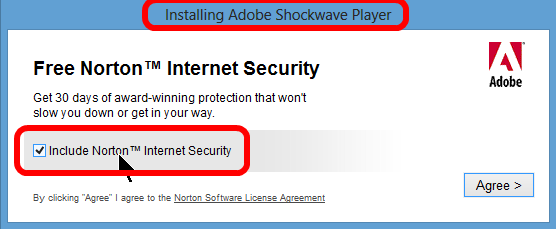
Or, in different optics and different content because downloaded from a different download site:


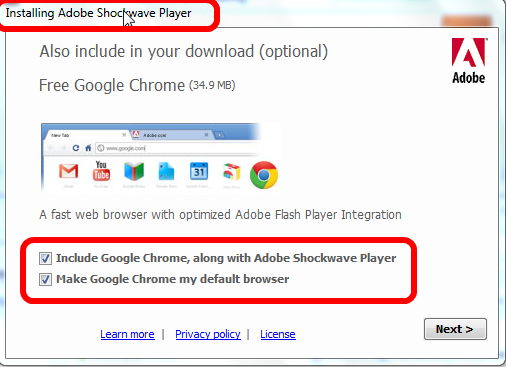
IMHO the worst example because even Google employs these sneaky tactics:


This is how Google Chrome got on your computer Jerry G, you did allow it's installation.

Make no mistake, these things can happen with any installer or update of any program. Isn't it a shame that even well known big companies like Adobe, Oracle, Symantec (Norton products), McAfee and others employ these sneaky tactics trying to dupe us into installing something else than what we want?

Please save yourself the aggravation and some money, simply by paying attention!
As usual I welcome suggestions and comments right here in the blog.

Click here for a categorized Table Of Contents.

Thursday, February 28, 2013

Computer Security and Common Sense


As I have mentioned several times in earlier posts I am a paying subscriber to a technical blog that is MS Windows oriented. One of the latest articles talked about security on the internet and explained in detail a fairly technical method to secure web browsing and general work on a computer.I know that the method described in the original article is far too technical for most of my users.

But the article contained some general remarks that I want to quote verbatim:
We are all aware of the dangers of malware infection from the Internet these days. The danger has always been there, but this has increased a lot more because people with malicious intents are constantly devising new methods to infect the systems, and the inexperienced, naive, general-users/elderly/teens are the most affected by it. Malware infection from the Internet can occur in many ways:
  • Downloading a malware infected setup/file from a malicious site
  • Venturing to a malicious site
  • Clicking on a bad link in an email, or on a page, or on a bad advertisement
  • Clicking on links that fool you into believing that there is a malware on the system and prompt you to install rogue software etc.
Although there are many ways of getting infected by malware it does not mean that we need to become paranoid, or live in constant fear of the possible consequences. With a little effort, precaution, and by using common sense we can easily avoid getting systems infected with malware.
The key words in this quote IMHO are "by using common sense". Most of my customers and many listeners of my regular radio show may have heard my take on common sense. It is a simple question/answer saying:
Q: What is the problem with common sense?
A: Common sense ain't that common.
If you have read my immediately preceding post about phone scams you will understand when I state:
IMHO common sense is the most important ingredient in home computer safety.
How does one get common computer sense? Some may not like me saying it but it is fairly simple:
By learning at least the basics about the computer and conscientiously applying what one knows.

As usual I welcome comments and suggestions right here in the blog. Thank you in advance.

Click here for a categorized Table Of Contents.


Sunday, September 16, 2012

Foistware - a BAD Example


Recently I read about the free video download and converter software FVD Suite. I thought some of it's functionality might be helpful so I downloaded and installed it.

And during installation it showed it's true colors. The Installer offered altogether FOUR pieces of typical foistware, some of it IMHO outright bad stuff. And on top of that it used a tricky switch of the method to avoid this unwanted stuff.

Here are the four installer windows that attempted to trick me into installing the additional junk.

1.  The first window has Quick Installation preselected. I am usually careful with my computer so I selected Advanced Installation. The switches to install Babylon were preselected and got greyed out immediately! That means I could not turn Babylon off anymore.  IMHO Babylon is outright CRAP! Pardon my French. it figures as translation software but why then do they need to change my default search engine and my browser's home page? Did I already say crap?

I had to switch back to Quick Installation; then I could remove the check marks in the three entries for Babylon and switch back to Advanced Installation. By then I was on high alert, trust me. 


2. The second window wanted my permission (naturally preselected!) to install Shop To Win and QwikLinx. I always think TANSTAAFL seeing this sort of garbage software.

This window required to deselect only one check mark.


3.  The third window offered PricePeep. See above, TANSTAAFL.

BUT: Since I wanted to avoid PricePeep this window required a change in the method to avoid the PricePeep gunk; I needed to click the Decline button. The graphic design of this and the next window is such that on first glance one might think that Decline would decline the installation of FVD Suite and thus click on Next Step. Which would be just the mistake the originators of this deceptive tactic want us to make. Decline affects PricePeep only. Tricky, tricky to say the least. 


4. Window #4 used the same method as #3, I had to click Decline to avoid getting WaJam installed.

Plus it had a graphic element resembling a check mark in a circle; only after reading the text behind this little thingy I realized what it meant.

 
That was this.

I hope you don't get bored by me repeating and repeating over and over again:
  • Take the time to read EVERY little window when installing downloaded software
     
  • Watch out for preselected check marks
     
  • THINK before you click
     
  •  When in doubt don't install what tries to trick you!
It is getting worse and worse every week; stay safe and keep your computer clean!

As usual I welcome suggestions and comments right here in the blog.

Click here for a categorized Table Of Contents.


Wednesday, August 29, 2012

Gunk Software

This time around it was not a customer but a friend from my trap shooting club who asked a question that I want to answer here. Thank you Steve. He sent me the following text:
My new Toshiba laptop seems loaded with a bunch of Toshiba software.  It seems to want to [do] things its own way. 

If I try to use Internet Explorer as my default browser instead of Toshiba-Google Chrome, my email at SBC-Yahoo does not always seem to work well... the cursor won't respond normally and always the Toshiba browser loads anyway. 

I suspect I might have to uninstall everything that says "Toshiba." 

What are your thoughts on this?
Good that you asked before uninstalling everything from Toshiba.

In my usual complicated manner I will probably tell you more than you wanted to know but I'll do it anyway.

All the following is valid for every brand name computer marketed to consumers, no matter what manufacturer we are talking about!

Sony, Samsung, Toshiba and lately ASUS are in my experience and opinion the very worst of companies as far as dubious or questionable pre-installed software is concerned. Sometimes it takes almost criminal investigative skill to find out what the software really does that they install on their computers.

Some of these programs your computer really needs to function correctly. Other programs have questionable purposes at best and still others are outright gunk. This mix is different from manufacturer to manufacturer and within manufacturers different from model to model or series to series.

The lowdown is that you as a "normal" human being will not be able to correctly discern what is safe to remove and what needs to stay. I have personally witnessed even experienced professionals failing at that and I am VERY careful and conservative when I do that.

In your case I assume hat you can at least uninstall the existing Google Chrome version. I don't want to say more because it could be just the wrong advice in your computer's case.

Besides that I strongly recommend, no urge my customers NOT to use Internet Explorer. Use Firefox instead, but please only the original version and not Yahoo's crippled version.

As usual I welcome comments and suggestions right here in the blog. Thank you in advance. 

Click here for a categorized Table Of Contents.