Showing posts with label recommended. Show all posts

Sunday, April 19, 2020

New Computer?

As to be expected the number 1 question I get asked most often is something in the veins of
      If I buy a new computer what should I look for?
Here is my reply, verbatim and as I have saved it as a template:
Hi xxx,
Thanks for asking.
It may be best to look for a new computer during sales events. For computers I recommend to look at Newegg.com or Amazon.com. Both definitely have a MUCH larger selection than any brick-and-mortar store can possibly offer.
Any new computer IMHO should go through my Set-Up job to be safe and protected on the Internet and to be free of unwanted, unneeded and sometimes outright malicious programs.

Here are some of the important technical details to currently look for:
  • 8GB or more of RAM (main memory)
  • Windows 10 Professional or Windows 10 Home
    (Pro is in some aspects more flexible than Home)
  • Buy only a computer(s) with a SSD! SSDs are MUCH faster than HDDs!
    Storage capacity of the SSD is okay if it is about three to four times of the
    amount of space currently used on your C: drive.
    Classic HDDs are in many cheap offers but it's clearly an outdated technology.
Currently I have the best experiences with computers from Dell and/or HP. And here are two warnings on what NOT to do:
  • Do NOT buy any additional warranties or similar!
  • Do NOT buy Microsoft Office!
    MS really sells you a subscription with yearly payments; good for MS but bad for you!
Feel free to call me at xxx-yyy-zzzz with any questions you may have.
That's it.
Stay safe.

Sunday, January 19, 2020

Windows 7 - RIP

As you surely can imagine recently I have quite often gotten the question  
What should I get if I buy a new computer?
Here is verbatim the reply that I sent to all such requests if the question came via email:
Thanks for asking.

It may be best to look for a new computer during special sales events.

For computers I recommend to look at Newegg.com or Amazon.com. Both definitely have a MUCH larger selection than any brick-and-mortar store can possibly offer.


Any new computer IMHO should go through my Set-Up job to be safe and protected on the Internet and to be free of unwanted, unneeded and sometimes outright malicious programs.

Here are some of the IMHO important technical details to currently look for:

  • 8GB or more of RAM (main memory)

  • Windows 10 Professional or Windows 10 Home
    (Pro is in some technical settings more flexible than Home)
  • Buy only a computer(s) with a SSD! SSDs are MUCH faster than HDDs!
    Storage capacity of the SSD is okay if it is about three to four times of the
    amount of space currently used on your C: drive or larger.

    Classic HDDs are in many cheap offers but it's clearly an outdated technology.
Currently I have the best experiences with computers from Dell and/or HP. And here are two warnings on what NOT to do:

  • If you are looking at new machines do NOT buy any additional warranties or similar!
  • Do NOT buy Microsoft Office!
    MS sells you a subscription with yearly payments; good for MS but bad for you!
Feel free to contact me directly with any questions you may have.

Wednesday, May 1, 2019

PuPs - Again and What are they?

Potentially
unwanted
Program

That exactly is what PuPs are. Now that formulation with "potentially" is a protection against frivolous law suits; every PuP does something, in the opinion of it's author definitely something positive and useful. The word potential protects everybody who has to or wants to name these programs from lawsuits.

In my opinion EVERY PuP out there is outright malware and it is sad that existing laws and court decisions force us to use the word potential at all.

I happened to run across a good article (IMHO at least) about PuPs. You can find it here.  Yes, it's three years old and I believe I have already linked to it in an earlier article. I hope you don't mind to get the suggestion to refresh your memory.

The article I linked to in the previous paragraph refers to an even older article about one of the major sources of PuPs on our computers, the so called Download Portals.
IMHO a refresher about this might be recommended as well.

Stay safe.


Monday, January 9, 2017

How to stay safe in 2017 - Short List


Here is a short list of in my experience the most important steps you can take to keep your computer and your data safe. have I have added e few remarks for clarification.
  1. Update your software.
    Not only Windows but all other regularly used programs as well;
    for a Windows PC this includes (but is not limited to)
    -   Adobe Flash (beware of fake download sites!)
    -   Adobe Shockwave
    -   Web browser(s)
    -   Email client
    -   Java (if installed; mostly Java is not needed at all!)
    -   Office programs
    We always have to keep in mind that some programs still don't update automatically and quietly in the background! Checking manually hardly ever has hurt anything.
     
  2. Back-up to an external hard drive.
    Done regularly and correctly this currently is the only protection against ransomware viruses!
     
  3. Use a password manager.
    For single machines see Keepass, for more than one machine see LastPass and include all cell phones and tablets in the count!
       
  4. Use a unique password for every account.
    Everybody has many, many accounts; you need a password manager!
     
  5. Use random passwords
    Easily done only with a password manager!
     
  6. Turn on two-step verification everywhere you can.
    If you have a cell phone that you really use, otherwise this is pretty useless.
     
  7. Read and think(!) before you click.
    "My" first commandment for safe computing.
     
  8. Enable full-disk encryption
    On a single home computer? Only protects your data when the machine gets stolen.
     
  9. Put a six-digit PIN on your phone and set the phone to wipe it's contents if the PIN is guessed wrongly too many times.
Do you have questions to any of that? Please feel free to ask them in the comments, I will reply. Maybe not immediately but I will.

Stay safe.


Wednesday, December 28, 2016

How I Transfer Files From An Old To A New Computer


As long as the "old" computer is basically still working transferring all your user files (documents, pictures, music and videos) is no issue at all as long as they are stored in Windows' standard locations.

After the new computer is up and running I take the disk drive physically out of the old machine, attach it externally to the new machine and copy the files directly across to the new computer.

This way there is only one copy process which saves time compared to copying via an external drive which requires copying the same data twice.

After copying the files to the new machine I will urge you to safely keep the disk drive from the old computer for at least a year as an insurance against data loss.

Imagine you need a certain file after several months, you know the name of the file but it just is not where you thought it should be. It is on the old disk drive because that is the only place files could have gotten stored on the old machine; so that is where we have to search for it.

I hope that clears eventual confusion.

Stay safe.

Thursday, November 24, 2016

About Scams - Beware!


It saddens mw but it has to be said again and again:
Microsoft WILL NOT CALL you because your computer "has been reported" or anything similar.
Please take the few minutes to read this article from the How-To-Geek on common scamming tricks and what to do about them. This article talks about some other commonly encountered scams as well, not only the Microsoft or Tech Support based scams.

It always is good to be well informed. The time to read the HTG article is time well spent; it can help you to avoid the most common traps.

Stay safe.

Tuesday, October 4, 2016

The newest Scam - Beware


The newest telephone scam I heard of is the Microsoft Licensing Scam. You may get a phone call or a voice mail saying something like this (phone numbers deliberately obscured):
“This is to notify you that your Microsoft Windows license key has been expired in your computer so Microsoft Corporation has stopped the services in your computer. To renew the Windows license key, please call 866 XXX XXXX. Let me repeat. This is to notify you that your Microsoft Windows license key has been expired in your computer so Microsoft Corporation has stopped the services in your computer. To renew the Windows license key, please call 866 XXX XXXX. I will repeat 866 XXX XXXX.”
The message obviously was from a computer generated, sort of "mechanical" voice and the stilted English suggest a non-native English speaker behind the whole thing.

Any messages about licensing issues truly from Microsoft would pop up on your computer's screen only during installation or activation. And we all know, if only from experience, that a Microsoft license for the Operating System comes with the computer when you buy it and it is good for the lifetime of the machine.

In Windows services are programs running in the background; they are required for even basic functions of the computer. A computer would not work at all without the required services running in the background.

In the case I read about the recipient happened to be a very, very experienced Windows user; the gentleman called back the 866 number from the message; he said about that call:
"Because the number was toll free, I called it just to see what would happen. An answering machine invited me to leave a message and my number for a callback — I declined.
Please remember: Any and all phone calls claiming to come from Microsoft or any company associated with Microsoft are scams. Don't even talk to these people! Do not give them your phone number or ANY OTHER information.

As usual I welcome comments and suggestions right here in the blog. Thank you in advance.

Stay safe.


Wednesday, September 28, 2016

Ransomware IS on the Loose, NO JOKING!


Today I met with a customer who recently I had pointed to my blog posts about ransomware. He sort of poo-pooed my words and pointed me to his safe habits.

With his permission I looked in his (very big) Inbox with about 1,000 emails. I looked only for mails with attachments and found quite a few.

I grabbed randomly one of the attachments, a ZIP file by the way, and saved that file to the computer.

Then I went to Virustotal.com, uploaded the file and had it tested. The results speak for them selves, here they are:


Clearly this file contains a downloader and a variant of the encrypting ransomware Locky. And who knows what the downloader would do to the machine if it ever gets to run.

Currently DO NOT directly open ANY attachment from an email, no matter how "good" you think you know the sender or what ever excuses your brain comes up with.

Always save the attachment to a place on your computer you can easily access like the desktop.

Then in your web browser go to virustotal.com, browse to the file - in this example on the desktop, upload the file and if virustotal.com comes up with anything then delete the file AND the email it came from!

Better safe than sorry!

And before you ask, some of my previous articles about ransomware are here, here, here, here and here.

As usual I welcome comments and suggestions right here in the blog. Thank you in advance.

Stay safe.

Monday, September 26, 2016

Yahoo Users, it's Time to Run for the Hills

For years I have told my clients to stay away from Yahoo as far as possible. Those with Yahoo email accounts I have told to to switch their email provider.

Yes, it is a BIG hassle to do that but now it seems to be imperative to do it - finally.

Yahoo has been majorly hacked!

In 2014 already and they have kept it a secret until recently!

Reported numbers of compromised accounts vary from 500 thousand to one billion affected users but that is irrelevant; relevant is that practically all sensitive information got copied off by miscreants. User names, passwords, date-of-birth, SSNs, security questions and the answers, phone numbers, "real names", address information and the list goes on...

In California the first class action lawsuit against Yahoo has been filed and many more are expected to follow all over the nation.

What to do?

First change your Yahoo password, make the new one at least 12 characters long. Read this article from 2011(!) and this one from 2013(!) on my blog for more information.

More info on Passwords is in these articles:
Passwords that are NOT a password
Passwords the Latest

You have a Yahoo email account or use other Yahoo services (like Yahoo Financials!) and you still are "on the fence"? I can't help you, actually nobody can help you but yourself.

As usual I welcome comments and suggestions right here in the blog. Thank you in advance.

Stay safe.

Sunday, May 22, 2016

"Force Feeding" Windows 10


"Force Feeding" are the only words adequate to describe what Microsoft is doing right now! My email inbox is overflowing with complaints and cries for help. Microsoft seems to be really desperate, it must not be going as well as they had hoped.

After the upgrade to Windows 10 (not update) you have 4 weeks to revert to your previous system. This process has so far worked without a hitch for those of my customers who reverted.
  1. Click the Start button
  2. Click on Settings (on a few systems it is PC Settings)
  3. Click on Update & security
  4. In the left side bar click on Recovery
  5. Find the entry Go back to Windows x (x is 7 or 8 depending on what your previous system was) and click on it
Depending on the speed of your computer it will work for anything between 30 and 90 minutes. After you have reverted to your previous version of Windows Microsoft will again begin to permanently nag you to upgrade to Win 10. This nagging can be reliably turned off!
Microsoft has since about November 2015 been busy to put some of the telemetry of Windows 10 into Windows 7 and Windows 8 systems; this happens in addition to forcing upgrades to Windows 10. That means that Win 7 and 8 systems now contain some of what I call Windows 10 spying on me/us and IMHO that should to be turned off!!

My recommendation is to turn all this junk off and luckily since about February 2016 I know of a dependable piece of free software that allows everybody to do just that on their systems whether it is a Windows 7, 8 or 10 computer!. See this article for more details.


If after the upgrade any icons or programs are missing or if you rather have me install SD Anti Beacon I can do all that via remote support. For remote support please call one of the coming Monday through Thursday evenings between 6PM and 8PM. If I am already at home I want to connect remotely to your computer. If I can not answer on your first attempt please assume that I am already helping somebody else and keep trying every 10 or 15 minutes.

If I have set up or worked on your computer during the last three years you should be set for remote support; if you have an icon labeled either "Teamviewer ..."  or "EJH Remote Support" then all is prepared. If you do not find either of these icons please call anyway, I can walk you on the phone thru the steps to get the remote support program going. Alternatively you can prepare for remote support as described here.

Please have your computer up and running; if your computer is a notebook (or laptop) computer then please have the power supply connected and plugged into a working power outlet.
Stay safe!

Tuesday, March 29, 2016

Avoid or Mitigate Ransomware Risks


A big THANK YOU to the Emerging Threats Team at SophosLabs and their blog Naked Security for their excellent recommendations on this nasty but important topic.

I have taken the liberty to add some remarks just to help you remember important little details that are easy to forget in cursive.
  • Backup regularly and keep a recent backup copy off-site. There are dozens of ways other than ransomware that files can suddenly vanish, such as fire, flood, theft, a dropped laptop or even an accidental delete. Encrypt your backup and you won’t have to worry about the backup device falling into the wrong hands.

    But do not, I repeat, do not leave your backup device connected to the computer. Always unplug the backup device after the backup is complete!

     
  • Don’t enable macros in document attachments received via email. Microsoft deliberately turned off auto-execution of macros by default many years ago as a security measure. A lot of malware infections rely on persuading you to turn macros back on, so don’t do it!

    Naturally they don't tell you that the click they ask you to do will turn macros back on. They rather trick you into believing that clicking is the thing to do to be able to read what they sent you...

     
  • Be cautious about unsolicited attachments. The crooks are relying on the dilemma that you shouldn’t open a document until you are sure it’s the one you want, but you can’t tell if it’s the one you want until you open it. If in doubt, leave it out.

    Currently I do not open ANY attachments; I call the sender and have them explain what and why they sent the attachment and even if all that checks out I additionally check the attachment on
    Virus Total
     
  • Don’t give yourself more login power than you need. Most importantly, don’t stay logged in as an administrator any longer than is strictly necessary, and avoid browsing, opening documents or other “regular work” activities while you have administrator rights.

    Quite a lofty ideal as I am currently experiencing first hand.

     
  • Consider installing the Microsoft Office viewers. These viewer applications let you see what documents look like without opening them in Word or Excel itself. In particular, the viewer software doesn’t support macros at all, so you can’t enable macros by mistake!

    Now is a good suggestion, I will have to do that!

     
  • Patch early, patch often. Malware that doesn’t come in via document macros often relies on security bugs in popular applications, including Office, your browser, Flash and more. The sooner you patch, the fewer open holes remain for the crooks to exploit.

    As I always preach: Update, update, update.
That is it; certainly to a large part common sense but here it is, nicely packaged and in one place.

Stay safe!

Sunday, March 27, 2016

Spybot Anti Beacon - A Must Have?


If privacy of your data and files is to you as important as it is for me than the answer to the title question on Windows 7 and above is YES, clear and loud.

Let me explain: SpyBot Anti Beacon is a relatively new utility that can reliably turn off most of Windows 10's unwelcome behavior. Many others besides myself think of as being spied at. Whether Micro$oft calls this telemetry or whatever, I feel spied at.

If you want to know why I call Windows 10 a masterpiece of data collection and judge it's telemetry as for me unwanted spying please read this article originally written in October 2012 after Windows 8 was available. And I repeated the IMHO main reason in the context of Windows 10 quite recently.

If you want to try SB Anti Beacon (SBAB) please keep in mind this is professionally made but it is a FREE program; free as in free beer, that is you do not have to pay for it. This has consequences; not everything is as automatic as you might have come to expect from good programs. The main program window has four tabs for four different functions or info screens. I recommend to read the Frequently Asked Questions in tab #4 but will shortly describe what I do in tabs #1 and #2 (usage instructions).

In tab #1 I want ALL the entries to be green, that is all the spying turned off. So I just click the Immunize button at the bottom of the page.

In tab #2 I want as well all entries to be turned off but the page is differently organized. For every entry I have to click on the Apply button immediately above the entry. And especially on laptops and other (mainly smaller) wide screens I have to realize that in tab #2 the program windows has a scroll bar! I need to use it to uncover the last entry or entries on that tab's page.

Here are some visual examples from the only Windows 10 system I currently have available which happens to be a laptop:
Tab #1 BEFORE and AFTER "Immunize"
Tab #2 BEFORE and AFTER "Apply"
Please see that the scroll bar in the pictures of tab #2 is in a different positions.

Just an hour ago I made an interesting observation: After installing updates from Windows Update I checked the Win 7 system I write this on and there was one new telemetry entry in each of the tabs. That shows that Micro$oft at least for now will keep bringing telemetry from Windows 10 back to Windows 7 and 8!

That is why I say to you:  If you are willing to use SpyBot's Anti Beacon and to take on this additional check after EVERY update from Micro$oft (whether the updates were automatically applied or you checked and installed them manually) then you can rest fairly assured that Micro$oft will not collect data from your computer and about your computing habits.

As usual, stay safe.

Sunday, January 3, 2016

How to avoid Windows 10


Are you tired of Microsoft's permanent nagging to upgrade to Windows 10?

Do you want to avoid the computer world's biggest and most openly staged attempt to get the greatest data collection system world-wide set up?

Then here is THE solution - as far as I know and as of January 3rd 2016.

Download GWX Control Panel from this web page. I recommend to use the portable version called "Stand-alone" and please read the program author's user guide.

You best start GWX Control Panel [GWXcpl] in administrator mode, that means you right click on the program file and the click on "Run as administrator".

The GWXcpl windows looks like similar to this:
I can not show you an EXACT picture because I have no computer that is still unprotected from Windows 10 upgrades.

 On your computer the upper part will have different contents; I believe it is very self explanatory.

In the lower part you will probably see instead of *n these text entries:
*1  Disable 'Get Windows 10 App' ...
*2  Delete Windows 10 Download Folders
*3  Prevent Automatic Windows 10 Upgrades
*4  Delete Windows 10 Programs
  I recommend to at least click on Disable "Get Windows 10 App' ..." and on "Prevent Automatic Windows 10 Upgrades". Whether you want to delete Windows 10 files and/or folders is up to you; on older computers with less than 320GB large disk drives it seems to be a good idea to free up the space. And don't forget to reboot when you are asked to even if it means that you may have to run GWXcpl more than once.

Feel free to ask any uestions you might have, preferably by email.

Stay safe.


Friday, October 23, 2015

Ink Jet Printers


Original quote:
A significant number of Canon-printer owners had print-head failures soon after the one-year warranty expired. There seemed to be a pattern, which prompted a class-action lawsuit. Though Canon denied any wrongdoing, they agreed to pay $930,000. Each class member will receive $50 in cash or $75 for a Canon store voucher. Canon also agreed to extend the warranty period by nine months for those who have print-head issues.
To see the particular models involved, and to get listed as a lawsuit class member, go to the settlement information site before Nov. 24.
For years now I have said that ink jet printers seem to be a scam to sell massively overpriced ink. In the long run you generally are way better off with a faster laser printer.

Other than that I have no comment.

Wednesday, August 19, 2015

Yahoo! - Helps to Distribute Malware


I have said it to countless customers and I say it again, publicly and absolutely clear:
If you see advertisements while browsing the internet
then your computer is not set up safely!
I have said it to countless customers and I say it again, publicly and absolutely clear:
Stay away from Yahoo!
And I mean Yahoo! everything; email, finance, sports, EVERYTHING that comes from Yahoo! 

Here is a literal quote from NetworkWorld.com (bolding and links added by yours truly):
Malwarebytes Labs recently uncovered a large malvertising attack on the Yahoo! advertising network that started on July 28. Malwarebytes estimates that up to 6.9 billion readers could have been affected, making it one of the largest malvertising attacks Malwarebytes Labs has seen recently.
Malvertising is defined as crafted advertisements that intentionally infect the computers of anyone who visits the site. A tiny piece of code hidden deep in the ad will reroute your computer to criminal servers without your knowledge, which then determines how exposed your computer is and decides which piece of malware to send you.

In the case of the Yahoo ad, victims are infected with ransomware via the Angler Exploit Kit, but it’s possible that anything from banking Trojans to additional advertising fraud is also being used in this attack.

Malwarebytes said that the infection included Yahoo's main site, as well as subgroups like News, Finance, Sports, Celebrity, and Games. The ads route users to a site on Microsoft Azure, which eventually leads to the Angler Exploit Kit.

But, according to a friend at Malwarebytes, when you are running Adblock Plus or any other ad blocker, then the ad never plays, so no payload is delivered to your PC. So the malware doesn't ever get to touch your PC. Even if you don't click on the ad, the fact is it loads and becomes saved in your browser cache, so it does get onto your PC without the blocker.
My customers do not need to worry about malvertising, they all have Adblock Plus installed. All others please listen up:

If you use ANYthing from Yahoo! and/or
if you see advertisements when web surfing
then your computer is UNSAFE!

Do yourself a favor, get your computer cleaned up and secured.
As usual I welcome comments and suggestions right here in the blog. Thank you in advance.

For whatever reason the darned TOC (table of contents) feature that I got from Google does not work any longer, sorry.

Tuesday, August 11, 2015

NO to Windows 10


Please click this link if you are looking for general information on Windows 10.


My verdict on Windows 10:   
Do not install Windows 10.

If the word privacy and the concept of privacy mean anything to you then you should stay away form the biggest data slurp this world has ever seen. That IMHO is what Windows 10 is going to be.

Here is an example of what others think about Windows 10; this a literal quote from a reply to an article about Windows 10 privacy settings (bolding added by me):
Microsoft has built into Windows 10, the most comprehensive personal surveillance system ever built into an OS. . .
I cannot, for the life of me, envision any reputable business or government entity running this illegal and unconstitutional monstrosity - and still claim that they are able to protect client/citizen's privacy. Doctor's, lawyers, banks or anyplace where client/patient privacy is important should probably avoid Windows Malware 10 at all cost.
And as far as technical "improvements" are concerned here is a snippet from one of the support forums I follow. A user of this forum put it very nicely and IMHO he nailed it precisely:
Personally, I haven't seen a compelling reason to upgrade to Windows 10. ... I haven't found a good reason to upgrade from Windows 8.1...

PRO: Start Menu.
CON: I already have Classic Shell, which is more like the Start Menu to which I am accustomed, and much more configurable.

PRO: Edge Browser.
CON: I'd rather use Firefox.

PRO: Cortana.
CON: This is a security risk just waiting to happen; that being said, this may be a pro... Then again, maybe not. I'm on the fence...

PRO: Multiple Desktops.
CON: Already available to XP and above from Microsoft Sysinternals Desktops 2.0.

PRO: Windowed Universal (Metro/Windows Store) Apps.
CON: I haven't found any Universal Apps that are any better than the desktop programs I already have installed.

PRO: Comes with Solitaire:
CON: You can get solitaire in Windows 8.1 also, from the Windows Store.

PRO: New Mail and Calendar Apps.
CON: Not even as capable as Microsoft's Windows Live Mail 2012 with Microsoft Accounts, and relatively useless with some other accounts. Where are my local folders? Why is the Spam from the junk folder archived forever, it's Spam!?!

PRO: New Photos App.
CON: Better photo editors are out there.

PRO: DirectX 12.
CON: I can't think of a con to this one, except I don't really play games on this computer. That's what consoles are for. (And I don't really care about the XBox App...)

PRO: Unified Settings.
CON: Thanks for moving around the Control Panel again...

PRO: New Task Switcher.
CON: Alt-Tab

PRO: Schedule Restarts.
CON: Forced Windows Updates. Because Microsoft never fudges updates...

PRO: Hello.
CON: Like I have an infrared 3D camera...

etc.
So far for the quote. I had a similar compilation in an earlier article; in case you are interested it is here.

As I said above, my verdict is clear; if you have a well working Windows 7 or Windows 8.1 system there is no compelling technical reason to upgrade to Windows 10; you only would give up what vestiges of privacy there are left in the brave new world of Windows 10 home computing.


As usual I welcome comments and suggestions right here in the blog. Thank you in advance.

Click here for a categorized Table Of Contents.
    

Saturday, August 8, 2015

Windows 10 - Better Instructions to Make it "SAFE"


After writing the previous long, long article about how to make Windows 10 running without the glaring privacy issues I discovered on a forum a link to a MUCH better organized article with visual examples for everything from installation to changing the relevant settings.

You find it here: https://fix10.isleaked.com/

I thank the author(s) of this web page; GREAT work!


As usual I welcome comments and suggestions right here in the blog. Thank you in advance.

Click here for a categorized Table Of Contents.
   

Windows 10 Settings - What I Recommend


Please click this link if you are looking for general information on Windows 10.

If you absolutely do not mind to be followed by "Big Brother" then please do not read the remainder of this article, you are excused and may leave.

By now I have decided to recommend to my customers NOT to upgrade to Windows 10. There are way too many IMHO serious privacy issues that go along with a so called Microsoft account.

In the following I will give some tips on how to remedy at least some or much of that messy situation. For every instance of something I deem in need of correcting or changing I will preface the paragraph with "Gripe:".

Because virtually all of my customers work on the desktop and use a mouse and a keyboard all the following step by step instructions are for desktop mode only.

Immediately after upgrading to Windows 10 your computer will work quite differently than it did before the upgrade.


Gripe:
If you gave the system on first start your email address Microsoft has created on their servers the storage for an immense wealth of information about you that Win10 and it's programs will collect from and about you; and that besides the fact that every email address will have it's unique "advertisement ID" assigned. Guess what that will be used for!

If you want to change your inadvertently created Microsoft Account back into a normal, local account then:
  1. Right click on the Start button
  2. Open Control Panel
  3. Click Settings
  4. Click  ====================to be finished 


Gripe:
Synchronizing personal settings between various computers could under certain circumstances be a convenience. But some of us don’t want the same settings on all of our various Win10 computers. Just imagine using Win10 on your “old” keyboard/mouse computer and on a tablet; ARGGHH!

Plus: My settings are my personal preference and are none of Microsoft's business! Obviously I am way too old for that brave new world where everything is made public! If you are like me here is how to turn synching off:
  1. Right click on the Start button
  2. Open Control Panel
  3. Click Settings
  4. Click Accounts
  5. Click Sync your settings 
  6. Turn OFF Sync settings to disable synchronizing
  
Gripe:
Microsoft Edge, the new web browser, will be the default for all things Internet. You should set that back to Firefox following these steps:
  1. Right click on the Start button
  2. Open Control Panel
  3. Click Default Programs
  4. Click on "Set your default programs"
  5. You should see a list of installed programs
  6. Find and highlight the entry for Firefox
  7. Click on  "Set this program as default" (my cursor points to it)
  8. Click OK to close the window
 

Gripe:
System Protection is the Win10 name for the feature that creates Restore Points. This is turned off after the upgrade on many systems! It is by no means a good backup system but still better than nothing. Here is how to turn it on again:
  1. Right click on the Start button
  2. Open Control Panel
  3. Click System
  4. In the left sidebar click System protection
  5. Highlight your system disk C:
  6. Click Configure (see screen shot)
 
     7. Click on "Turn on system protection" (see screen shot below)
     8. Click OK and OK to close all windows


Gripe:
 Especially important to users of laptops computers are Wi-Fi-credentials

A new Win10 feature — WiFi Sense (online FAQ) — has generated more than its share of controversy. Just read what well renowned security researcher Brian Krebs has has to say about it in a recent column.

Simply said WiFi Sense allows all your Facebook friends, Outlook and Skype contacts to automatically sign in to your WiFi router when they are in range; likewise you can use their WiFi network as soon as you are in range of their router. In short, it “blabs” access to your WiFi network to numbers of people who you might not know well enough. And that feature is turned ON by default! Here is how to turn it off:
  1. Right click on the Start button
  2. Open Control Panel
  3. Click Settings
  4. Click Network & Internet
  5. Click Wi-Fi.
  6. Scroll past your wireless networks and click Manage Wi-Fi settings. 
  7. Turn off  Connect to suggested open hotspots and
  8. Turn off Connect to networks shared by my contacts.


Gripe: 
Simply said, I hate Cortana, the so-called “digital assistant” in Win10.
 
My wife and my best friend may know a lot about me that you don't know and likely even don't want to know. The NSA, Apple and now Microsoft want to know more about every Apple or Win10 user then we want to know about ourselves.

The End User License Agreement (EULA) for Win10 clearly states that Cortana has the ability to collect and use various types of personal information, including your location, calendar data, and programs (called "apps") you use. Cortana collects information about your choice of music, alarm settings, what you view and purchase online, your Bing search history, your use of other Microsoft services, and can even use the camera and microphone of the computer. In short, it is ALWAYS listens when the computer is on. Remember, practically all laptop computers have a microphone and a camera.

This sort of always on data collection worries me deeply; 1984 anyone?

Here is a decent PC World article explaining how to disable Cortana. And don't forget additionally and separately to disable Cortana in the new Edge browser, even if you don't use it!

Remember, Big Brother is always listening, always watching.


Gripe:
Since Microsoft announced that the upgrade to Windows 10 will be free, I have been waiting for the catch. And, surprise, it's very first installment comes with the ubiquitous game of Solitaire.This popular app is included with the new OS, but it includes advertising. To remove the ads, you have to pay a monthly subscription, as reported in a Business Insider story.

Currently I do not know of a hack to get around this.

Just do not go into the trap of recurring payments. There are many free alternatives on the internet. 


Gripe:
Along with forced updates, Win10 also includes — again, on by default — the option to share patches with other computers on your local network or the Internet; this is called peer-to-peer updating. You might want to disable update sharing.

There are serious concerns that attackers might find a way to inject malicious code into the process; many internet connections are metered and with the almost 3GB download size of Win10 you can easily run over your limit and that costs dearly.
 You want to disable peer-to-peer updating obtain patches only directly from Microsoft? Here is how:
  1. Right click on the Start button
  2. Open Control Panel
  3. Click Settings
  4. Click Update & Security
  5. Click windows Update (it is no longer in the Control Panel!)
  6. Select Advanced Options
  7. Click Choose how updates are delivered
  8.  Turn Update Sharing OFF

So much for today. This article is meant to be continued as more details become available.

As usual I welcome comments and suggestions right here in the blog. Thank you in advance.

Click here for a categorized Table Of Contents.


Tuesday, July 14, 2015

Backup - Windows 7 and 8


Please click this link if you are looking for information on Windows 10.

Here are links to articles that should answer most of the questions I get asked about back up.

Windows 7
Build a complete Windows 7 safety net

Windows 8  Understanding Terms
Understanding Windows 8's File History
TechNet: Windows 8 File History explained

Windows 8 Prepare like Microsoft wants it

Microsoft: Set up a drive for File History

Mastering Windows 8's backup/restore system

If you are adverse to Microsoft's built-in tools there are proven free third party backup programs available:
Free Backup programs - Not from Microsoft 
Sadly this otherwise excellent article does not mention Macrium Reflect, an  often recommended free third party backup program.

And here is an interesting discussion about the question where to store the back up:
Internal or External Hard Drive for Backup

And since two customers recently asked about here some words about 
How to back up and restore the registry in Windows

As usual I welcome comments and suggestions right here in the blog. Thank you in advance.

Click here for a categorized Table Of Contents.

Friday, July 10, 2015

Windows 10 Broadcasts Wi-Fi Passwords


Please click this link if you are looking for information on Windows 10.

I "stole" the following VERBATIM from a blog post at The Register. 
If you upgrade to Windows 10 and if you have a wireless home network you better turn Wi-Fi Sense in Windows 10 OFF! 
 Wi-Fi Sense is a feature from the world of Microsoft Mobile (cell phones) that sneakily appears in Windows 10.

Here now the article from The Register:

--------------------------    

theregister.co.uk

UH OH: Windows 10 will share your Wi-Fi key with your friends' friends

30 Jun 2015 at 20:59,
Updated A Windows 10 feature, Wi-Fi Sense, smells like a security risk: it can share access to Wi-Fi networks with the user's contacts.
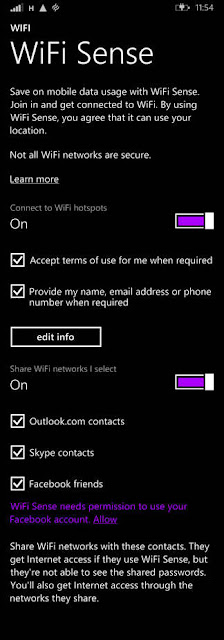
Wi-Fi Sense has been on Windows Phone since 8.1
Those contacts include their Outlook.com (nee Hotmail) contacts, Skype contacts and, with an opt-in, their Facebook friends. There is method in the Microsoft madness – it saves having to shout across the office or house “what’s the Wi-Fi password?” – but ease of use has to be teamed with security. If you wander close to a wireless network, and your friend knows the password, and you both have Wi-Fi Sense, you can log into that network.
Wi-Fi Sense doesn’t reveal the plaintext password to your family, friends, acquaintances, and the chap at the takeaway who's an Outlook.com contact, but it does allow them, if they are also running Wi-Fi Sense, to log in to your Wi-Fi. The password must be stored centrally by Microsoft, and is copied to a device for it to work; Microsoft just tries to stop you looking at it. How successful that will be isn't yet known.
"For networks you choose to share access to, the password is sent over an encrypted connection and stored in an encrypted file on a Microsoft server, and then sent over a secure connection to your contacts' phone if they use Wi-Fi Sense and they're in range of the Wi-Fi network you shared," the Wi-Fi Sense FAQ states.
Microsoft also adds that Wi-Fi Sense will only provide internet access, and block connections to other things on the wireless LAN: "When you share network access, your contacts get internet access only. For example, if you share your home Wi-Fi network, your contacts won't have access to other computers, devices, or files stored on your home network."
That sounds wise – but we're not convinced how it will be practically enforced: if a computer is connected to a protected Wi-Fi network, it must know the key. And if the computer knows the key, a determined user or hacker will be able to find it within the system and use it to log into the network with full access.
In theory, someone who wanted access to your company network could befriend an employee or two, and drive into the office car park to be in range, and then gain access to the wireless network. Some basic protections, specifically ones that safeguard against people sharing their passwords, should prevent this.
The feature has been on Windows Phones since version 8.1. If you type the password into your Lumia, you won’t then need to type it into your laptop, because you are a friend of yourself. Given the meagre installed base of Windows Phones it's not been much of a threat – until now.
With every laptop running Windows 10 in the business radiating access, the security risk is significant. A second issue is that by giving Wi-Fi Sense access to your Facebook contacts, you are giving Microsoft a list of your Facebook friends, as well as your wireless passwords.
In an attempt to address the security hole it has created, Microsoft offers a kludge of a workaround: you must add _optout to the SSID (the name of your network) to prevent it from working with Wi-Fi Sense.
(So if you want to opt out of Google Maps and Wi-Fi Sense at the same time, you must change your SSID of, say, myhouse to myhouse_optout_nomap. Technology is great.)
Microsoft enables Windows 10's Wi-Fi Sense by default, and access to password-protected networks are shared with contacts unless the user remembers to uncheck a box when they first connect. Choosing to switch it off may make it a lot less useful, but would make for a more secure IT environment.
Yes, wireless passwords can be written down and trivially passed along to others: we know network security shouldn't end at the Wi-Fi login prompt. But there's nothing like an OS automating the practice of blabbing passphrases to your mates, eh?

Updated to add

A Microsoft PR rep has been in touch about the headline, pointing out that when you share access to your network via Wi-Fi Sense, your contacts cannot share that access to other people. We know this.
The headline still stands because: imagine you and I are friends, and you visit my house. I tell you the Wi-Fi password, or you read it off the fridge. You type it into your Windows 10 device, and access to my network is shared via Wi-Fi Sense with your Windows 10 friends. Your friends now have access to my network, or in other words, my friend's friends now have access to the network.
And that's not good.
--------------------------

So far for the article from The Register.

By now I have installed several versions of Windows 10 Preview and the install process has changed over time - which is to be expected in a preview for testing of a product that is in active development. The last install(s) have asked questions about sharing Wi-Fi keys and I have declined. By the way, I am planning an extensive article about the install process of Windows 10.

I have declined to share Wi-Fi keys because I read the questions before I ACCEPT the default settings. These preselected default settings more often that not help Microsoft rather than the individual user; that at least is my experience with Microsoft software and products since I know them - and that is only since about the early 1980s.

As usual I welcome comments and suggestions right here in the blog. Thank you in advance.

Click here for a categorized Table Of Contents.