Showing posts with label Firefox. Show all posts
Showing posts with label Firefox. Show all posts
Sunday, June 17, 2018
Microsoft Edge and Google Chrome vs. Firefox
And again it is a customer's question that triggers me to write on this blog. The customer, thank you Steve H, asked simply "What is your opinion of Microsoft Edge vs Firefox?".
Here is my reply:
I strongly advise against using any web browser from Microsoft!
I collected some articles for your enjoyment that can give you some background for my various reasons. The articles quotes are in no particular sequence.
Test Link
Microsoft Edge introduces new security risks in Windows 10 https://betanews.com/2015/07/30/microsoft-edge-introduces-new-security-risks-in-windows-10/
IE, Edge Users at Risk from Serious Browser Security Flaw https://www.tomsguide.com/us/edge-ie-flaw-no-fix,news-24565.html
Windows 10 users ignore Edge for a reason https://betanews.com/2015/10/19/windows-10-users-ignore-microsoft-edge-for-a-reason/
Windows 10's new browser Microsoft Edge: Improved but also new risks https://blog.trendmicro.com/trendlabs-security-intelligence/windows-10s-new-browser-microsoft-edge-improved-but-also-new-risks/
Before you ask let me please preempt the question about Google Chrome vs. Firefox:
So far the main argument for Chrome was "it is faster". That was and is a phony argument that shows a deplorable lack of knowledge by the people using it. I'll give you an example.
Let's assume from the moment you click on a link to having the new web page in front of your eyes it takes all together 10 seconds.
90% of that time is needed to get the many little files that comprise a web page from the server these files reside on to your computer. We and/or the web browser have no way to make that faster.
The last 10% of the time is used by the web browser to "convert " the many little files into the picture we see; this process is called rendering. And that actually was where Chrome was faster.
MS Edge, the new version of Firefox and others have closed and/or eliminated that speed gap.
If Chrome were 30% faster in rendering the web page that would be only 0.3 seconds. Even in a direct A/B comparison we would not be able to experience that difference.
Additionally: The Chrome web store, from where you'd download any browser extension you might want or need, has been plagued by rogue extensions (only one example here, there are many more!). You may find way too late that the extension you downloaded and installed was rogue.
So for me it is clear:
No to Google Chrome and ANY Microsoft browser; IMHO the only well supported alternative is Firefox.
Stay safe.


Wednesday, January 25, 2017
WOT and the darned Purists at Mozilla
WOT vanished from many of my customers Firefox web browsers. I got some questions about that so here is my diatribe.
Mozilla, the maker of the Firefox web browser, is a European organization and over there they have a MUCH more narrow view of privacy issues. That is a double-edged sword.
WOT has a few month ago modified their end user license agreement to conform more closely to what the add-on all can do. No surprise to me that they collect some information on the things you search for and where you then click on. Google does that for years and nobody gives a hoot.
WOT finally made it public and Google and Mozilla went ballistic pulling the WOT extension (add-on) from their web sites. I am pretty livid but they don't listen to you or me.
WOT in the meantime has changed the wording of their end user license agreement and you again can get and run WOT in Goggle Chrome.
The Europeans don't seem to see the value of WOT for the normal non-geek end user and remain stubbornly on their negative stance towards WOT.
And Mozilla even tricks people into disabling or removing WOT - despite the fact that there is no even remotely similar functionality available anywhere else.
It is a shame but I have to tell my customers that they have to use Google Chrome for their web searches if they want the advantages of WOT, naturally with WOT and a good Ad-Blocker installed. These get installed from within the web browser, they are extensions.
Currently IMHO only Adblock Plus from adblockplus.org and uBlock Origin qualify as "good" ad-blockers.
Supposedly WOT and Mozilla are working on a resolution but that already takes many months.
If you have an affected computer and on the desktop is a folder named "Old Firefox Data" I may be able to resurrect WOT; but that definitely would be a trial and error thing that I can not guarantee. But at least I can do it remotely.
Stay safe.
Monday, November 21, 2016
NO to Google Chrome - Here is Why
Here is a quote from this article on The Register:
Why would a person want to willingly live with more risks than less?
This seems to me to be a good time to talk about the most common argument for Google Chrome, at least as far as I hear from my customers. The argument is "Yeah, but Chrome is faster". Mostly I get that from younger people or grandparents who quote family members or friends thereof.
That argument is "true" only to a laughably small effect that IMHO is totally irrelevant.
Every web page is made up of often numerous files; these files have to be transferred from the server computer of that web page into our computer. The time this transfer takes is solely dictated by the real life speed and performance of our Internet connection. Our computer and the web browser have next to no influence on that transfer.
Only after all the files that comprise the web page are on our computer the web browser can begin to build the visible web page on the screen. Yes, in doing this Google Chrome is faster than other browsers but this is maybe 10% of the total time it takes from us clicking on a link to the web page appearing on our screen.
Let me do the math for an extremely slow example: Assumed it takes 10 seconds from click to visible page (which is quite long!). 90% of this time is waiting for the transfer of the file(s), that is 9 out of 10 seconds; only 10% (equals 1 second) is what the browser takes to actually do it's job of giving us something to look at. Even if Google Chrome were 20% faster than another browser that would amount to being 0.2 seconds faster over all. That difference is well below what humans can perceive!
My point is: "Faster" is by no means "better"!
As usual I welcome comments and suggestions right here in the blog. Thank you in advance.
Stay safe.
Chrome leads the browser pack with 504 reported vulnerabilities followed by Internet Explorer with 289 and Firefox with 171. Some 1035 flaws were reported across all browsers including Opera and Safari, up from 728 in 2013."Reported vulnerabilities" are in layman's terms known weaknesses in the program code of the web browser that have been or could eventually be used to hack through a given web browser into computers.
Why would a person want to willingly live with more risks than less?
This seems to me to be a good time to talk about the most common argument for Google Chrome, at least as far as I hear from my customers. The argument is "Yeah, but Chrome is faster". Mostly I get that from younger people or grandparents who quote family members or friends thereof.
That argument is "true" only to a laughably small effect that IMHO is totally irrelevant.
Every web page is made up of often numerous files; these files have to be transferred from the server computer of that web page into our computer. The time this transfer takes is solely dictated by the real life speed and performance of our Internet connection. Our computer and the web browser have next to no influence on that transfer.
Only after all the files that comprise the web page are on our computer the web browser can begin to build the visible web page on the screen. Yes, in doing this Google Chrome is faster than other browsers but this is maybe 10% of the total time it takes from us clicking on a link to the web page appearing on our screen.
Let me do the math for an extremely slow example: Assumed it takes 10 seconds from click to visible page (which is quite long!). 90% of this time is waiting for the transfer of the file(s), that is 9 out of 10 seconds; only 10% (equals 1 second) is what the browser takes to actually do it's job of giving us something to look at. Even if Google Chrome were 20% faster than another browser that would amount to being 0.2 seconds faster over all. That difference is well below what humans can perceive!
My point is: "Faster" is by no means "better"!
As usual I welcome comments and suggestions right here in the blog. Thank you in advance.
Stay safe.
Saturday, August 8, 2015
Windows 10 - Better Instructions to Make it "SAFE"
After writing the previous long, long article about how to make Windows 10 running without the glaring privacy issues I discovered on a forum a link to a MUCH better organized article with visual examples for everything from installation to changing the relevant settings.
You find it here: https://fix10.isleaked.com/
I thank the author(s) of this web page; GREAT work!
As usual I welcome comments and suggestions right here in the blog. Thank you in advance.
Click here for a categorized Table Of Contents.
Windows 10 Settings - What I Recommend
Please click this link if you are looking for general information on Windows 10.
If you absolutely do not mind to be followed by "Big Brother" then please do not read the remainder of this article, you are excused and may leave.
By now I have decided to recommend to my customers NOT to upgrade to Windows 10. There are way too many IMHO serious privacy issues that go along with a so called Microsoft account.
In the following I will give some tips on how to remedy at least some or much of that messy situation. For every instance of something I deem in need of correcting or changing I will preface the paragraph with "Gripe:".
Because virtually all of my customers work on the desktop and use a mouse and a keyboard all the following step by step instructions are for desktop mode only.
Immediately after upgrading to Windows 10 your computer will work quite differently than it did before the upgrade.
Gripe:
If you gave the system on first start your email address Microsoft has created on their servers the storage for an immense wealth of information about you that Win10 and it's programs will collect from and about you; and that besides the fact that every email address will have it's unique "advertisement ID" assigned. Guess what that will be used for!
If you want to change your inadvertently created Microsoft Account back into a normal, local account then:
- Right click on the Start button
- Open Control Panel
- Click Settings
- Click ====================to be finished
Gripe:
Synchronizing personal settings between various computers could under certain circumstances be a convenience. But some of us don’t want the same settings on all of our various Win10 computers. Just imagine using Win10 on your “old” keyboard/mouse computer and on a tablet; ARGGHH!
Plus: My settings are my personal preference and are none of Microsoft's business! Obviously I am way too old for that brave new world where everything is made public! If you are like me here is how to turn synching off:
- Right click on the Start button
- Open Control Panel
- Click Settings
- Click Accounts
- Click Sync your settings
- Turn OFF Sync settings to disable synchronizing
Gripe:
Microsoft Edge, the new web browser, will be the default for all things Internet. You should set that back to Firefox following these steps:
- Right click on the Start button
- Open Control Panel
- Click Default Programs
- Click on "Set your default programs"
- You should see a list of installed programs
- Find and highlight the entry for Firefox
- Click on "Set this program as default" (my cursor points to it)
- Click OK to close the window

Gripe:
System Protection is the Win10 name for the feature that creates Restore Points. This is turned off after the upgrade on many systems! It is by no means a good backup system but still better than nothing. Here is how to turn it on again:
- Right click on the Start button
- Open Control Panel
- Click System
- In the left sidebar click System protection
- Highlight your system disk C:
- Click Configure (see screen shot)

8. Click OK and OK to close all windows

Gripe:
Especially important to users of laptops computers are Wi-Fi-credentials
A new Win10 feature — WiFi Sense (online FAQ) — has generated more than its share of controversy. Just read what well renowned security researcher Brian Krebs has has to say about it in a recent column.
Simply said WiFi Sense allows all your Facebook friends, Outlook and Skype contacts to automatically sign in to your WiFi router when they are in range; likewise you can use their WiFi network as soon as you are in range of their router. In short, it “blabs” access to your WiFi network to numbers of people who you might not know well enough. And that feature is turned ON by default! Here is how to turn it off:
- Right click on the Start button
- Open Control Panel
- Click Settings
- Click Network & Internet
- Click Wi-Fi.
- Scroll past your wireless networks and click Manage Wi-Fi settings.
- Turn off Connect to suggested open hotspots and
- Turn off Connect to networks shared by my contacts.
Gripe:
Simply said, I hate Cortana, the so-called “digital assistant” in Win10.
My wife and my best friend may know a lot about me that you don't know and likely even don't want to know. The NSA, Apple and now Microsoft want to know more about every Apple or Win10 user then we want to know about ourselves.
The End User License Agreement (EULA) for Win10 clearly states that Cortana has the ability to collect and use various types of personal information, including your location, calendar data, and programs (called "apps") you use. Cortana collects information about your choice of music, alarm settings, what you view and purchase online, your Bing search history, your use of other Microsoft services, and can even use the camera and microphone of the computer. In short, it is ALWAYS listens when the computer is on. Remember, practically all laptop computers have a microphone and a camera.
This sort of always on data collection worries me deeply; 1984 anyone?
Here is a decent PC World article explaining how to disable Cortana. And don't forget additionally and separately to disable Cortana in the new Edge browser, even if you don't use it!
Remember, Big Brother is always listening, always watching.
Gripe:
Since Microsoft announced that the upgrade to Windows 10 will be free, I have been waiting for the catch. And, surprise, it's very first installment comes with the ubiquitous game of Solitaire.This popular app is included with the new OS, but it includes advertising. To remove the ads, you have to pay a monthly subscription, as reported in a Business Insider story.
Currently I do not know of a hack to get around this.
Just do not go into the trap of recurring payments. There are many free alternatives on the internet.
Gripe:
Along with forced updates, Win10 also includes — again, on by default — the option to share patches with other computers on your local network or the Internet; this is called peer-to-peer updating. You might want to disable update sharing.
There are serious concerns that attackers might find a way to inject malicious code into the process; many internet connections are metered and with the almost 3GB download size of Win10 you can easily run over your limit and that costs dearly.
You want to disable peer-to-peer updating obtain patches only directly from Microsoft? Here is how:
- Right click on the Start button
- Open Control Panel
- Click Settings
- Click Update & Security
- Click windows Update (it is no longer in the Control Panel!)
- Select Advanced Options
- Click Choose how updates are delivered
- Turn Update Sharing OFF
So much for today. This article is meant to be continued as more details become available.
As usual I welcome comments and suggestions right here in the blog. Thank you in advance.
Click here for a categorized Table Of Contents.
Thursday, March 12, 2015
2015-03-12 WBKV Talking Points (March 12 2015)
Superfish bug on some Lenovo laptops is a real risk:
A test for Superfish is here, removal instructions are here.
Firefox vers. 36.0.1 has protection against SF, vers. 37 will further improve certificate checking!
Confirmed sensation: Microsoft will allow all Win 7 & 8 users to upgrade to Win10 for free – for one year (only?). But then the licensing will kick in? A rented operating system? Home user be careful! Microsoft does not give anything away for free; that is the first concrete step to get us all to accept a licensing model, that means yearly payments. This way Microsoft will in the medium and long term make oodles of money more than by selling the software.
More dangerous bugs in Adobe Flash Player! Currently (as of March 12 2015) officially released version is 16.0.0.305! The catch: Many fake updates around! Mostly the user is tricked to download and install a fake plugin that then installs a key logger to collect log in info & passwords. User beware!
Scam phone calls: Microsoft does not even know that we exist. MS's own advice:
Have your DNS settings been tampered with? Test here (but know what is correct…)
Adobe's cash-less bug bounty program: Can it ever work?
Symantec splitting security (Norton) from storage business. The beginning of the end (like HP)?
FREAK bug (low quality encryption): Check your web browser here.
News March 12 2015: Fixed with this month's batch of updates for Windows
As usual I welcome suggestions and comments right here in the blog.
Click here for a categorized Table Of Contents.
A test for Superfish is here, removal instructions are here.
Firefox vers. 36.0.1 has protection against SF, vers. 37 will further improve certificate checking!
Confirmed sensation: Microsoft will allow all Win 7 & 8 users to upgrade to Win10 for free – for one year (only?). But then the licensing will kick in? A rented operating system? Home user be careful! Microsoft does not give anything away for free; that is the first concrete step to get us all to accept a licensing model, that means yearly payments. This way Microsoft will in the medium and long term make oodles of money more than by selling the software.
More dangerous bugs in Adobe Flash Player! Currently (as of March 12 2015) officially released version is 16.0.0.305! The catch: Many fake updates around! Mostly the user is tricked to download and install a fake plugin that then installs a key logger to collect log in info & passwords. User beware!
Scam phone calls: Microsoft does not even know that we exist. MS's own advice:
- If anyone calls you and claims to be in any way affiliated with Microsoft IT IS A SCAM!
- Do not purchase any software or services.
- Ask if there is a fee or subscription associated with the “service.” If there is, hang up.
- Never give control of your computer to a third party unless you can confirm that it is a legitimate person you personally know and trust and/or are already a customer of.
- Never provide your credit card or financial information to someone claiming to be from Microsoft tech support.
- Take the caller’s information down and immediately report it to your local authorities.
Have your DNS settings been tampered with? Test here (but know what is correct…)
Adobe's cash-less bug bounty program: Can it ever work?
Symantec splitting security (Norton) from storage business. The beginning of the end (like HP)?
FREAK bug (low quality encryption): Check your web browser here.
News March 12 2015: Fixed with this month's batch of updates for Windows
As usual I welcome suggestions and comments right here in the blog.
Click here for a categorized Table Of Contents.
Thursday, December 5, 2013
Virus Check BEFORE Download
I assume that you know about Virustotal (VT). If you still don't now than I am at a loss of words- which rarely if ever happens to me. But enough of my puny attempts on being funny.
With VT you can check any reasonably sized file (up to 64MB) that already is stored on your computer for viruses. What if you want to check a file for viruses before you actually download it?
If you use a web browser other than Internet Explorer you could install an extension.
- In Mozilla Firefox you can install the VTzilla extension.
- In Google Chrome you can install the VTchromizer extension.
- In Opera you can install the VTopera extension.
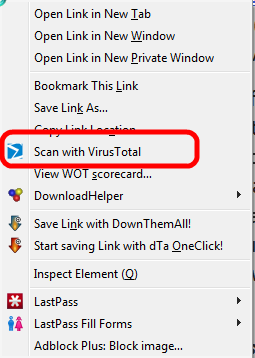
VT will upload and test the file in it's usual manner and presto you have a good idea whether the file in question is "clean".
If you feel challenged by the idea to install an extension in Firefox don't despair, I can do that remotely.
As usual I welcome suggestions and comments right here in the blog.
Click here for a categorized Table Of Contents.
Click here for a categorized Table Of Contents.
Tuesday, September 17, 2013
Video vs. Privacy
A few times customers have asked why they can't watch videos on some web sites. Mostly they suspect Firefox to be the reason because they can see the video clip in Internet Explorer or Google Chrome just fine.
It is not Firefox that blocks the videos, it is something that I install in Firefox that causes this effect. Please bear with me.
Regularly I advise my customers to use Firefox to "go to the Internet", that is for every day web browsing. And I set Firefox up in a way that
- Advertisements from commercial advertisement servers are blocked.
- Google and Yahoo search results warn from known potentially dangerous web sites.
- Google's pervasive tracking is minimized
- Facebook's pervasive tracking is minimized
- Local weather conditions are displayed without installing PUP software.
(PUP stands for Potentially Unwanted Programs; see Wikipedia about mal-ware.)
Numbers 3 and 4 above are blocking this "secret" transfer of information about what you do on the Internet. Quite a few web sites are programmed in a way that the video is only shown when this communication to the third parties has happened!
All the aforementioned leaves us to decide:
Is this video more important to me than my privacy? (See below.)If you are NOT on Facebook related content mostly the blocking effect comes from the program behind above number 3; it is called Google Disconnect. When Google Disconnect is active (when you are on a web page that wants to send information to Google) you see in your browser's address bar a red dot with Google's "g" in it. If Facebook Disconnect is active you see a blue dot with Facebook's "f" in it. Here is what it looks like (look for the red oval):

And naturally Google (and/or Facebook) will know about your interest in this video.
As usual I welcome suggestions and comments right here in the blog.
Click here for a categorized Table Of Contents.
Monday, January 14, 2013
BIG Trouble With Java
Have you read or heard about the government recommending to disable Java?
Are you concerned about these warnings?
Or are you wondering if the warnings apply to you?
If you answered "No" to any of the questions above then please wake up, be concerned and do what needs to be done.
A wee bit of background information: Java is a programming language that makes programs largely computer independent. That means any program written in Java should run an any given computer.
The number of viruses written in Java has recently exploded. And some very nasty viruses are among these newcomers.
The software system that has to be installed on your computer to make Java "work" has found to be faulty; thus it endangers most computers.
On ALL my customer's computers Java is installed since it is required for some web sites and here especially for some web sites with games.
Java has to be turned OFF in all web browsers now!
If you want to avoid Java running in any other web browser and if you have diligently kept Java up-to-date you can follow the instructions in the first three paragraphs of this article. "Diligently kept up-to-date" means you have Java version 7 Update 17 installed (per March 4th 2013).
Are you concerned about these warnings?
Or are you wondering if the warnings apply to you?
If you answered "No" to any of the questions above then please wake up, be concerned and do what needs to be done.
A wee bit of background information: Java is a programming language that makes programs largely computer independent. That means any program written in Java should run an any given computer.
The number of viruses written in Java has recently exploded. And some very nasty viruses are among these newcomers.
The software system that has to be installed on your computer to make Java "work" has found to be faulty; thus it endangers most computers.
On ALL my customer's computers Java is installed since it is required for some web sites and here especially for some web sites with games.
Java has to be turned OFF in all web browsers now!
If a web page requires Java you better stay away from this web site, especially sites with any kind of games! Well, if it is a web site from a company, college or public administration that you have good reason to trust then you can enable Java in Firefox (or Google Chrome) and only for this web site.
You can follow the
instructions in this
article to easily disable any Java programs (called Java applets) running
in Firefox or Google Chrome.
If you want to avoid Java running in any other web browser and if you have diligently kept Java up-to-date you can follow the instructions in the first three paragraphs of this article. "Diligently kept up-to-date" means you have Java version 7 Update 17 installed (per March 4th 2013).
Some related background information is in this article.
Update 1/21/2013: here a quote from The Register:
Update 1/21/2013: here a quote from The Register:
Separately Trend Micro warned earlier this week that the latest Java security update may be incomplete. The update attempts to address two security bugs but fails to quash one of these completely.
The security firm advises users to avoid Java where possible, particularly as a plugin to their browsers, where the main danger arises. Users obliged to use Java, perhaps on the small percentage of sites which require it or for work-related reasons, can minimize their exposure by disabling Java on their main day-to-day browser and using a secondary browser with an enabled Java plugin solely for those sites. This tactic for minimizing exposure to Java-based attacks is advocated by many security firms.
As usual I welcome comments and suggestions right here in the blog. Thank you in advance.
Wednesday, October 5, 2011
Browser Toolbars - More Than a Nuisance
The following applies generally to ALL tool bars, no matter how well known the name of the company is where the toolbar originates from. I chose the Yahoo! toolbar only because it is so pervasive and comes in many disguises.
Over and over again I find the nasty (at least!) Yahoo! Toolbar on customer's computers. When I ask the rhetorical question "Who installed that?" mostly I get sort of a blank stare and the reply "I have no idea".
And I trust that the customer really has no idea. But then, how did it happen? Two possibilities:
1st possibility:
You installed a new program or an update to a program you have been using for quite some time. These install processes usually ask a lot of tedious questions and we have gotten used to "clicking through", that is to quickly click on the button for the positive, confirming choice. We want to get done with this, don't we?
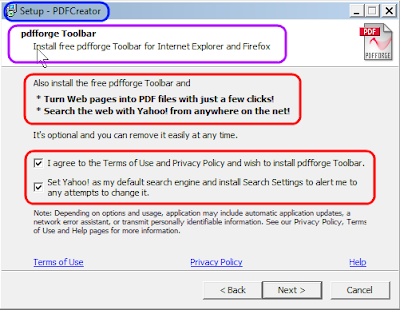
Take the time to really read and understand what these little windows say and act accordingly. The correct action here would be to uncheck the two check boxes by "I agree..." and "Set Yahoo!...". Simple enough one would think...

Do you really understand what Yahoo! offers here? We have to sort of translate the words "...Firefox for Yahoo!". Yahoo! does not have any real updates to Firefox; we get those only from Mozilla.
Yahoo! has a slightly modified version of Firefox that locks you into some Yahoo! services, especially their search engine. Once you have the Yahoo! version installed there is no way to get rid of the "Yahoo! Toolbar" and their "search enhancements" besides re-installing Firefox from a clean installer.
Over and over again I find the nasty (at least!) Yahoo! Toolbar on customer's computers. When I ask the rhetorical question "Who installed that?" mostly I get sort of a blank stare and the reply "I have no idea".
And I trust that the customer really has no idea. But then, how did it happen? Two possibilities:
1st possibility:
You installed a new program or an update to a program you have been using for quite some time. These install processes usually ask a lot of tedious questions and we have gotten used to "clicking through", that is to quickly click on the button for the positive, confirming choice. We want to get done with this, don't we?
This "clicking though" is the culprit. Right in the middle of all these
windows is one window that may look similar to this example:

As you can see the example is from an installation of PDF-Creator. And it asks us for permission to install the "pdfforge Toolbar". Only the text by the second preselected check box gives us a hint as to what toolbar this really is. "Set Yahoo! as my ..." gives it away, it's my friend the Yahoo! toolbar in one of it's many disguises!
Do you know a rat when you smell a rat?
This is a typical example of how we get tricked everywhere and all the time to do the wrong thing. We have "trained" ourselves to click through and the people out there know it and use it to our detriment - if we let them.
2nd possibility:
Just a few minutes ago I did some researching for a specific issue in the Thunderbird email program that many of my customers and I myself use. In a legitimate related article in the Thunderbird support materials was a link to Yahoo! Help. I followed that link and ended up with this (partial) window:
Just a few minutes ago I did some researching for a specific issue in the Thunderbird email program that many of my customers and I myself use. In a legitimate related article in the Thunderbird support materials was a link to Yahoo! Help. I followed that link and ended up with this (partial) window:

Do you really understand what Yahoo! offers here? We have to sort of translate the words "...Firefox for Yahoo!". Yahoo! does not have any real updates to Firefox; we get those only from Mozilla.
Yahoo! has a slightly modified version of Firefox that locks you into some Yahoo! services, especially their search engine. Once you have the Yahoo! version installed there is no way to get rid of the "Yahoo! Toolbar" and their "search enhancements" besides re-installing Firefox from a clean installer.
Do you know a rat when you smell a rat?
Here Yahoo! takes advantage of the fact that most people don't know enough about their computer and seemingly are afraid to ask before they click on stuff like this.
Why is all this important you ask?
Here you have it directly from the horses mouth:
Yahoo! Toolbar "Causes excessive CPU usage"
Ask.com Toolbar "May cause redirected searches, failed keyword searches and/or the "File not found" error..."If you want it more technical see Mozilla's own list of problematic extensions for more similar goodies.
As usual I welcome comments and suggestions right here in the blog. Thank you in advance.
Click here for a categorized Table Of Contents.
Click here for a categorized Table Of Contents.
Friday, September 9, 2011
Dangerous Downloads - Even From Well-Known Sites
Why didn't I have the idea to write about that earlier?
For the longest time I don't use cnet's Download.com web site anymore. Why? Because they force-feed a "download manager" program to your computer whose sole purpose seems to be to offer additional gunk like toolbars, search helpers and so on. Okay, I understand that cnet needs to make money but that is just too much, for me at least.
If you follow this blog you have seen me referring to TechSupportAlert before; this web site is for me the source for finding information about free software and that's the reason that I am subscribed to their newsletter. This newsletter in turn lead me to a very interesting blog I had not heard of before. The currently newest post there is titled "Dangerous Downloads on Legitimate Websites & Search Engines".
Using cnet's download.com web site in his example the author describes in great detail how easily unsuspecting and uncritical users can be mislead to install an unwanted download manager and then to download exactly the wrong program.
The example is quite extensive but IMHO it's more than worth to really read the details.
What is described in "Dangerous Downloads on Legitimate Websites & Search Engines" is generally but in slightly different form more or less applicable to many, many so called "download" web sites out there. Common sense and diligence in reading, really reading these web pages is called for. We are never too old to learn, aren't we?
Or be consequent and heed all warnings from WOT (Web Of Trust); you did install WOT in the meantime, didn't you? If not please read the article on Siteadvisor being incompatible with Firefox 5 and up on this blog.
As usual I welcome comments and suggestions right here in the blog. Thank you in advance.
Click here for a categorized Table Of Contents.
.
Thursday, July 7, 2011
Siteadvisor Incompatible With Firefox 5
Currently I get many questions about McAfee Siteadvisor not working in Firefox.
If you have updated to Firefox 5.0 nobody can help you but McAfee; their Siteadvisor is not compatible with the new version of Firefox anymore.
An excellent example how a big company, here McAfee, ruins an originally outstanding utility and makes it unusable.
An IMHO decent replacement would be Web Of Trust, WOT for short. You can check out WOT here. Please read the descriptions first!
If you want to install WOT please uninstall/remove Siteadvisor first. Here is how:
As usual I welcome comments and suggestions right here in the blog. Thank you in advance.
Click here for a categorized Table Of Contents.
.
If you have updated to Firefox 5.0 nobody can help you but McAfee; their Siteadvisor is not compatible with the new version of Firefox anymore.
An excellent example how a big company, here McAfee, ruins an originally outstanding utility and makes it unusable.
An IMHO decent replacement would be Web Of Trust, WOT for short. You can check out WOT here. Please read the descriptions first!
If you want to install WOT please uninstall/remove Siteadvisor first. Here is how:
- Open the Control Panel
- In XP open Add/Remove Programs, in Vista or Win 7 open Programs and Features
- Find and highlight McAfee Siteadisor
- In XP click Remove, in Vista or Win 7 click Uninstall
As usual I welcome comments and suggestions right here in the blog. Thank you in advance.
Click here for a categorized Table Of Contents.
.
Saturday, June 18, 2011
Set-Up Job
Edited March 24, 2018: Problems with Windows 10 "Feature Updates" (twice every year!)Edited March 9, 2016: Block Windows 10 from snooping and Picasa discontinued
Every brand name computer you buy in a store or on the internet brings with it three areas of concern: Gunk software, missing updates and costly and questionable "security" software. I'll address these three concerns separately and then offer my suggestion to deal with these concerns before they become a problem.
1. Gunk software: Brand name computers come with some (and sometimes a lot of) "gunk" software pre-installed. You'll find anything from trial versions of programs that will cost additional money to outright spyware and even back door programs.
It goes without saying that this gunk should be removed before you even connect the computer for the first time to the internet.
I even consider programs like Microsoft's Internet Explorer and MS's email programs and Microsoft Office trial versions to be "gunk". By virtue of the very technology used TO WRITE them (called ActiveX) they will enable a large percentage of malicious software to be executed on your computer. Just by using alternative programs that were built without ActiveX technology you avoid all this malicious ActiveX software automatically.
Microsoft's Office is by now always a trial version; it will cost you additionally about $100 to $150 depending on where you buy the product key that you will need to use MS Office for more than 60 days.
There is a commercial program being offered to do this removing of gunk software but the computer manufacturers regularly modify what they pre-install and the names of what they install. Thus a program attempting the clean-up will almost always be outdated and work only incompletely. Or it will offer you a list of installed non-Microsoft programs and ask for your decision on what to remove; and you bought the program because you don't know that in the first place!
2. Missing Updates: The brand name computer you buy was designed and originally configured months ago, sometimes many months ago. For good reasons software companies like Microsoft, Adobe and others regularly release security relevant updates. Microsoft used to do that up to Windows 7 on a monthly schedule; since Windows 8 MS updates more or less continually.
All these mandatory updates from when your computer model was designed until when you bought it are missing. That mostly is a lot to download and install. These downloads should be done in a safe environment to protect the machine from eventual hack attacks before all required updates are installed.
Edit March 2018: Microsoft has a new method to upgrade Windows 10 every six months. These upgrades are HUGE and can take many hours to download and run. IMHO it is imperative to supervise this process and to know what to do (or not to do) when problems arise.
There sheer size and the volume of work to install them is the main reason that I recommend to buy computers with SSD drives; with HDD drives these big updates just take too long!
3. "Security" Software: All of the commonly preinstalled anti virus programs or "security systems" will in the future cost additional money. Some are considerable, clearly perceivable heavy workloads making your computer slow; see this article for real life experiences with security suites slowing down perfectly well working computers.
Some others are not always working correctly and/or proving their questionable quality by not
uninstalling correctly or quietly stopping to work altogether.
After seemingly error-free uninstalling of some security suites I have found that they left sometimes parts of their software still running. Due to the nature of what these programs have to do these left-over drivers and orphaned processes can wreak havoc.
This clearly calls for a knowledgeable human doing the uninstalling and checking for left-overs.
My Solution: I offer a set-up job for new computers; I even offer a fixed price if I can do it at my house because I can overlap some of the time with answering my emails and other activities.
This set-up job includes:
All this can take many hours and will seriously confuse the normal "non geek" computer user.
If I can do the Set-Up job at my house I offer it for a flat fee! Should you be interested please send a personal email to ejheinze_at_gmail_dot_com; thank you.
As usual I welcome comments and suggestions right here in the blog. Thank you in advance.
Stay safe!
Every brand name computer you buy in a store or on the internet brings with it three areas of concern: Gunk software, missing updates and costly and questionable "security" software. I'll address these three concerns separately and then offer my suggestion to deal with these concerns before they become a problem.
1. Gunk software: Brand name computers come with some (and sometimes a lot of) "gunk" software pre-installed. You'll find anything from trial versions of programs that will cost additional money to outright spyware and even back door programs.
It goes without saying that this gunk should be removed before you even connect the computer for the first time to the internet.
I even consider programs like Microsoft's Internet Explorer and MS's email programs and Microsoft Office trial versions to be "gunk". By virtue of the very technology used TO WRITE them (called ActiveX) they will enable a large percentage of malicious software to be executed on your computer. Just by using alternative programs that were built without ActiveX technology you avoid all this malicious ActiveX software automatically.
Microsoft's Office is by now always a trial version; it will cost you additionally about $100 to $150 depending on where you buy the product key that you will need to use MS Office for more than 60 days.
There is a commercial program being offered to do this removing of gunk software but the computer manufacturers regularly modify what they pre-install and the names of what they install. Thus a program attempting the clean-up will almost always be outdated and work only incompletely. Or it will offer you a list of installed non-Microsoft programs and ask for your decision on what to remove; and you bought the program because you don't know that in the first place!
2. Missing Updates: The brand name computer you buy was designed and originally configured months ago, sometimes many months ago. For good reasons software companies like Microsoft, Adobe and others regularly release security relevant updates. Microsoft used to do that up to Windows 7 on a monthly schedule; since Windows 8 MS updates more or less continually.
All these mandatory updates from when your computer model was designed until when you bought it are missing. That mostly is a lot to download and install. These downloads should be done in a safe environment to protect the machine from eventual hack attacks before all required updates are installed.
Edit March 2018: Microsoft has a new method to upgrade Windows 10 every six months. These upgrades are HUGE and can take many hours to download and run. IMHO it is imperative to supervise this process and to know what to do (or not to do) when problems arise.
There sheer size and the volume of work to install them is the main reason that I recommend to buy computers with SSD drives; with HDD drives these big updates just take too long!
3. "Security" Software: All of the commonly preinstalled anti virus programs or "security systems" will in the future cost additional money. Some are considerable, clearly perceivable heavy workloads making your computer slow; see this article for real life experiences with security suites slowing down perfectly well working computers.
Some others are not always working correctly and/or proving their questionable quality by not
uninstalling correctly or quietly stopping to work altogether.
After seemingly error-free uninstalling of some security suites I have found that they left sometimes parts of their software still running. Due to the nature of what these programs have to do these left-over drivers and orphaned processes can wreak havoc.
This clearly calls for a knowledgeable human doing the uninstalling and checking for left-overs.
My Solution: I offer a set-up job for new computers; I even offer a fixed price if I can do it at my house because I can overlap some of the time with answering my emails and other activities.
This set-up job includes:
- De-gunking the computer (manually and completely removing unwanted, potentially risky programs and all kind of trial software)
- Updating the operating system and all other software in a safe environment.
- Installing and updating (or enabling) free security software (currently Microsoft Security Essentials on Win7, enabling Windows Defender on Windows 8.x and Windows 10)
- Edit March 2016: On Windows 7, 8.1 and 10 I install a free program that blocks Windows from reporting back to Microsoft what you do and how you do it (I call that spying!).
Since about November 2015 Microsoft has begun to "enhance" Windows 7 and 8.1 with some of the reporting features of Windows 10. That is called progress... - Installing Mozilla's Firefox web browser, my choice as alternate web browser including the best available advertisement blocker and a utility that warns you if search results would lead to known malicious web sites
- Installing Mozilla's Thunderbird email client if so desired including the best available advertisement blocker
- Installing Libre Office (Microsoft file compatible office software)
- Installing Google Earth
- Installing Picasa (photo management and editing program) if so desired;
Edit March 2016: Only upon request; the Web Album Service was discontinued by Google;
you can keep using Picasa to organize, edit a.s.o. locally stored pictures just as in the past; there will be no more program updates for Picasa (the current version is VERY stable!).
- Installing an easy to use screen shot program (so you can send me a picture of the pesky error message that is bugging you)
- Installing a remote control program that enables me to give you remote support
- Replacing the always out-of date preinstalled version of Adobe Reader with a free, faster and safer alternative called PDF-XChange Viewer
- Installing a virtual PDF printer; it creates PDF files from anything you can print. You don't want to email a job application as a Word document that anybody could modify!
- Establishing desktop icons leading directly to Documents, Downloads, Pictures and so on.
- On Windows 8 and Windows 10 install a proven, small program that starts the computer directly into desktop mode and establishes a Start button and a Programs menu like we have been used to since Windows XP (that is since 2002)!
All this can take many hours and will seriously confuse the normal "non geek" computer user.
If I can do the Set-Up job at my house I offer it for a flat fee! Should you be interested please send a personal email to ejheinze_at_gmail_dot_com; thank you.
As usual I welcome comments and suggestions right here in the blog. Thank you in advance.
Stay safe!
Monday, May 30, 2011
Windows 7 - Everything Else Is FREE
I read a two part article series on the WindowsSecrets blog written buy Woody Leonhard. If you follow my blog you have read about WindowsSecrets before. I like the skinny of these two articles so much that I "stole" their text from the second part of the article to post it here, with some textual changes and additions to enhance the readability and understanding by non-geeks, IMHO at least.
Most if not all of the software that stores will try to sell you when you buy a new computer does not need to cost any additional money. But since stores and dealers live from selling you something they will try - and sometimes really hard. The most often applied method to up-sell an unsuspecting not-too-PC-literate customer is good old FUD, Fear, Uncertainty, Doubt. The sales guys in some stores can scare the daylights out of you just to get you to buy some additional software.
The kicker is that if you steadfastly refuse these software add-ons they sometimes even will throw it in the bag anyway "because it's free"; stuff they five minutes ago wanted to charge you for! If my customers got any antivirus program in this manner I always tell them to give it as a gift to their best enemy.
If you buy a new PC with Windows7 Home Premium pre-installed then there is hardly anything else you need to pay money for besides your fast Internet connection.
Let me go into a few more details for the most commonly offered add-on packages. This first part is from the WindowsSecrets blog with some textual additions.
Office software: Almost all new brand name computers I have seen over the last 6 or 7 years came with some Microsoft Office package pre-installed.
When you just start to use these programs they will work for 30 or even 60 days. After that point in time you will have to buy a license from Microsoft or your favorite computer store. Depending on the version of MS Office the sales clerk talks you into that is anything between $100 and $300. Ka-ching says the cash register and sales guys in the store smile.
You don't need to pay for this! There are at least three packages with office programs around that will not cost you a single penny! They can read and write files in the commonly used Microsoft formats, at least for texts, spreadsheets and presentations.
Currently I favor LibreOffice; it covers 99% to 100% of what the average home user ever uses or needs; only in very "tricky" formatted text or spreadsheet files you will find some features that maybe are not 100% compatible; in this case the Help forum mostly has a workaround.
A category by itself: Google Earth just because it is such a great toy. Whether you want to check out a new vacation location before you book or just see the Kremlin or Tiananmen Square from the birds eye view, it is worth trying it. Even on average decent basic computers like I recommend to my customers it works very well; the speed of the Internet connection is much more important.
Photo Management and Editing: For the average home user Google's program Picasa IMHO is unbeatable. just watch it finding and removing the red rabbit eyes from the photos of your loved ones. And that for FREE! You can build albums with it, publish photos to the internet so the family members on the other side of the planet can see them and, and, and…
Web browser: If you are my customer or listen to me on WTKM then you know that I strongly favor Mozilla's Firefox web browser. Although quality and security wise Google's Chrome browser is a very serious contender as well.
Email Client: If you are my customer or listen to me on WTKM then you know that I strongly favor Mozilla's Thunderbird email client. I don't even know whether there is another alternative still around.
Should you require any other software and don't know where to begin to look for it, I will gladly help. For much if not most of what you may want to do on your computer there likely is a free solution available.
As usual I welcome comments and suggestions right here in the blog. Thank you in advance.
Click here for a categorized Table Of Contents.
Most if not all of the software that stores will try to sell you when you buy a new computer does not need to cost any additional money. But since stores and dealers live from selling you something they will try - and sometimes really hard. The most often applied method to up-sell an unsuspecting not-too-PC-literate customer is good old FUD, Fear, Uncertainty, Doubt. The sales guys in some stores can scare the daylights out of you just to get you to buy some additional software.
The kicker is that if you steadfastly refuse these software add-ons they sometimes even will throw it in the bag anyway "because it's free"; stuff they five minutes ago wanted to charge you for! If my customers got any antivirus program in this manner I always tell them to give it as a gift to their best enemy.
If you buy a new PC with Windows7 Home Premium pre-installed then there is hardly anything else you need to pay money for besides your fast Internet connection.
Let me go into a few more details for the most commonly offered add-on packages. This first part is from the WindowsSecrets blog with some textual additions.
Antivirus: Microsoft Security Essentials is free and works for the average PC-user just as good as commercial products and often even better.
It runs totally unobtrusive in the background and it's work load balancing is so good that even on weaker older computers you hardly ever will recognize that it is running.
Even while it is scanning your machine you can still work with your computer; I don't know any other antivirus program that does that in such a graceful way.
And if it has to "talk" to you it speaks in clear, simple English; you don't need a college degree to understand what it's telling you.
Backup programs: Windows 7 backup isn't particularly neat or fancy, but it covers the bases automatically and (almost always) works well.
I strongly recommend to invest a little bit of time to learn the ins and outs; it's all right there in the Windows 7 Help and Support displays.
And I strongly recommend to buy an external disk drive to keep the backups outside of the computer. A backup on the C: drive is no backup at all, at best it's a fig leaf.
Defragmenters: Windows 7 defragments your drives automatically (once a week by default), and you don't need to lift a finger or spend a penny. But you can set it to your liking, like have it defragment daily at a certain time - or only manually started. The latter then very soon gets forgotten anyway.
Disk Partitioning: Windows 7 does all you'll need!
No, Windows 7 doesn't have a full-fledged disk-partition manager. But it does everything with partitions that most people need (if you need it at all!) -- and it gets the job done without messing up your hard drive. Which is more than I can say for some third-party disk-partition managers.
Where is Windows 7's partition manager you ask? In an administrator account, click Start and in the Search box type "Administrative Tools", without the quotes naturally. In the resulting window double-click Computer Management. In the left panel, under Storage, click Disk Management.
You will see all your disk drives and the partitions on the disk drives.
Again, I strongly recommend to invest a little bit of time to learn the ins and outs; it's all right there in the Windows 7 Help and Support displays.
Registry Cleaners: Some do more harm than good.
I have never seen a real-world example of a Windows 7 machine that improved in any perceivable way after running a registry cleaner. Registry cleaners and Defragmenters may have been useful for Windows XP (before SP 2) and certainly were a good thing for Windows 98 and ME as long as these programs worked correctly - what sometimes they did not. With Windows 7 I think they're useless, if not worse than useless.
In my experience, working with hundreds of Windows 7 machines, I have never found a single Registry cleaner that caused any perceivable change in performance. The Registry is an enormous database, and all this cleaning really doesn't amount to much. It is like sweeping out one parking space in a parking lot the size of Texas.
Even Microsoft has abandoned its Registry cleaners. E.g. Windows Live OneCare (precursor to Microsoft Security Essentials) once included an online scanner and Registry cleaner.
(Disclaimer: I can not confirm this claim but usually Woody Leonhard is a dependable source of such information.)
Windows 7's Firewall works only one way, that is inbound.
Like its predecessors, the Windows 7 firewall only keeps outside threats from getting in — it is an inbound firewall. Outbound firewalls alert you when an unauthorized program attempts to send data out of your computer. At least that's the theory. In practice, many outbound firewalls bother you mercilessly with inscrutable warnings saying that obscure processes are trying to send out data.
If you simply click through and let the program phone home, you're defeating the purpose of the outbound firewall. On the other hand, if you take the time to track down every single outbound event warning, you might spend half your life chasing firewall snipes.
Some people think an inbound-only firewall is woefully inadequate. I think it's good enough for almost everybody. It certainly is big time good enough for the computers in my household.
It's surprising how much old advice isn't valid any more!So much for the part that was inspired by and partly copied from WindowsSecrets. Let me add a few categories that are not part of MS Windows.
Office software: Almost all new brand name computers I have seen over the last 6 or 7 years came with some Microsoft Office package pre-installed.
When you just start to use these programs they will work for 30 or even 60 days. After that point in time you will have to buy a license from Microsoft or your favorite computer store. Depending on the version of MS Office the sales clerk talks you into that is anything between $100 and $300. Ka-ching says the cash register and sales guys in the store smile.
You don't need to pay for this! There are at least three packages with office programs around that will not cost you a single penny! They can read and write files in the commonly used Microsoft formats, at least for texts, spreadsheets and presentations.
Currently I favor LibreOffice; it covers 99% to 100% of what the average home user ever uses or needs; only in very "tricky" formatted text or spreadsheet files you will find some features that maybe are not 100% compatible; in this case the Help forum mostly has a workaround.
A category by itself: Google Earth just because it is such a great toy. Whether you want to check out a new vacation location before you book or just see the Kremlin or Tiananmen Square from the birds eye view, it is worth trying it. Even on average decent basic computers like I recommend to my customers it works very well; the speed of the Internet connection is much more important.
Photo Management and Editing: For the average home user Google's program Picasa IMHO is unbeatable. just watch it finding and removing the red rabbit eyes from the photos of your loved ones. And that for FREE! You can build albums with it, publish photos to the internet so the family members on the other side of the planet can see them and, and, and…
Web browser: If you are my customer or listen to me on WTKM then you know that I strongly favor Mozilla's Firefox web browser. Although quality and security wise Google's Chrome browser is a very serious contender as well.
Email Client: If you are my customer or listen to me on WTKM then you know that I strongly favor Mozilla's Thunderbird email client. I don't even know whether there is another alternative still around.
Should you require any other software and don't know where to begin to look for it, I will gladly help. For much if not most of what you may want to do on your computer there likely is a free solution available.
As usual I welcome comments and suggestions right here in the blog. Thank you in advance.
Click here for a categorized Table Of Contents.
Tuesday, February 22, 2011
Firefox Does Not Show Adobe PDF Files
Recently I get many calls because PDF files don't show correctly in Firefox.
This is a known incompatibility between late versions of Adobe Acrobat Reader and Firefox. Here is what to do about it:
First you have to make sure you have Adobe Reader version X running. By the way, the X stands for the Roman numeral 10. As of this writing Adobe Reader's most current version is 10.0.1. You find the version number by opening Adobe Reader, clicking Help, About Adobe Reader. The version number is in the bottom left corner of the About window.
If you are on anything older than Acrobat Reader version 10 you should first download the latest version from a safe and fast download location for Adobe Reader like this one here. After the download you have to run the downloaded installer (or setup) program.
After the installation is done you have to do a simple setting in Firefox to avoid problems. In Firefox:
As usual I welcome comments and suggestions right here in the blog. Thank you in advance.
Click here for a categorized Table Of Contents.
This is a known incompatibility between late versions of Adobe Acrobat Reader and Firefox. Here is what to do about it:
First you have to make sure you have Adobe Reader version X running. By the way, the X stands for the Roman numeral 10. As of this writing Adobe Reader's most current version is 10.0.1. You find the version number by opening Adobe Reader, clicking Help, About Adobe Reader. The version number is in the bottom left corner of the About window.
If you are on anything older than Acrobat Reader version 10 you should first download the latest version from a safe and fast download location for Adobe Reader like this one here. After the download you have to run the downloaded installer (or setup) program.
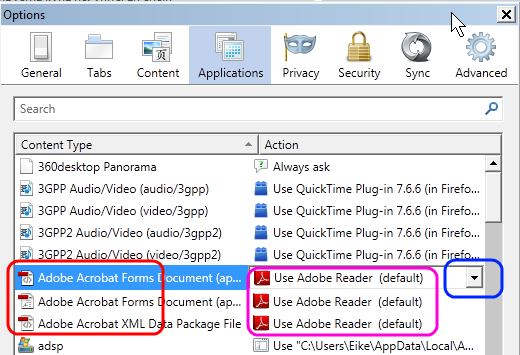
After the installation is done you have to do a simple setting in Firefox to avoid problems. In Firefox:
- Click Tools, Options, Applications.
- In the Options window:
- Find all entries for "Adobe Acrobat..." with a PDF icon (below marked red).
For every entry:
- on the right side click on the entry and then on the drop down arrow (below marked blue)
- and select "Use Adobe Reader (default)", below marked pink. - Click OK and all should be fine.
As usual I welcome comments and suggestions right here in the blog. Thank you in advance.
Click here for a categorized Table Of Contents.
Sunday, July 18, 2010
McAfee Siteadvisor Setup
McAfee seems to feel the heat, maybe generated by Microsoft Security Essentials?
McAfee’s IMHO very valuable Siteadisor service is increasingly being used to run with settings that help only McAfee and not the unsuspecting end user.
Here is a short tutorial on how I would set Siteadvisor’s options. This is based on the currently latest version of Siteadisor.
Click on the little vertical arrow to the right of the green (or grey) McAfee icon in the right bottom corner of the Firefox window.

Then click on Options and in the General tab set “Add color-coded highlighting…” to Yes.

In the Secure Search tab Un-check the check box by “Add Secure Search to…”.
I strongly suggest NOT to set Yahoo as the browser’s home page and NOT to use McAfee’s so called Secure Search as your browser’s default search engine.
Update July 18, 2010:
Just this moment I had to do remote support to help a customer who did not see the McAfee icon in the right bottom corner of the Firefox screen.
1. The status bar was turned off. Naturally you can’t see something that is being displayed there if the status bar is turned off. You turn it on here:

2. Almost every add-on in Firefox can be independently disabled or enabled. In this customer’s Firefox the McAfee Siteadvisor add-on was disabled. You can check and/or change that by clicking Tools, Add-ons. You get a window like this:
Highlight Extensions and find McAfee Siteadvisor. If the marked button reads Enable then it is disabled; click on Enable to do just that. You have to restart Firefox for the change to take effect.
End of Update July 18, 2010
As usual I welcome comments and suggestions right here in the blog. Thank you in advance.
Click here for a categorized Table Of Contents.
Tuesday, April 27, 2010
Firefox Add-Ons
Firefox as a web browser tries to stay close to the web standards. Many of us like to have added functionality in the browser. This is achieved by adding little programs to the browser that supply these functions integrated into the browser. Such a little program is called an Add-On (or Extension).
Usually I install on all my customer’s machines three extensions:
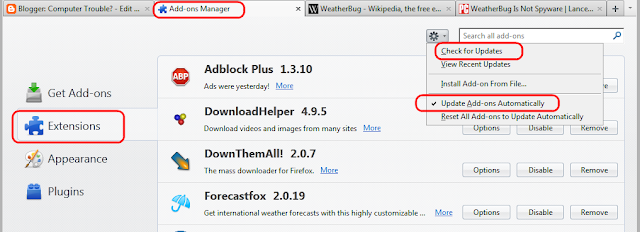
The Add-ons manager has a drop-down menu by the gear symbol; here you could manually check for updates. I usually just keep the check mark by "Update Add-ons Automatically".
These Add-ons need to be kept up-to-date just as the browser itself.
After you install an update to Firefox or just because Firefox thinks “it’s about time to check again” you may see (when you start Firefox) a square window that is listing some add-ons and asking you whether to "Check now for updates" or "Cancel" the process. Please allow the checking for updates.
In this context a warning is required: Although generally extensions supply added useful functionality they can interfere with Firefox, sometimes even seriously interfere! If you want to experiment with extensions please at least refer to Mozilla's page about blocked add-ons and the page about slow performing add-ons.
Here is another article with much more detail about what else to update.
As usual I welcome comments and suggestions right here in the blog. Thank you in advance.
Click here for a categorized Table Of Contents.
Usually I install on all my customer’s machines three extensions:
- Forecastfox shows the current weather conditions in the menu bar of the browser window.
I instal this to discourage my customers from playing with WeatherBug and similar stuff because the latter are ad-ware or worse.
Even a PC World article that was trying to absolve WB said literally "I'm not oblivious to WeatherBug's shortcomings. Previous versions have been resource hogs, and the freeware edition has a nasty habit of introducing unexpected pop-ups". - Adblock Plus suppresses all advertisements from known commercial advertisement servers.
Ad blocking has become very important because way too many advertisements are carriers of malicious software. - WOT Web Of Trust marks Google and Yahoo search results with green, yellow and red circles to warn from visiting known dubious (yellow) or malicious (red) web sites.

The Add-ons manager has a drop-down menu by the gear symbol; here you could manually check for updates. I usually just keep the check mark by "Update Add-ons Automatically".
These Add-ons need to be kept up-to-date just as the browser itself.
After you install an update to Firefox or just because Firefox thinks “it’s about time to check again” you may see (when you start Firefox) a square window that is listing some add-ons and asking you whether to "Check now for updates" or "Cancel" the process. Please allow the checking for updates.
In this context a warning is required: Although generally extensions supply added useful functionality they can interfere with Firefox, sometimes even seriously interfere! If you want to experiment with extensions please at least refer to Mozilla's page about blocked add-ons and the page about slow performing add-ons.
Here is another article with much more detail about what else to update.
As usual I welcome comments and suggestions right here in the blog. Thank you in advance.
Click here for a categorized Table Of Contents.
Friday, January 22, 2010
Firefox Version 3.6 – Okay to Install
Firefox has begun telling us that Version 3.6 is available and asking us to update. This now is safe as far as extensions are concerned that I have installed. If you have installed other than the extensions listed below it is mandatory that you make sure that these extensions are compatible with this new version of Firefox. If you installed extensions on your own you will know how to do that.
If you can not ascertain compatibility then DO NOT install Firefox 3.6.
If I installed Firefox on your machine you are using three extensions or add-ons that I always install. Rarely I have to install a fourth extension.
The extensions that I install are:
As usual I welcome comments and suggestions right here in the blog. Thank you in advance.
Click here for a categorized Table Of Contents.
If you can not ascertain compatibility then DO NOT install Firefox 3.6.
If I installed Firefox on your machine you are using three extensions or add-ons that I always install. Rarely I have to install a fourth extension.
The extensions that I install are:
- AdblockPlus, IMHO the best advertisement blocker.
- Forecastfox, a nice weather bar directly in Firefox.
- McAfee Siteadvisor, Highlighting dangerous web sites in search results.
- Eventually Downthemall, my preferred download manager for Firefox.
As usual I welcome comments and suggestions right here in the blog. Thank you in advance.
Click here for a categorized Table Of Contents.
Subscribe to:
Posts (Atom)

