I follow another repair technician’s blog. The lady owns and runs a computer repair business in the Minneapolis/St.Paul area. In this blog entry she describes in striking detail what she observed when her computer got “infected”. All she “did” was doing normal things in Hotmail. She did not mention though what web browser she was using; I have asked her but naturally not gotten an answer yet (it’s Sunday morning, even in Wisconsin). Update May 10th: Lisa has replied right away, thanks for that. And guess what, she was using Internet Explorer version 8!
To all of my customers reading this: You know better, don’t you?
The infection that her computer got seems to have been a version of currently fairly common “rogue” programs. Only a few of these are caught by commonly available anti virus programs. The behavior of the “rogues” appears not to trigger most virus protection programs, go figure.
It may be besides the point here but for years I recommend NOT to use Hotmail and/or Yahoo accounts, especially not from within Internet Explorer! Update May 10th: It may not prove anything but I sure feel reassured in my constant preaching to shun IE.
On March 4th 2010 I wrote this article titled “Sudden Virus Alert?”. Right after posting this here I will augment the post from March 4th with a bit more detail about the browser issue.
Browse safely and stay warm (we had a frosty night).
As usual I welcome comments and suggestions right here in the blog. Thank you in advance.
Click here for a categorized Table Of Contents.
Sunday, May 9, 2010


Wednesday, April 28, 2010
Vista and Windows 7 Keyboard Shortcuts
Windows 7 and Vista both come with a plethora of keyboard shortcuts for those of us who want to be super efficient or who are just mouse weary.
Here is a small, arbitrary and incomplete selection of some keyboard shortcuts that I find useful, at least sometimes.
I hope you too will find some of these useful.
There are many, many more. Click on Start, Help and Support, search for Keyboard Shortcuts and click the Keyboard Shortcuts entry in the list of results.
Lots to read, bring some spare time to the party ;-)
As usual I welcome comments and suggestions right here in the blog. Thank you in advance.
Click here for a categorized Table Of Contents.
Here is a small, arbitrary and incomplete selection of some keyboard shortcuts that I find useful, at least sometimes.
| Alt + P (in explorer) | Activates preview of the currently selected file |
| Win + Up | Maximizes the active window |
| Win + Down | Minimizes the active window |
| Win + Shift + Up | Stretches the active window to max. screen height but leaves the width unchanged |
| Win + Shift + Down | Active window: - reduce maximized window to normal - minimize normal window |
| Win + + | Turns the magnifier on |
| Win + Esc | Turns the magnifier off |
| Win + Left/Right | Repeated use on active window will - fill exactly left/right half of screen - flips window to other side of screen - reduce window to original size and location |
| Win + Home | Minimizes all open windows except active window; repeating restores all previously minimized windows |
| Win + T | Cycles through preview thumbnails of all open programs (almost identical to Alt + Tab) |
| Win + E | Opens Explorer on “Computer” |
| Win + (number) | Launches programs pinned to taskbar (first, second a.s.o.) |
| Win + Space | Aero mode only: Make all windows transparent (toggle switch) |
I hope you too will find some of these useful.
There are many, many more. Click on Start, Help and Support, search for Keyboard Shortcuts and click the Keyboard Shortcuts entry in the list of results.
Lots to read, bring some spare time to the party ;-)
As usual I welcome comments and suggestions right here in the blog. Thank you in advance.
Click here for a categorized Table Of Contents.
Facebook and Twitter - Beware
This is a serious warming, guaranteed no jokes in here!
If you or any family member use any of Bebo, Facebook, Friendster, hi5, MySpace or Twitter your computer is at acute risk.
If you or any family member use any of Bebo, Facebook, Friendster, hi5, MySpace or Twitter your computer is at acute risk.
The Koobface virus is on the loose!In the meantime there are several variants of this nasty critter around and some of these are outright difficult to remove. If you want to do your part to keep your computer clean then please be extremely wary of or avoid altogether:
- Links sent from friends you don’t communicate often with
- Broken/bad English in the messages
- Outright grammar and/or spelling errors
- Exciting messages (see this hilarious video!)
- Email hackers and password thieves (change your Facebook password to be different from your email password)
- Short web link instead of a fully spelled out link
- Wall posts from others that don’t seem normal or appear strange in any way
- New Friends requests from people you don’t know in person
- “Gifts” of Farmville money or the like
If you ask “What is Farmville” I say “Good for you that you don’t know; don’t even think about going there!” - And new, developing tricks and lies to come. . .
This list is by no means complete, it is solely meant to give you ideas on what to be wary of.
If you want to read more about risks and dangers on Facebook please take the time to read this article from Cnet (opens a new window or tab, depending on your browser settings).
Naturally the best precaution is as always to stay completely away from social networking sites. Did you know that pickpockets operate in crowds, but hardly ever where there are only a few people?
As usual I welcome comments and suggestions right here in the blog. Thank you in advance.
Click here for a categorized Table Of Contents.
Tuesday, April 27, 2010
Microsoft and Privacy – Urgent!
If you either have and use an email account with Hotmail. MSN or Windows Live or if you use Microsoft Messenger to chat with coworkers, friends or relatives you should read this article on the Windows Secrets blog. The author is a reputable man and a very experienced computer journalist; I trust his words!
All I can say:
As usual I welcome comments and suggestions right here in the blog. Thank you in advance.
Click here for a categorized Table Of Contents.
All I can say:
Big brother is watching you!I will de-activate my Hotmail account, you can bet on that.
As usual I welcome comments and suggestions right here in the blog. Thank you in advance.
Click here for a categorized Table Of Contents.
Firefox Add-Ons
Firefox as a web browser tries to stay close to the web standards. Many of us like to have added functionality in the browser. This is achieved by adding little programs to the browser that supply these functions integrated into the browser. Such a little program is called an Add-On (or Extension).
Usually I install on all my customer’s machines three extensions:
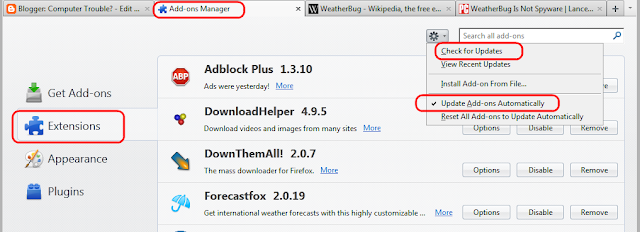
The Add-ons manager has a drop-down menu by the gear symbol; here you could manually check for updates. I usually just keep the check mark by "Update Add-ons Automatically".
These Add-ons need to be kept up-to-date just as the browser itself.
After you install an update to Firefox or just because Firefox thinks “it’s about time to check again” you may see (when you start Firefox) a square window that is listing some add-ons and asking you whether to "Check now for updates" or "Cancel" the process. Please allow the checking for updates.
In this context a warning is required: Although generally extensions supply added useful functionality they can interfere with Firefox, sometimes even seriously interfere! If you want to experiment with extensions please at least refer to Mozilla's page about blocked add-ons and the page about slow performing add-ons.
Here is another article with much more detail about what else to update.
As usual I welcome comments and suggestions right here in the blog. Thank you in advance.
Click here for a categorized Table Of Contents.
Usually I install on all my customer’s machines three extensions:
- Forecastfox shows the current weather conditions in the menu bar of the browser window.
I instal this to discourage my customers from playing with WeatherBug and similar stuff because the latter are ad-ware or worse.
Even a PC World article that was trying to absolve WB said literally "I'm not oblivious to WeatherBug's shortcomings. Previous versions have been resource hogs, and the freeware edition has a nasty habit of introducing unexpected pop-ups". - Adblock Plus suppresses all advertisements from known commercial advertisement servers.
Ad blocking has become very important because way too many advertisements are carriers of malicious software. - WOT Web Of Trust marks Google and Yahoo search results with green, yellow and red circles to warn from visiting known dubious (yellow) or malicious (red) web sites.

The Add-ons manager has a drop-down menu by the gear symbol; here you could manually check for updates. I usually just keep the check mark by "Update Add-ons Automatically".
These Add-ons need to be kept up-to-date just as the browser itself.
After you install an update to Firefox or just because Firefox thinks “it’s about time to check again” you may see (when you start Firefox) a square window that is listing some add-ons and asking you whether to "Check now for updates" or "Cancel" the process. Please allow the checking for updates.
In this context a warning is required: Although generally extensions supply added useful functionality they can interfere with Firefox, sometimes even seriously interfere! If you want to experiment with extensions please at least refer to Mozilla's page about blocked add-ons and the page about slow performing add-ons.
Here is another article with much more detail about what else to update.
As usual I welcome comments and suggestions right here in the blog. Thank you in advance.
Click here for a categorized Table Of Contents.
Friday, April 9, 2010
Out Of My Support
As of this writing it has been almost eight months that I don't use or recommend
This is not because they are any "bad" but because there is something better or at least as good out there, Microsoft Security Essentials (MSE). IMHO it is for my customers the better solution and it is MUCH easier to use.
I have talked about this fact since at least October 2009 every time I was on WTKM radio (first Monday of every month at 10:00AM on 104.9 FM).
Since January 15th 2010 I have a long and detailed article about the change on my blog. This article describes detailed step by step instructions for switching to MSE.
In the blog's table of contents you can easily find all my other articles about MSE.
The short of all this is that I can not answer questions about the five programs mentioned above any longer. I simply don't use these programs any more and thus don't know the answers to questions concerning the most current versions.
As usual I welcome comments and suggestions right here in the blog. Thank you in advance.
Click here for a categorized Table Of Contents.
- Avast
- AVG (since a looong time already!)
- Ad-Aware
- Spybot Search & Destroy and
- Spywareblaster
This is not because they are any "bad" but because there is something better or at least as good out there, Microsoft Security Essentials (MSE). IMHO it is for my customers the better solution and it is MUCH easier to use.
I have talked about this fact since at least October 2009 every time I was on WTKM radio (first Monday of every month at 10:00AM on 104.9 FM).
Since January 15th 2010 I have a long and detailed article about the change on my blog. This article describes detailed step by step instructions for switching to MSE.
In the blog's table of contents you can easily find all my other articles about MSE.
The short of all this is that I can not answer questions about the five programs mentioned above any longer. I simply don't use these programs any more and thus don't know the answers to questions concerning the most current versions.
As usual I welcome comments and suggestions right here in the blog. Thank you in advance.
Click here for a categorized Table Of Contents.
Wednesday, April 7, 2010
Printing On The Wrong Printer
It happens sometimes that Print commands go to the “wrong” printer. This can be changed easily.
The following examples show Windows 7 and cover Vista as well, a short description for Windows XP follows further down.
Click on Start, Devices and Printers


Windows XP: Go to Control Panel, Printers and set the correct printer to be your default printer.
As usual I welcome comments and suggestions right here in the blog. Thank you in advance.
Click here for a categorized Table Of Contents.
The following examples show Windows 7 and cover Vista as well, a short description for Windows XP follows further down.
Click on Start, Devices and Printers

and you will see all printers.
Find the printer that you want to be your default printer, right click on it and click “Set as default printer”. It will look like this (your printer’s name will naturally be different):

Windows XP: Go to Control Panel, Printers and set the correct printer to be your default printer.
As usual I welcome comments and suggestions right here in the blog. Thank you in advance.
Click here for a categorized Table Of Contents.
Wednesday, March 24, 2010
End of Support for some versions of Windows
Again and again I encounter computers with Windows XP Service Pack 1 or Windows Vista Service Pack 1 or even Vista without any Service Pack installed.
Although this can have multiple reasons the ones I most commonly encounter are
Above mentioned newsletter then has a link to the article Which version and service pack am I running? This article is invalid for Windows XP users, great advice, Microsoft!
Easier and better information can be had by
By the way, not knowing what operating system and what Service Pack your computer is running is somewhat like not knowing whether your car needs gasoline or diesel fuel. Please be informed!
As usual I welcome comments and suggestions right here in the blog. Thank you in advance.
Click here for a categorized Table Of Contents.
Although this can have multiple reasons the ones I most commonly encounter are
- Automatic Update is not set to automatically download and install updates and the user ignores the warnings telling her/him that updates have to be downloaded and or installed;
- Some obnoxious software thinks they can do a better job of alerting the user of updates, turns Automatic Update off and then gets deactivated or un-installed and does not turn Automatic Updates back on;
- Some malicious software disabled Automatic Update altogether.
Support is ending for some versions of WindowsIf your computer is still running Windows XP, Windows XP Service Pack 1 or Windows Vista with no Service Pack then you are in deep trouble; call or email me (see below).
If you're running one of these versions after support ends, you will NOT get any security updates for Windows.
- Support for Windows Vista without any service packs will end on April 13, 2010.
- Support for Windows XP with Service Pack 2 (SP2) will end on July 13, 2010.
Above mentioned newsletter then has a link to the article Which version and service pack am I running? This article is invalid for Windows XP users, great advice, Microsoft!
Easier and better information can be had by
- Windows XP: Right click My Computer, left click on Properties;
- Windows Vista/7: Right click Computer, left click on Properties.
- Windows XP ought to be on Service Pack 3,
- Windows Vista ought to be on Service Pack 2.
By the way, not knowing what operating system and what Service Pack your computer is running is somewhat like not knowing whether your car needs gasoline or diesel fuel. Please be informed!
As usual I welcome comments and suggestions right here in the blog. Thank you in advance.
Click here for a categorized Table Of Contents.
Thursday, March 4, 2010
Sudden Virus Alert?
You receive a sudden alert that your computer is infected with any number of virus programs including a list with file names that supposedly are viruses. All this looks quite serious but you are being pressured into buying and/or downloading a “clean-up” program.
Be clever, be observant and VERY suspicious!
Click here for a categorized Table Of Contents.
Be clever, be observant and VERY suspicious!
- Do NOT click on anything in such a window; this kind of links likely takes you to a malicious web site that will immediately attempt to download the really nasty stuff.
- When you search on Google for information about the program that is bugging you then please be very careful before you click on any results; there are way too many malicious web sites that might come up with such a search.
If I have set up your computer you should have McAfee SiteAdvisor installed and you can at least distinguish known nasty web sites from the likely harmless ones. - Sometimes you may observe some sort of “scan” starting after you went to a website. Do NOT click on anything in such a web page; it most likely is a malicious web site and any click will do more harm.
- Do you have an account on social networking web sites like LinkedIn, MySpace or Facebook? If yes you may want to change all email passwords! Make them unique and hard to guess!
- Because nowadays so many email accounts are being hacked you have to be extra careful when you receive an email with nothing but a link in the mail. Again, be extra suspicious if the email contains “just a link”, danger is lurking!
- Start Task Manager. How? Press Control, Alt, Delete simultaneously.
- Activate the Applications tab.
- Find all instances of running web browsers (Internet Explorer, Firefox a.s.o.); one by one highlight them and click End Process (or End Task in Vista/Win 7).
BTW: If you have been using Internet Explorer and are my customer then you disregarded my warnings about IE, didn’t you? - Find all instances of running “security” programs with names you have not heard yet; one by one highlight them and click End Process (or End Task in Vista/Win 7).
- Hopefully you will notice the scan windows disappear.
- Update your anti virus software and do a full system scan.
- Call 414-719-2977, I can fix this sort of thing. If this is too expensive
- Try to fix it yourself, you may even be successful. Congratulations.
- Call your 14 year old grandson or nephew or the kid nest door.
According to many of my customers’ experience that mostly was not the best idea. - Ignore it and let it get worse, much worse, guaranteed. Then see #1 above.
Click here for a categorized Table Of Contents.
Friday, February 12, 2010
About Adobe Reader
I am getting too many emails with the same questions about Adobe Reader and/or PDF files.
Since December 2008 I have written several times about issues surrounding Adobe Reader. Here are all three articles referenced chronologically:
First article December 2008: What PDF Reader?
2nd. article June 2009: PDF Files on the Web
Recently I added a rant about Adobe’s incredibly brazen attempts to disown you and me of our computers:
3rd. article January 2010: Adobe, again it’s Adobe - Shun Their Reader!
If all the above is not sufficient to help you accept the workaround I outlined in the 2nd. article then I really don't know how to help. Go the “easy route” and re-install Adobe Reader again. I will gladly come back to clean up your computer when it is in a mess again.
As usual I welcome comments and suggestions right here in the blog. Thank you in advance.
Click here for a categorized Table Of Contents.
Since December 2008 I have written several times about issues surrounding Adobe Reader. Here are all three articles referenced chronologically:
First article December 2008: What PDF Reader?
2nd. article June 2009: PDF Files on the Web
Recently I added a rant about Adobe’s incredibly brazen attempts to disown you and me of our computers:
3rd. article January 2010: Adobe, again it’s Adobe - Shun Their Reader!
If all the above is not sufficient to help you accept the workaround I outlined in the 2nd. article then I really don't know how to help. Go the “easy route” and re-install Adobe Reader again. I will gladly come back to clean up your computer when it is in a mess again.
As usual I welcome comments and suggestions right here in the blog. Thank you in advance.
Click here for a categorized Table Of Contents.
Thursday, February 4, 2010
Resetting a High-Speed Internet Connection
If you have DSL or cable service your computer may loose it’s Internet connection. You get "server not found" messages or the like.
You may have one or two of these three types of connecting equipment:
Here are the first and most important steps to do before you call your Internet Service Provider (ISP). They would have you do the exact same things anyway.
Please do the following in exactly this sequence:
If it’s not working more detailed hands-on troubleshooting is required. Please call your ISP’s technical support before you call me. When you talk to tech support do NOT allow them to install their mostly crappy and expensive “security” software. If I did set up your computer it is protected!
As usual I welcome comments and suggestions right here in the blog. Thank you in advance.
Click here for a categorized Table Of Contents.
You may have one or two of these three types of connecting equipment:
- A Modem; it converts the high speed signal from either the phone line or the TV cable into something a computer can understand.
The modem has one cable that connects either to your computer or to a router. - A Router typically has one input from a modem, four output connectors for computers or network printers and eventually a wireless antenna.
- A Gateway is a combination of a modem and a router in one physical box.
Here are the first and most important steps to do before you call your Internet Service Provider (ISP). They would have you do the exact same things anyway.
Please do the following in exactly this sequence:
- Turn everything OFF.
That means to shut down (turn off!) the computer and
removing the power cables from the modem and the router or gateway. - Then wait one minute; this is important!
- Turn the modem (or gateway) back on (re-connect the power cable).
- Then wait one minute; this is important!
- If you have a router turn it back on (re-connect the power cable).
- Then wait one minute; this is important!
- Turn your computer back on.
If it’s not working more detailed hands-on troubleshooting is required. Please call your ISP’s technical support before you call me. When you talk to tech support do NOT allow them to install their mostly crappy and expensive “security” software. If I did set up your computer it is protected!
As usual I welcome comments and suggestions right here in the blog. Thank you in advance.
Click here for a categorized Table Of Contents.
Saturday, January 30, 2010
Thunderbird Version 3.x – DO NOT Install or Upgrade!
For the time being I recommend NOT to upgrade to Thunderbird 3.x.
There are so many people reporting various problems with version 3.x on the TB support forum that I cringe.
There are some functional changes that seem to me to be a clear loss of functionality.
And here comes the absolute whopper: Thunderbird can not import from Windows Live Mail! WLM is the default email program on Windows computers since the advent of Windows Vista in Jan. 2007. The Thunderbird developers seem to completely ignore this simple fact!
Personally I am desolate that I can no longer offer to my customers a much safer alternative email program.
As usual I welcome comments and suggestions right here in the blog. Thank you in advance.
Click here for a categorized Table Of Contents.
There are so many people reporting various problems with version 3.x on the TB support forum that I cringe.
There are some functional changes that seem to me to be a clear loss of functionality.
And here comes the absolute whopper: Thunderbird can not import from Windows Live Mail! WLM is the default email program on Windows computers since the advent of Windows Vista in Jan. 2007. The Thunderbird developers seem to completely ignore this simple fact!
Personally I am desolate that I can no longer offer to my customers a much safer alternative email program.
As usual I welcome comments and suggestions right here in the blog. Thank you in advance.
Click here for a categorized Table Of Contents.
Monday, January 25, 2010
Adobe Shockwave – Manual Update Required!
As you can read in this article at The Register Adobe again proves to be a company that seems not to know what they want. One part of their organization wants to take the user “out of the picture” and fully automate updating as I reported here, another department goes back to the stone age and requires us to manually un-install a dangerously flawed version of the Shockwave Player before we can install the most current version.
If you think “I never used such a thing as a ‘Shockwave Player’” and maybe ask yourself if just un-installing it would do the trick then you would be badly wrong.
Adobe’s Shockwave Player is required for a vast number of web sites. Many animations and things that seem to be videos on the Internet actually require Adobe’s Shockwave Player.
What is so annoying is the fact that Adobe requires us to go the archaic route to manually un-install before we can download and install the current version.
As usual I welcome comments and suggestions right here in the blog. Thank you in advance.
Click here for a categorized Table Of Contents.
If you think “I never used such a thing as a ‘Shockwave Player’” and maybe ask yourself if just un-installing it would do the trick then you would be badly wrong.
Adobe’s Shockwave Player is required for a vast number of web sites. Many animations and things that seem to be videos on the Internet actually require Adobe’s Shockwave Player.
What is so annoying is the fact that Adobe requires us to go the archaic route to manually un-install before we can download and install the current version.
As usual I welcome comments and suggestions right here in the blog. Thank you in advance.
Click here for a categorized Table Of Contents.
Friday, January 22, 2010
Firefox Version 3.6 – Okay to Install
Firefox has begun telling us that Version 3.6 is available and asking us to update. This now is safe as far as extensions are concerned that I have installed. If you have installed other than the extensions listed below it is mandatory that you make sure that these extensions are compatible with this new version of Firefox. If you installed extensions on your own you will know how to do that.
If you can not ascertain compatibility then DO NOT install Firefox 3.6.
If I installed Firefox on your machine you are using three extensions or add-ons that I always install. Rarely I have to install a fourth extension.
The extensions that I install are:
As usual I welcome comments and suggestions right here in the blog. Thank you in advance.
Click here for a categorized Table Of Contents.
If you can not ascertain compatibility then DO NOT install Firefox 3.6.
If I installed Firefox on your machine you are using three extensions or add-ons that I always install. Rarely I have to install a fourth extension.
The extensions that I install are:
- AdblockPlus, IMHO the best advertisement blocker.
- Forecastfox, a nice weather bar directly in Firefox.
- McAfee Siteadvisor, Highlighting dangerous web sites in search results.
- Eventually Downthemall, my preferred download manager for Firefox.
As usual I welcome comments and suggestions right here in the blog. Thank you in advance.
Click here for a categorized Table Of Contents.
Friday, January 15, 2010
How to Install and Use Microsoft Security Essentials
This article assumes that you have my “classic” computer setup with Avast, Ad-Aware, Spybot and SpywareBlaster. These instructions can easily be modifies to apply to any other combination of security programs.
If you run Windows XP you can skip the next paragraph because your Windows XP is definitely a 32-bit system.
In System type it will say either 32- or 64-bit OS.
The sequence of steps I will describe may by some people be considered overkill; I have in mind the majority of my customers who refer to themselves as being “computer illiterate”; I want to give them something as foolproof and simple as possible.
I recommend to print this text so you have it available during the process. At the end of this article is a "Print this post" link.
All you have to do with Microsoft Security Essentials is check if it's tray icon (bottom right corner of the screen) looks like this:

Important is the color green. If this icon changes to yellow or red you need to give it immediate attention. Click on this icon and MSE will come up with the program window telling you exactly what needs to be done and a big yellow or red button to do it.
As usual I welcome comments and suggestions right here in the blog. Thank you in advance.
Click here for a categorized Table Of Contents.
If you run Windows XP you can skip the next paragraph because your Windows XP is definitely a 32-bit system.
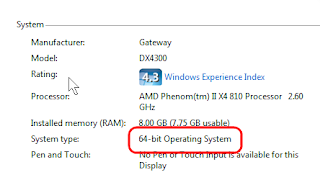
If you run Windows Vista or Windows 7 it is from now on imperative that you know what type of the Operating System (OS) you are using; since Vista there are two types of OS, 32-bit and 64-bit. You can find out what type yours is by right clicking Computer and left clicking Properties. You’ll see something like this:

In System type it will say either 32- or 64-bit OS.
The sequence of steps I will describe may by some people be considered overkill; I have in mind the majority of my customers who refer to themselves as being “computer illiterate”; I want to give them something as foolproof and simple as possible.
I recommend to print this text so you have it available during the process. At the end of this article is a "Print this post" link.
- Download Microsoft Security Essentials from here. As usual you need to know the name of the file being downloaded and where the download will be stored, mostly either on your desktop or on XP in the My Documents\Downloads folder and on Vista/7 in the \<username>\Downloads folder.
- Physically disconnect your computer from the Internet, that is disconnect the networking cable that comes from your router or modem from the computer.
- Un-install all security programs one by one, beginning with your anti virus program or security suite. Restart the system when prompted. Ignore browser windows that may pop up.
And for those that don’t seem to know what “all security programs” means: Yes, that includes Ad-Aware, Spybot Search and Destroy and Spywareblaster! I apologize for being a bit facetious but I have gotten this question too many times.
- Check that the Windows Firewall is turned on; Control Panel, Windows Firewall. If it is not on then turn it on!
Some so called security software does not turn the Windows firewall back on or outright clobbers it!
If you get an error message your computer either was messed up by a virus or you have used a “security” program other than AVG or Avast! and you have ended up in the deep end. If you can fix it yourself, congratulations; otherwise you should call your computer helper immediately. Do NOT go back online without the firewall working!
- If the Windows firewall is turned On then it is time to re-connect the networking cable, the one you un-plugged in step #2.
- Restart the computer!
- Check that you can get any web page other than your home page; try http://www.netmanners.com/.
Serious problems? You have ended up in the deep end. If you can fix it yourself, congratulations; otherwise you should call your computer helper.
- Find the file that you downloaded in step #1 and run it, that is double click it. Follow the instructions and prompts.
All you have to do with Microsoft Security Essentials is check if it's tray icon (bottom right corner of the screen) looks like this:
Important is the color green. If this icon changes to yellow or red you need to give it immediate attention. Click on this icon and MSE will come up with the program window telling you exactly what needs to be done and a big yellow or red button to do it.
As usual I welcome comments and suggestions right here in the blog. Thank you in advance.
Click here for a categorized Table Of Contents.
Thursday, January 14, 2010
Adobe, again it’s Adobe - Shun Their Reader!
Now this is worth reading I think; take some time, get a cup of Java and read on.
Regularly I receive a MS-Windows specific newsletter that usually has pertinent and correct information. Here is a literal quote that I think is worth reading (emphasis added):
For me the consequences are clear: Adobe Reader gets removed from all my computers! I will replace it with PDF X-Change Viewer; how to get PDF X-Change Viewer is described here.
Commonly recommended alternatives like CutePDF, Foxit Reader and eventually others will attempt to install gunk-garbage like the Ask-Toolbar and make other not desirable changes. User beware!
As usual I welcome comments and suggestions right here in the blog. Thank you in advance.
Click here for a categorized Table Of Contents.
Regularly I receive a MS-Windows specific newsletter that usually has pertinent and correct information. Here is a literal quote that I think is worth reading (emphasis added):
Beginning April 13, Adobe plans to release automatic, silent updates for its Adobe Reader PDF-viewing software.IMHO that is a typical example of a big company taking over my computer without either informing me nor asking my consent! What Adobe’s director of privacy and security sys there means:
In an interview with InfoSecurity.com, Brad Arkin, Adobe director of product security and privacy, said Acrobat Refresh Manager was quietly installed on millions of machines worldwide as part of the October 2009 quarterly patch released by the company.
The new, silent updater is currently disabled. Now, as before, Adobe Reader prompts users when an update is available and lets them decide whether to install it. Adobe wants to change this because users often postpone an update until they're confident the patch won't cause problems of its own. This delay opens what Arkin calls a "window of vulnerability."
Acrobat Refresh Manager is designed to take the user out of the equation; the updates will install when Adobe wants them to. This week's scheduled Adobe Reader update will begin test-activating the new updater with "selected users."
Depending on the results of this testing, Adobe Reader's automatic, silent updater may be operational across the millions of Reader installations starting in April. The company currently has announced no plans to launch an automatic-update feature for its Flash Player or any other Adobe products.
- Adobe does on my computer what they want when they want it and however they want to do it. They treat my computer as if it were theirs!
- I am being “silenced” – and I don’t like that, believe me!
- Adobe decides to use my computer and me as their guinea pig whether I like it or not, whether I am willing to cooperate or not!
For me the consequences are clear: Adobe Reader gets removed from all my computers! I will replace it with PDF X-Change Viewer; how to get PDF X-Change Viewer is described here.
Commonly recommended alternatives like CutePDF, Foxit Reader and eventually others will attempt to install gunk-garbage like the Ask-Toolbar and make other not desirable changes. User beware!
As usual I welcome comments and suggestions right here in the blog. Thank you in advance.
Click here for a categorized Table Of Contents.
Sunday, January 10, 2010
Installing OpenOffice
Many of my customers use OpenOffice (OO) instead of Microsoft’s Office software. The simple reason for that is that OO is free.
For everybody who wants to attempt to install or update OO themselves here a couple of related tips. You may want to print this post before you start on this endeavor; you find a link “Print This Post” at the end of the post.
OO is a very sizeable download of currently over 135MB. The organization behind OO is a non-profit with limited resources; their computers have limited capabilities, thus they have to throttle the download speed for all their visitors. I recommend to download from Filehippo.com, a specialized download web site that offers much more speed. Download OO from here.
1. Caution: The top part of the download page on Filehippo looks like this:

Please note that currently the entry is for Release Candidate 1, it is a Beta version meant for testing by geeks only. You want the latest stable version; I have marked it green. Click on that and above you will read “Download This Version” and THIS is where you click to start the download.
When the download starts take note of the file name and know where the download will be stored!

This location is different on different versions of Windows and can be set differently within Firefox.
As usual in Windows what you download is not the program you actually want; rather it is an Installer (or Setup) program that when run will install the actual program on your computer.
When the download has finished find the downloaded installer (I hope you did take a note of the file name) and run the installer. The installation process will first create a folder containing all the files required for installation; this folder has a lengthy name and usually ends up on the desktop. For the time being leave it alone! The installer will ask you a bunch of typical questions.
2. Caution: When asked do a Custom install; the Complete option would install much more than you need to replace MS Word, Excel and Powerpoint. Custom will let you choose which module gets installed. Here is what it looks like when I do a Custom install of OO:

To select or deselect a feature you click on the little down arrow by the feature to get to the actual selection. Most of my customers will neither need Draw nor Base nor Math.
This Custom Setup window offers more choices under Optional Components. Set them like this (the part scrolled off this little screen is okay as suggested):

These settings assume that your installation of Java is up to date.
That’s it for the physical installation but there is more; thank you for following me this far.
You should have a new icon on your desktop that looks like this:
 We have to do a few one-time settings before we can use OpenOffice. Double click the OO icon to get too OO’s start window.
Upon the first start you will be ask for your name; give it your full name, this will not be transferred anywhere; do NOT register, this would only lead to more emails.
When the “Welcome to Open Office” window is open click Tools, Options, open Load/Save and highlight General.
For Text documents select “Microsoft Word 97/2000/XP”,

for “Spreadsheet” select “Microsoft Excel 97/2000/XP” and
for “Presentation” select “Microsoft PowerPoint 97/2000/XP”.
Then highlight Microsoft Office and put check marks in all six boxes:

Click OK and close the Welcome window.
That’s it for the initial settings. Thank you for following me through this.
OpenOffice should be working now. If it does then the very last thing to do is to delete the installation folder.
If you use these instructions PLEASE let me know any comments or suggestions you may have in this context. Just write a comment here in the blog; please DO NOT give your full name or clear text email in the comment; this is a public forum, there is no privacy here. I will reply in another comment. Added 2010-01-11: Somebody did just that. Again, this is a public forum.
As usual I welcome comments and suggestions right here in the blog. Thank you in advance.
Click here for a categorized Table Of Contents.
For everybody who wants to attempt to install or update OO themselves here a couple of related tips. You may want to print this post before you start on this endeavor; you find a link “Print This Post” at the end of the post.
OO is a very sizeable download of currently over 135MB. The organization behind OO is a non-profit with limited resources; their computers have limited capabilities, thus they have to throttle the download speed for all their visitors. I recommend to download from Filehippo.com, a specialized download web site that offers much more speed. Download OO from here.
1. Caution: The top part of the download page on Filehippo looks like this:

Please note that currently the entry is for Release Candidate 1, it is a Beta version meant for testing by geeks only. You want the latest stable version; I have marked it green. Click on that and above you will read “Download This Version” and THIS is where you click to start the download.
When the download starts take note of the file name and know where the download will be stored!

This location is different on different versions of Windows and can be set differently within Firefox.
As usual in Windows what you download is not the program you actually want; rather it is an Installer (or Setup) program that when run will install the actual program on your computer.
When the download has finished find the downloaded installer (I hope you did take a note of the file name) and run the installer. The installation process will first create a folder containing all the files required for installation; this folder has a lengthy name and usually ends up on the desktop. For the time being leave it alone! The installer will ask you a bunch of typical questions.
2. Caution: When asked do a Custom install; the Complete option would install much more than you need to replace MS Word, Excel and Powerpoint. Custom will let you choose which module gets installed. Here is what it looks like when I do a Custom install of OO:

To select or deselect a feature you click on the little down arrow by the feature to get to the actual selection. Most of my customers will neither need Draw nor Base nor Math.
This Custom Setup window offers more choices under Optional Components. Set them like this (the part scrolled off this little screen is okay as suggested):

These settings assume that your installation of Java is up to date.
That’s it for the physical installation but there is more; thank you for following me this far.
You should have a new icon on your desktop that looks like this:
 We have to do a few one-time settings before we can use OpenOffice. Double click the OO icon to get too OO’s start window.
 Upon the first start you will be ask for your name; give it your full name, this will not be transferred anywhere; do NOT register, this would only lead to more emails.
When the “Welcome to Open Office” window is open click Tools, Options, open Load/Save and highlight General.
For Text documents select “Microsoft Word 97/2000/XP”,

for “Spreadsheet” select “Microsoft Excel 97/2000/XP” and
for “Presentation” select “Microsoft PowerPoint 97/2000/XP”.
Then highlight Microsoft Office and put check marks in all six boxes:

Click OK and close the Welcome window.
That’s it for the initial settings. Thank you for following me through this.
OpenOffice should be working now. If it does then the very last thing to do is to delete the installation folder.
If you use these instructions PLEASE let me know any comments or suggestions you may have in this context. Just write a comment here in the blog; please DO NOT give your full name or clear text email in the comment; this is a public forum, there is no privacy here. I will reply in another comment. Added 2010-01-11: Somebody did just that. Again, this is a public forum.
As usual I welcome comments and suggestions right here in the blog. Thank you in advance.
Click here for a categorized Table Of Contents.
Friday, January 1, 2010
Happy New Year To Y’all
And again I have squandered a wonderful year and am facing a new one. It has never been my thing to make big “New Years Resolutions” or the like. I have seen it too many times that such resolutions hardly survive a few weeks and much less a full year.
Today I ran across two sets of New Years Resolutions that have to do with our computers; not only was I intrigued by that association but when reading them I realized how much they are applicable to me – and to others.
With all due respect towards my customers I know that the first set of resolutions applies to the majority of computer users. I truly wish that more people would abide by these oh-so-simple and oh-so-basic rules of politeness, respect and decent manners.
This first set of resolutions comes from the Netmanners.com web site; this is a place I can highly recommend! Judith Kallos, the owner of Netmanners.com, IMHO deserves to be as proverbially known as Miss Manners, Emily Post.
The second set of resolutions comes from DownloadSquad.com and definitely is geared much more at technically experienced computer users.
Despite a few misgivings about some of the statements in these resolutions, the general gist IMHO is quite acceptable. As far as some of my customers are concerned please be warned, quite a bit of this is fairly technical.
If you have worked your way through to this point you deserve a reward. Allow your pensive, thoughtful, imaginative, spiritual, funny, inspirational and, and, and… side to be captivated by Monina Velarde’s newest achievement and visit her New Year’s Resolution Generator. Just click the “Gimme More” button and be surprised. I bet you will find something to like.
As usual I welcome comments and suggestions right here in the blog. Thank you in advance.
Click here for a categorized Table Of Contents.
Today I ran across two sets of New Years Resolutions that have to do with our computers; not only was I intrigued by that association but when reading them I realized how much they are applicable to me – and to others.
With all due respect towards my customers I know that the first set of resolutions applies to the majority of computer users. I truly wish that more people would abide by these oh-so-simple and oh-so-basic rules of politeness, respect and decent manners.
This first set of resolutions comes from the Netmanners.com web site; this is a place I can highly recommend! Judith Kallos, the owner of Netmanners.com, IMHO deserves to be as proverbially known as Miss Manners, Emily Post.
The second set of resolutions comes from DownloadSquad.com and definitely is geared much more at technically experienced computer users.
Despite a few misgivings about some of the statements in these resolutions, the general gist IMHO is quite acceptable. As far as some of my customers are concerned please be warned, quite a bit of this is fairly technical.
If you have worked your way through to this point you deserve a reward. Allow your pensive, thoughtful, imaginative, spiritual, funny, inspirational and, and, and… side to be captivated by Monina Velarde’s newest achievement and visit her New Year’s Resolution Generator. Just click the “Gimme More” button and be surprised. I bet you will find something to like.
As usual I welcome comments and suggestions right here in the blog. Thank you in advance.
Click here for a categorized Table Of Contents.
Sunday, December 20, 2009
Upgrade to Windows 7? Not the HP Way!
Want to upgrade your HP computer to Windows 7? Read on; all others only if you want a chuckle and need to shake your head.
During the install of Windows 7 the installer programs asks if we want to do an “Upgrade” or a “Custom” install. “Upgrade” in this context is an in-place replacement of Windows Vista; “Custom” is a completely new install that wipes everything from the disk drive. On XP computers we have to do a Custom install!
This week I attempted an upgrade on a brand new, de-gunked and clean, malware free HP notebook. HP gave the customer an extra CD with HP software urging to run this CD first. I did that but to my big surprise after ca. 17.5 hours, yes, seventeen hours, the machine rebooted – back into Vista!
I can not say what the precise reason for that was; my suspicion goes towards the HP software. I have done several upgrades on other manufacturer’s computers and have never seen anything like that.
The actual Windows 7 DVD that HP sent looks totally different than any Win 7 DVD I have ever seen but it finally did the job; custom install in 45 minutes and the notebook is running great.
The lesson from all this? With Windows 7 Microsoft finally got something right but HP easily scraps it!
As usual I welcome comments and suggestions right here in the blog.
Thank you in advance.
Sunday, November 8, 2009
Scared Again
And again I received a well meaning “warning”. It went like this:
New Virus (NO JOKE)
This is legitimate. Please pass this along to your friends.
The newest virus circulating is the UPS/FedEx/DHL Delivery Failure.
You will receive an email from UPS/Fed Ex Service along with a packet number.
It will say that they were unable to deliver a package sent to you on such-and-such a date.
It then asks you to print out the invoice copy attached.
DON'T TRY TO PRINT THIS… IT LAUNCHES THE VIRUS!
Pass this warning on to all your PC operators at work and home.
Snopes confirms that it is real.
http://www.snopes.com/computer/virus/ups.asp
True, that IS a known scam to distribute a virus program. BUT:
- If nobody in the household ordered anything that we expect through UPS/FedEx/DHL it can only be a scam, right?
- And again, if we are observant of what we are doing we will see that the link in the email does NOT go to a legitimate UPS/FedEx/DHL web site.
- AND: Even children should know that these three carriers will NEVER notify any recipient via email. If they can not deliver a package they always leave a paper notification.
- And NO, but absolutely no recipient of a package can ever print an invoice through the freight carrier’s service. Only the buyer of the merchandise can do that on the merchant’s web site, right?
So really, only when we are un-observant we would fall for a dumb social engineering trick like this in the first place. I don't think anybody I know is in that category.
Everybody out there, PLEASE do not forward such tracts to me.
And still, there is a lesson to be learned here:
This curiosity impulse that makes a person click “to see what is in the package” (?) is all the hacker wants from us. This one click will lead to a maliciously programmed web site that may attempt to coax us into revealing personal information, that may immediately download malicious programs into our computer and so on – unless we actually use our common sense before we click – or forward a message like this.
As usual I welcome comments and suggestions right here in the blog.
Thank you in advance.
What To Do After A BSOD
The dreaded Blue Screen Of Death (BSOD) can have way too many reasons for specific advice. But there are some reasons that are more prevalent than others like these three examples:
- A BSOD can be an indication of a corrupted or incorrect device driver (software that controls some piece of hardware like a printer).
- A BSOD can be caused by a faulty memory chip.
Yes, they worked yesterday; but sometimes they get weak over time and then, all of a sudden, they throw a BSOD. - Some other hardware failure on the motherboard; mostly very bad...
The remedy for number 1 can be time consuming but generally it is possible to correct these errors.
Number 2 can be tested for in relatively little time, usually less than half an hour. Whether I happen to have a suitable replacement memory chip along is dictated by the luck of the draw.
Number 3 can be very tricky to trace, especially if it occurs randomly. I am neither qualified nor equipped to do that and would in such a case refer to a local hardware repair store; luckily I know a good technician who has a store in the area – and on top of being good he is honest; that is a rare combination in this field. As always with computers you should carefully consider all options. If the computer in question is more than three years old I usually advise to at least consider a new machine versus the vagaries of a motherboard repair or replacement.
You can help a great deal if you please would collect some information from the BSOD before you send me an email asking for advice. Here is an example of a BSOD.

Please look for the marked portions of this example and write down what appears in these locations when you see it. If you call me please have this information available when we talk. Or please send an email with this info once you have three or four occurrences documented. Caution: Some of this info may or may not be present; please note if it is not present; it may be in different places and/or sequence as well. In above example we have in this sequence:
- The name of the file that caused the problem,
- a textual error code,
- a so-called stop-error code and
- again the file name of the driver that caused the error.
The stop error code and if available the file name are most important to trace errors in a BSOD and to get at the root cause! The stop error code always begins with “0x” and should be in every BSOD.
I know, recording these details is tedious but I hardly can stay at your house and wait for the next BSOD to happen.
Let's cooperate to get at the root of this and "Thank You" in advance!
As usual I welcome comments and suggestions right here in the blog.
.
Thursday, October 22, 2009
Windows 7 First Impressions - Updated
Tonight I installed Windows 7 Home Premium on my notebook, previously running XP. This machine is slightly over two years old and the graphics chip does not support the Aero Glass feature – which I would have turned off anyway. The installation was pain free and clearly faster than XP and Vista installations were.
And believe it or not: Subjectively the little notebook with Windows 7 feels faster than with Windows XP! That indeed is a welcome surprise.
For the transfer of my data files and settings from the XP environment into Win7 I used Microsoft’s program Windows Easy Transfer. I had to transfer three user accounts with all their files and settings. The worst part was that writing the migration file took 1.5 hours, certainly because I had about 11.5 GB of data in my account alone. The migration file had a total size of over 14 GB. Restoring all this took a little less than one hour.
My opinion about Widows 7? I love it!
I know Microsoft products since long before the first PC was released – and that was in fall 1981! This is the first time I see a major Microsoft product being released that is useable from the day of the release on. Congratulations, Microsoft.
I will report back after I have done the first in place update from Vista to Win 7.
October 30 2009: That has happened in the meantime. Here is a brief summary.
If you have to transfer any of the following
- many files
- Firefox settings, bookmarks, extensions and so on
- Thunderbird email settings, mail and address book
- and/or more than 1 user account
plan for several hours and use Microsoft’s utility Windows Easy Transfer. This little gem of a program is still quite minimal but it does the job AND it allows you to select additionally to it’s standard selections any folders of your choice, for example Thunderbird, Mozilla (Firefox settings) and others according to your needs. Be aware that programs can NOT be transferred to Windows 7, they always need to be re-installed. And naturally you need a sufficiently large external storage device; I recommend to finally buy that external disk drive you always wanted. You get good Seagate FreeAgent drives for well under $100 and finally have no more excuse not to have a usable backup as well.
If you have to transfer only one user account AND if your system is well maintained, that is temporary files deleted, virus free, completely up-to-date AND if it is a relatively recent Vista system, maybe less than 6 months old, you can try an in-place upgrade. Caution: The very last phase of the process takes quite some time; go have a Starbucks or jog around the park. I have done already two of those and they were pain free.
Personally I prefer a clean complete new install (Microsoft calls it Custom) for any system that has had some use already; for XP systems it is a must anyway. Beware, this install completely wipes all old content from your hard disk. Do you have a recent or current backup of your files OUTside of your computer? If not you got to do some homework before you can install Windows 7.
And another experience: If your computer is more than 6 months old download and run Windows 7 Upgrade Advisor. Heed it’s warnings and do your homework BEFORE you attempt the upgrade to Windows 7.
You may ask “My XP system runs ok, why all that trouble”? If your computer meets the requirements for Windows 7 you will love the result. IMHO Windows 7 is faster and MUCH safer than XP; it is MUCH faster, somewhat safer and MUCH less annoying than Vista! Again, applause to Microsoft.
As usual I welcome comments and suggestions right here in the blog.
Thank you in advance.
Wednesday, October 21, 2009
32-bit or 64-bit System?
For home users with Windows XP there is no question, they have a 32-bit
operating system. With Windows Vista or Windows 7 you need to know what
version your computer is running. How do you find out what it is? Right
click on Computer and click on Properties. Under the heading “System”
you find the answer. Here is an example from my computer: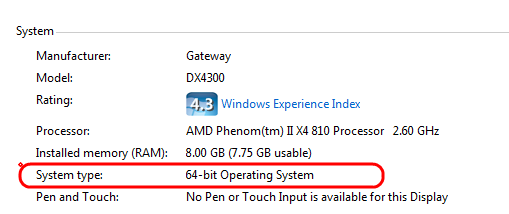
Recent hands-on experience shows that on identical hardware 64-bit systems are often faster than 32-bit systems.
If you found yourself thinking “Will this 32-bit software run on my 64-bit operating system?” or “Will this 64-bit software run on my computer?” or "Should I buy that 64-bit system?" or if you just would like to know more about the difference then read on.
I will try to answer these questions and help you understand the 64-bit and 32-bit concepts of hardware, operating system and applications.
32-bit systems have been part of consumer computing for more than a decade since the time of the Intel Pentium, also known as 80386 architecture or sometimes x86 for short. Most software and operating system code written during this time is 32-bit compatible.
32-bit systems can address up to 4 GB of memory. Some modern applications require more memory to complete their tasks. Progress in chip fabrication technology and demands of high power applications led to the development of 64-bit processors for mainstream computing.
Here is the problem: Most of the software available today is still 32-bit code, but processors have migrated to 64-bit and operating systems are catching up quickly. Eventually even the applications will catch up. Thus we have to cope with many possible combinations of 32 and 64-bits hardware, operating system and applications.
Consider these three factors to be three layers with the processor as the lowest layer and the application as the highest layer.
To run a 64-bit application, you need support from all lower levels (64-bit OS and 64-bit processor).
Will a 64-bit CPU run a standard 32-bit program on a 64-bit version of an OS?
Yes it will. 64-bit systems are backward compatible with the 32-bit counterparts (see the warning below).
Will a 64-bit OS run a standard 32-bit application on a 64-bit processor?
Yes it will because of backward compatibility. Please see the warning below.
Can I run Win2K and WinXP on an 64-bit CPU and use old software? Yes, a 32-bit OS like Win-2K and Win-XP will run on 64-bit processors. You can run "old software" on these 32-bit OS and 64-bit processors (see the warning below).
Will my devices (printer, scanner and so on) work when I buy this fancy new 64-bit machine with 64-bit OS?
Here you have to do your homework! Before you buy the fancy new 64-bit computer with 64-bit OS you have to verify that 64-bit drivers are available for all devices you plan on to keep using!
A warning: Many times 64-bit programs may contain bits of 32-bit code; old 32-bit programs can contain 16-bit code. Be aware that 16-bit code will NOT run on a 64-bit OS.
This is one reason why some old 32-bit programs will not work on a 64-bit OS.
Update 2-22-2010:
Personal recommendation when buying a new computer:
For quite a few peripherals that you may have like printers, scanners and so on you may NOT find 64-bit drivers. Do your home work before you buy the fancy-shmanzy new 64-bit system!
Should you not quite know how to do this sort of home work then send me an email to ejheinze_at_gmail_dot_com (or my “normal” email address) with a detailed list of exactly what peripherals you have and a request to find out for you if there are 64-bit drivers available. There will be a small charge for this service because it may be time consuming.
As usual I welcome comments and suggestions right here in the blog.
Thank you in advance.

Recent hands-on experience shows that on identical hardware 64-bit systems are often faster than 32-bit systems.
If you found yourself thinking “Will this 32-bit software run on my 64-bit operating system?” or “Will this 64-bit software run on my computer?” or "Should I buy that 64-bit system?" or if you just would like to know more about the difference then read on.
I will try to answer these questions and help you understand the 64-bit and 32-bit concepts of hardware, operating system and applications.
32-bit systems have been part of consumer computing for more than a decade since the time of the Intel Pentium, also known as 80386 architecture or sometimes x86 for short. Most software and operating system code written during this time is 32-bit compatible.
32-bit systems can address up to 4 GB of memory. Some modern applications require more memory to complete their tasks. Progress in chip fabrication technology and demands of high power applications led to the development of 64-bit processors for mainstream computing.
Here is the problem: Most of the software available today is still 32-bit code, but processors have migrated to 64-bit and operating systems are catching up quickly. Eventually even the applications will catch up. Thus we have to cope with many possible combinations of 32 and 64-bits hardware, operating system and applications.
Consider these three factors to be three layers with the processor as the lowest layer and the application as the highest layer.
To run a 64-bit application, you need support from all lower levels (64-bit OS and 64-bit processor).
- To run a 64-bit OS, you need support from its lower level 64-bit processor; it will NOT run on a 32-bit processor.
- A 32-bit OS will run on a 32 or 64-bit processor without any problems because 64-bit processors can emulate a 32-bit processor.
- 32-bit applications will run on any supported combination of OS and processor. In a 64-bit OS this is possible due to software emulation, a feature of 64-bit operating systems.
- Device drivers run parallel to the operating system. Emulation happens only at the operating system level; it is available to the higher layer only, that is the applications. Thus it is not possible to install 32-bit device drivers on a 64-bit machine.
Will a 64-bit CPU run a standard 32-bit program on a 64-bit version of an OS?
Yes it will. 64-bit systems are backward compatible with the 32-bit counterparts (see the warning below).
Will a 64-bit OS run a standard 32-bit application on a 64-bit processor?
Yes it will because of backward compatibility. Please see the warning below.
Can I run Win2K and WinXP on an 64-bit CPU and use old software? Yes, a 32-bit OS like Win-2K and Win-XP will run on 64-bit processors. You can run "old software" on these 32-bit OS and 64-bit processors (see the warning below).
Will my devices (printer, scanner and so on) work when I buy this fancy new 64-bit machine with 64-bit OS?
Here you have to do your homework! Before you buy the fancy new 64-bit computer with 64-bit OS you have to verify that 64-bit drivers are available for all devices you plan on to keep using!
A warning: Many times 64-bit programs may contain bits of 32-bit code; old 32-bit programs can contain 16-bit code. Be aware that 16-bit code will NOT run on a 64-bit OS.
This is one reason why some old 32-bit programs will not work on a 64-bit OS.
Update 2-22-2010:
Personal recommendation when buying a new computer:
For quite a few peripherals that you may have like printers, scanners and so on you may NOT find 64-bit drivers. Do your home work before you buy the fancy-shmanzy new 64-bit system!
Should you not quite know how to do this sort of home work then send me an email to ejheinze_at_gmail_dot_com (or my “normal” email address) with a detailed list of exactly what peripherals you have and a request to find out for you if there are 64-bit drivers available. There will be a small charge for this service because it may be time consuming.
As usual I welcome comments and suggestions right here in the blog.
Thank you in advance.
Sunday, October 4, 2009
Microsoft Security Essentials Officially Released
Without any fanfare Microsoft released their new security offering Microsoft Security Essentials (MSE) earlier last week.
I read about the release in an informational third-party newsletter I receive, not a single word about it in Microsoft's own publication about new downloads. Hardly believing I went to microsoft.com, searched for "microsoft security essentials" and got to this MSE home page with a working download link. What a change to former MS tactics of having a lot of fanfare and sometimes flaky or questionable stuff in the end.
First time I wrote about MSE July 22nd 2009. A follow-up was published August 22nd 2009. In the meantime I have taken to install MSE on my customers computers; it replaces 4 (FOUR!) other security related programs that the customer had to run manually about once very week.
On one machine MSE found and removed a clear leftover from some malicious stuff that the other programs had overlooked and on yet another machine MSE removed a Trojan horse virus that had so far escaped any detection. I know this is not representative and only anecdotal but nevertheless it again points in a very positive direction.
If you use MSE all you have to do is have any eye on it's little icon in the system tray. As long as this tray icon is green all is well.
If it ever turns yellow or orange double click it and the program window will tell you clearly what to do and have a big fat yellow button right there for you to click.
If the icon ever turns red you better give it immediate attention; double click it and the program window will tell you clearly what to do and have a big fat red button right there for you to click.
I am expecting "official" comparisons between MSE and other security suites to be available in a few weeks time. Here is a first example from The Washington Post.
If future results are anything only close to that good I will definitely keep using MSE and recommend to my previous customers to switch over. The ease of use IMHO is unsurpassed.
As usual I welcome comments and suggestions right here in the blog.
Thank you in advance.
Thursday, October 1, 2009
How Do Viruses And Other "Crap" Get On My Computer?
One of the most asked questions I get when I work at a customer's computer is "I am very careful when I am on the Internet. How do these viruses then get on my computer?".
Today I found a pretty good article that answers this question in quite some depth. Before I give you the link to this article let me mention that no matter how careful you are your computer will eventually get "nailed" by some malicious software; it's unavoidable.
Last year a significant number of web servers have been cracked by hackers and infected with very tricky software that will attempt to infect EVERY visitor of any of the web sites stored on the web server. This infection is really deeply rooted; "disinfecting" the computer would disable the server and thus all web sites stored on this computer for several days. So it gets done only very slowly - if at all.
With this background in mind you may want to read this article if you want an answer to the title question.
Update Oct.27th, 2013:
The newest epidemic in malicious software are PuPs, potentially unwanted programs. The "poyenyially" is nothing but a law suit safe euphemism; you don't want any of this stuff on your computer. Please read this post for more details.
As usual I welcome suggestions and comments right here in the blog.
Click here for a categorized Table Of Contents.
Friday, September 25, 2009
On Incomplete Emails the 2nd
Once more I got an email that kind of “pushed my button”. Here is the full text minus the individual’s name of course.
Subject: Re: McAfee Sight Adviser
Finally I chose this reply:
I get many request every week. If I were to remember all technical and environmental details of all the many installations I see every week there wouldn’t be space left for anything else in my scatterbrain. And if I had to hunt down contact information every time I get a request from a customer there wouldn't be any time left to do actual customer visits.
As a reminder: If you read down to here you may want to read my newest rant about incomplete emails as well; thank you.
Please comment with your thoughts right here in the blog.
Thank you in advance.
Subject: Re: McAfee Sight Adviser
Eike,"It is nice that he spelled my name correctly but what do I do with an email like this” I thought for the longest time.
The McAfee sight adviser shows up grey in the lower tool bar. The sight adviser also does not work when using the search engine.
Is there an easy fix?
Signed with name
Finally I chose this reply:
Xyz,Now, what are the lessons to be learned here?
With the information you provide there is no fix because
- you don't give any detailed info on what program you are using,
- what version this program is,
- what you are doing and
- why you draw the conclusions that you draw.
You stir up questions hat I need answered before I even can address the matter at hand.
- How do you tell that it does not work?
- What search engine are you using?
- Have you checked if you have the latest version?
- Have you turned on "Highlight search results" in it's General Settings?
And by the way, it's called McAfee Siteadvisor.
Regards
Eike
- Simply give as much detail as humanly possible if you want useful answers.
- Send me a screen shot instead of re-typing lengthy messages.
- Spell names correctly (not only mine).
- And let me know that you appreciate the free email advice that I offer.
I get many request every week. If I were to remember all technical and environmental details of all the many installations I see every week there wouldn’t be space left for anything else in my scatterbrain. And if I had to hunt down contact information every time I get a request from a customer there wouldn't be any time left to do actual customer visits.
As a reminder: If you read down to here you may want to read my newest rant about incomplete emails as well; thank you.
Please comment with your thoughts right here in the blog.
Thank you in advance.
Sunday, August 23, 2009
How to Make a Link in Thunderbird
You are reading a very interesting web page and think "Aunt Mary would certainly like to read this too" or something along this line. As a faithful customer of mine you are using Thunderbird as your email program and you have no idea how to do that. Here is the recipe:
First you highlight the URL (the web page address) in the address bar of the web browser and Copy (Ctrl+C) the URL. For example:

Then you switch to Thunderbird and begin to write your email to Aunt Mary. You highlight the word(s) that you want to become a link in the text of your message. Open the drop-down of the little Insert… button and select Link.

What comes up is the actual link window (below partially shown) into which you'd have to paste (Ctrl+V) the URL of the web page you want to link to:

Then you click OK and presto, you created a professional looking link in your email. Just send it off...
That is how you create a link in Thunderbird.
As usual I welcome comments and suggestions right here in the blog.
Thank you in advance.
Saturday, August 22, 2009
First steps with Microsoft Security Essentials
Here are my first impressions of MSE.
Currently I have MSE installed on
- my XP notebook, an important computer for me; I use it at customer service calls;
- one Win7 RC test system that I currently use to write this blog entry;
- one Vista notebook destined to be a birthday gift and
- three brand new Vista notebooks owned by customers who had agreed to “guinea pig” status.
Thanks Toby, Fred and Todd.
“My” current individual take on MSE:
- It really seems to be install and forget, on Vista and Win7 at least.
- On my “production” XP notebook I manually ran Microsoft Update today and I was offered two definition updates for MSE.
That indicates that MSE’s own update feature seems not to be fully automatic yet, on XP at least. For a limited time I could live with having to check for MSE updates manually. - I am still waiting for first reports from independent test institutes on MSE’s effectiveness.
All of the following is an update August 24th, 2009:
Today I installed MSE on another customer's really old computer (ca. year 2000) on Win XP and it runs like a charm; it immediately updated automatically the program and the definitions. It is getting better.
I found a comparison from July of this year where someone had compared MSE's detection results against 25 other established anti virus programs.
MSE finished second best! This certainly is only a hint of where it's heading and not a thorough test; but only Sophos AV was better and Sophos is one of the most expensive anti virus solutions out there; it is something like the Rolls Royce of AV programs.
If Microsoft's MSE keeps its quality promise and manages to slowly either push Norton, McAfee, Trend Micro and others out of business or force them to substantially improve and get cheaper at the same time than Microsoft would have done the public a huge favor. I never believed I would say that!
As usual I welcome comments and suggestions right here in the blog.
Thank you in advance.
Wednesday, July 22, 2009
News: Microsoft and Anti Virus
Okay, I am dating myself now but then, my age is no secret at all. I "know" MS Windows since versions 3.1 and 3.11; before 3.1 I much preferred DOS for my purposes.
For all that Windows past as I remember it we needed a third party anti virus program like a fish needs water; before August 2004 when XP Service Pack 2 was released we needed additionally a dependable firewall program. Working without a firewall was playing Russian Roulette with a revolver that had 5 chambers loaded.
Recently Microsoft has released a public beta test of a new free security product "Microsoft Security Essentials" or MSE for short. You can read a fairly comprehensive article about it on ED Bott's ZDNet blog.
What makes me write about it here are two things:
For all that Windows past as I remember it we needed a third party anti virus program like a fish needs water; before August 2004 when XP Service Pack 2 was released we needed additionally a dependable firewall program. Working without a firewall was playing Russian Roulette with a revolver that had 5 chambers loaded.
Recently Microsoft has released a public beta test of a new free security product "Microsoft Security Essentials" or MSE for short. You can read a fairly comprehensive article about it on ED Bott's ZDNet blog.
What makes me write about it here are two things:
- Comment number 68 by Diane Wilson to Ed Bott's blog because it reflects my philosophy to computer security; quote follows.
- Implications on future decisions about security software especially on Windows 7 systems.
1. Stay behind a router. NAS is a great filter for many attacks.
NAS seems to be a typo. I am sure she means NAT, the major security feature of any decent router.
2. Use a firewall. Windows firewall works well enough.
YEAH, YEAH, YEAH; that's what I have been preaching since early 2005!
3. Keep your OS up to date, not just in updates, but in versions. I'm already running Win 7 RC as my primary system at home, and I'll be on Win 7 for good as soon as it goes RTM. Remember (or learn) that security must be pro-active, and that Vista and Win7 took huge steps in this direction. Address space randomization. Array and string range-checking to limit buffer overruns. And more.
I totally agree.
4. UAC. Live with it. It's your friend.
In Vista it's a drag, in Win7 it is okay! What do they say? Win7 is Vista done right.
5. 64-bit. Required driver signing is your friend.
But beware the potential pitfalls if you have "older" printers, scanners and so on.
And be aware that the vast majority of applications still is 32-bit software; you get some serious translations permanently going on just for the communication from 32-bit application to the 64-bit OS and vice versa. On some systems that will cause a performance hit!
6. IE protected mode.
Or use Firefox in the first place. MUCH less worry.
7. Data Execution Protection, turned on for everything. No exceptions.
8. Windows Defender.
Likely as of release of MSE a non-issue; MSE seems to be really good.
9. Oh, one more thing. Anti-virus software.
Only time can tell if Microsoft gets it right with MSE. The early signs are promising though and then adios Norton and the likes of it.
Already now I am running a Windows 7 RC machine; on this machine I will install MSE to replace "my" mix of security programs.
Let's see how I fare.
Added August 30th 2009:
Here are two more links if you are interested:
PCWorld's article First Look: Microsoft Security Essentials and from
PCWorld's BizFeed OPINION: Pigs Fly! Microsoft Leads in Security.
The latter is an article with a more general view on Microsoft and security that I found especially interesting. I see the results clearly in MSE and Windows 7.
As usual I welcome comments and suggestions right here in the blog.
Thank you in advance.
Tuesday, July 21, 2009
Renewing the avast! license key
Every time they turn on the computer many of my customers are getting now a small alarmingly red window from avast! anti virus in the right bottom corner of the screen. It looks like this:
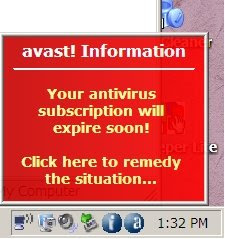
avast! Home Edition Free has a license key that is valid for one year; 'your' year will be over soon. The problem that some people have is with the screen they get after clicking on "Click here to remedy that situation.
I call the resulting screen The Big Scare; it is nothing but unabashed marketing, sort of understandable that Alwil (the manufacturer of avast!) wants to make another buck. This is the scare screen:
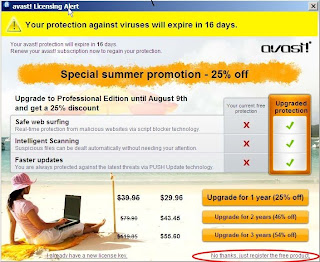
Some people got so scared that they overlooked the tiny link in the bottom right corner that reads "No thanks, just register the free product".
When you click on this link your web browser comes up with the registration page for avast! which has recently changed. You will find the text "My registration key has expired, I need a new one".
Click on "My registration key has expired, I need a new one." You will get to the Registration form. Please fill in all fields correctly and click "Register for free license".
You will receive an email with a new license key; sometimes it takes quite some time until this mail arrives.
Open the registration email, highlight the new license key (ONLY the key please!) and copy it to the clipboard (Ctrl+C).
Double click the avast! AntiVirus icon on your desktop. You will see the avast! splash screen:
Click on "Registration" and you should see:
Place your cursor in the field labeled "Enter your license key" and paste (Ctrl+V) the license key into the field. It should look something like this:
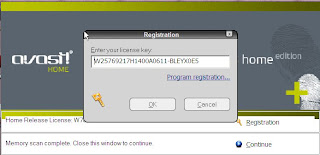
Click OK and avast! will tell you that all is well again (for another 12 months).
As usual I welcome comments and suggestions right here in the blog.
Thank you in advance.

avast! Home Edition Free has a license key that is valid for one year; 'your' year will be over soon. The problem that some people have is with the screen they get after clicking on "Click here to remedy that situation.
I call the resulting screen The Big Scare; it is nothing but unabashed marketing, sort of understandable that Alwil (the manufacturer of avast!) wants to make another buck. This is the scare screen:

Some people got so scared that they overlooked the tiny link in the bottom right corner that reads "No thanks, just register the free product".
When you click on this link your web browser comes up with the registration page for avast! which has recently changed. You will find the text "My registration key has expired, I need a new one".

Click on "My registration key has expired, I need a new one." You will get to the Registration form. Please fill in all fields correctly and click "Register for free license".
You will receive an email with a new license key; sometimes it takes quite some time until this mail arrives.
Open the registration email, highlight the new license key (ONLY the key please!) and copy it to the clipboard (Ctrl+C).
Double click the avast! AntiVirus icon on your desktop. You will see the avast! splash screen:

Click on "Registration" and you should see:

Place your cursor in the field labeled "Enter your license key" and paste (Ctrl+V) the license key into the field. It should look something like this:

Click OK and avast! will tell you that all is well again (for another 12 months).

As usual I welcome comments and suggestions right here in the blog.
Thank you in advance.
Thursday, July 9, 2009
My "old" Screen Setup
The upper right hand corner of your desktop looks like this after I have cleaned up your computer. Naturally the lines and numbering are not on your desktop, they help in explaining what the icons are meant for. See the explanations below.
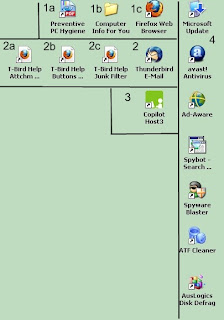 1a The PDF file named "Preventive PC Hygiene"; it describes step by step and click by click what needs to be done to keep your PC "clean and mean".
1b A folder with various background information in PDF files and a link to my blog.
1c Firefox is the web browser you should be using for all things Internet. Read here about why.
2 If you use web mail (Gmail, Yahoo or Hotmail) please skip to #3.
Thunderbird is the program you should be using to read and write emails unless you prefer web based email. The only drawback in Thunderbird is its Help system; that's why you have the next three icons.
2a Thunderbird help page explaining the basic elements of the main Thunderbird screen.
2b Thunderbird help page explaining attachments and the address book.
2c Thunderbird help page explaining the mechanism to filter Junk mail; this is a MUST READ! Don't look for the windows in Thunderbird itself; you only need to understand the simple and effective mechanisms used.
3 CopilotHost is a program you would use to establish a connection to me for remote support. This is only possible on connections that are faster than dial-up.
4 The seven (for Vista six) steps that comprise the weekly clean-up chores. The icons correspond positionally to the numbered paragraphs in my paper Preventive PC Hygiene; see there for detailed instructions. The top-down sequence of these icons denotes decreasing importance.
As usual I welcome comments and suggestions right here in the blog.
Thank you in advance.
 1a The PDF file named "Preventive PC Hygiene"; it describes step by step and click by click what needs to be done to keep your PC "clean and mean".
1b A folder with various background information in PDF files and a link to my blog.
1c Firefox is the web browser you should be using for all things Internet. Read here about why.
2 If you use web mail (Gmail, Yahoo or Hotmail) please skip to #3.
Thunderbird is the program you should be using to read and write emails unless you prefer web based email. The only drawback in Thunderbird is its Help system; that's why you have the next three icons.
2a Thunderbird help page explaining the basic elements of the main Thunderbird screen.
2b Thunderbird help page explaining attachments and the address book.
2c Thunderbird help page explaining the mechanism to filter Junk mail; this is a MUST READ! Don't look for the windows in Thunderbird itself; you only need to understand the simple and effective mechanisms used.
3 CopilotHost is a program you would use to establish a connection to me for remote support. This is only possible on connections that are faster than dial-up.
4 The seven (for Vista six) steps that comprise the weekly clean-up chores. The icons correspond positionally to the numbered paragraphs in my paper Preventive PC Hygiene; see there for detailed instructions. The top-down sequence of these icons denotes decreasing importance.
As usual I welcome comments and suggestions right here in the blog.
Thank you in advance.
Preventive PC Hygiene
Attention: On Windows 2000, XP and Vista systems all of the following has to be done by a user with administrator privilege. This is mandatory!
Remember: Use Firefox and Thunderbird instead of Internet Explorer and Outlook Express; this is HUGE insurance against most malicious software!
With a working Internet connection do steps 1 trough 6 of this “computer hygiene” routine once every week; do step 7 once every month.
Please keep in mind that despite “Automatic Updates” in Windows the computer will miss an update. My experience shows again and again that especially on dial-up connections this happens way too often.
It is absolutely necessary to download and install all these updates, even if you only have a slow dial-up connection!
1 Run Microsoft Update. Click the Microsoft Update icon. In XP select the Express button, in Vista only install “important updates”; follow the prompts. Important: Do this repeatedly until it says “no more updates available” or “Windows is up to date”.
2 avast! Antivirus does not need to be manually updated, If you want to do it anyway: Right click on the small “a” in a blue circle in the tray area (right bottom), then click on “Program Update” to update the program and the virus definitions (iAVS).
3 Scan your computer for advertisement software with Ad-Aware.
Ad-Aware may run 5 to 30 minutes depending on the speed of your computer and the number of files. Long run times are common, especially on computers with several user accounts and thousands of pictures or other files.
a First click on Web Update; allow all updates to download and install.
b Click on Scan System, check Smart Scan and click on Scan Now.
c If after the scan there are any objects listed click Perform Actions
Now. The program knows what to delete and what to quarantine.
d Close the program.
4 Scan your computer for spyware with SpyBot Search & Destroy. SpyBot S&D may run quite some time depending on the speed of your computer and number of files.
a First click on “Search for Updates”. If you are asked for a download
place choose any location in the USA. Place checkmarks in all empty
check boxes and click Download. When downloading is done click Exit.
In rare cases you may have to restart the program manually.
b After updating it is good practice to “Immunize”. In the menu column
on the left click on Immunize. If “Unprotected Items” is greater zero
(counter in top right of the Immunize screen) click on button
"+ Immunize".
c Click on “Search & Destroy” and “Check for problems” to start scan.
d If after the scan there are any items listed click on “Fix selected
problems” and confirm the removal of the listed malicious items.
e Close the program.
5 Run Spyware Blaster from the shortcut on your desktop.
a First click on “Download latest protection updates” (bottom-most line
in the screen), then click on Check for Updates. If there are updates
they will download and install automatically.
b Click on “Protection Status” (left, top menu entry in the window).
c Click on “Enable All Protection” (third line from bottom of the screen).
d When the progress bar is turned off close the program.
6 Run ATF-Cleaner. Click Select All and Empty Selected. When ATF-Cleaner is done confirm OK and click Exit.
7 For Windows XP: If you have lots of time and a stable 110V power supply run AusLogics Disk Defrag. Click Next and let the program finish! Ignore the sales pitch on the right side of the “… finished” screen.
For Windows Vista/7: Schedule Disk Defragmenter for your C: drive to run at a time your computer is most likely turned on.
Re. “stable power supply”: For computers which store critical data I highly recommend an Uninterruptible Power Supply [UPS] and an external disk drive for backups.
For all other home computers a good surge suppressor is a MUST HAVE. “Normal” power strips are NOT sufficient!
Please remember: Loss of power while the computer is running is almost always disastrous!
With “good surge suppressor” I mean a unit with a connected equipment warranty of at least $30,000.
As usual I welcome comments and suggestions right here in the blog.
Thank you in advance.
Tuesday, June 23, 2009
Screen Shots
Update 7/10/2015:
All instructions and mentions of Gadwin Print Screen in this article refer to version 4.7 of this program, by now (July 2015) an "old" version. I still install this old version 4.7 on my customer's computers because it is easier to handle than the new version(s). Newer versions have more functionality and behave differently. These instructions are invalid for newer versions.
I admit it, I do read manuals; well, "read" maybe is too strong indeed but at least I glance them over as to get a good idea what the underlying gadget is about. Often I find an overview chapter or the like and THAT I usually really read.
Why am I telling this here? Because it puzzles me to see that computer users of many years all too often don't even know about such a basic thing as how to take a screen shot which is a total or partial image of what you see on the computer's monitor.
There is an actually fairly complicated MS Windows method but it falls quite a bit short of being comfortable and easy to remember.
There are quite a few decent free programs out there to help avoid the quirky Windows method. Some years ago I favored a small program called MWSnap. By now it has been superseded by Gadwin Print Screen.
If I set up your computer fairly recently you should already have this program running and set up as described below. Check your system tray for this little icon:

Rest your mouse cursor on this icon and it will tell you “To capture Image …”. From a right click on this little icon you can directly select Help and the Help system for this program will come up where you find all other information about it.Once installed Gadwin Print Screen sits quietly in the background and waits for you to push the PrintScreen key on your keyboard. Depending on easy to accomplish settings in the program it will do what you told it to. It either captures the
- Current Window
- Client Window
- Full Screen or a
- Rectangular area.
The output file format should be set to PNG; this is my favorite format for this purpose because files are relatively small, decent to good quality and any image processor can handle PNG. Output files get by default consecutively numbered and stored in My Documents\PrintScreenFiles.
The program is easy to use, unobtrusive, has good documentation and it's FREE. Beat that combination. It works on XP, Vista, Windows 7 and Windows 10. You find it’s Help after you double click (open) the little tray icon; in the program window click Help and voila, there you are.
Updated Jan 20th 2017:
You once could download it from here but the version I am talking about is no longer available for downloading on the manufacturer's web site, likely since quite a while already. See below after Download,
Ignore the immediately following! Please scroll down until you find the entry for the free version; it looks like this:
 As usual what you download is an installer program; run the installer and GadwinPrintScreen will be installed. Once it runs okay please don't forget to delete the installer.
Download: (added 12/7/2017): I found a (today!) working download link for the old version 4.7. This will download a ZIP file (a compressed archive). Let it open and copy the Setup file to your desktop. Close the ZIP file display. Run the setup program and then set the program up like described below. Good luck and NO GUARANTEES.
Start the program by double clicking the new "Gadwin Print Screen" icon and set
- Preferences to Preview the captured image,
no notification messages,
no splash (screen) on startup and
Run at Windows startup - Source to Rectangular Area
- Image to Image file type PNG
After these settings I delete the program icon and the downloaded installer program from the desktop and/or the Downloads folder respectively..
As usual I welcome comments and suggestions right here in the blog. Thank you in advance.
Stay safe!
Subscribe to:
Posts (Atom)
