Thursday, April 7, 2011

How A Rogue Program Gets On Your Computer

Folks, this is really important because rather sooner than later your computer will get nailed! if you don't know what to look out for, here is an excellent example to learn from. 

I am a (paying!) subscriber of the Windows Secrets newsletter. The latest issue begins with an article on LizaMoon, the newest mass threat from the internet. The article begins with these words:

A nasty piece of malware known as LizaMoon has hijacked links on millions of websites in the past weeks, including some normally safe iTunes and Google links.

The author describes in detail what happened and that he had to deliberately co-operate four times(!) for the real infection with that rogue program to take hold on his computer.

I highly recommend the article to all who read this!

If you want to know how to avoid LizaMoon (or other rogue programs) if it shows up on your computer reading this above mentioned article is a must!

Now that you know how to spot this sort of thing you want to know how to combat it? Firstly, know how to close these kind of program windows without giving them a chance to interpret your action as an invitation. This kind of infection needs your cooperation and at least one click on the "wrong" link or button. Please read this article here in this blog for more information. One of several methods to "kill" these attacks is detailed after the heading "How do I stop the attack that just started?" towards the end of the article.

As usual I welcome comments and suggestions right here in the blog. Thank you in advance.

Click here for a categorized Table Of Contents.

Friday, February 25, 2011

Recovery Disks vs. Repair Disk


Recently I got this question from a customer:
I got a message saying you need to create System Recovery Discs. Is this necessary with all the changes you did to our new computer?
Please be aware of the difference between a Repair Disk and System Recovery (or System Restore) Disks. Some programs that can write System Recovery Disks can also write System Repair Disks.

Repair Disks are operating system specific and can help to repair an operating system that does not boot anymore. They got introduced with Windows Vista.

Vista and Windows 7 can create Repair Disks natively, that is without additional software.

Recovery Disks (or Restore Disks) can restore a computer system completely to the exact state it was in when the Recovery Disks were created. On Windows 7 no special software is needed to create Recovery Disks. Many manufacturers now supply such software under various names pre-installed with their systems.

But BEWARE: Many manufacturer programs will give you "Recovery Disks" that will recover the computer to the original, factory installed state. And trust me, you don't want to go back there and as a consequence loose all updates, additionally installed programs and personalized settings. And with one wrong selection you could loose ALL your data files as well! 

In their own documentation Microsoft does not always clearly distinguish between system Repair and system Recovery (or Restore). Beware of the ensuing confusion.

There is a fairly good explanation of the term "Recovery Disk" on Wikipedia. Only the sentence "OEM supplied recovery media is commonly shipped with most computers" is not correct any longer. Since the introduction of Windows Vista in late 2006 I see on new Vista and Win7 computers only software installed to create such disks; generally there are no disks being supplied any more. And any manufacturer supplied recovery disk will very likely restore your computer to it's original state; see the paragraph above that begins with "But Beware".
 
After an eventual catastrophic event System Recovery Disks allow you to completely recover the system to exactly the state it was in at the moment the Recovery Disks were made, including all your programs and data. You need several DVDs for one set of Recovery Disks so you should buy at least 5 or 10 recordable DVDs, NOT CDs! Naturally your computer needs to be equipped with a DVD writer to be able to create the recovery disks.

IMHO it is always advised to make System Recovery Disks, not even only once after a new computer has been set up but after every major change or update.

And it is advised as well to create a System Repair disk; this needs to be done only once. If you did not do it or if this function got left out by the manufacturer of your system then I can help; I have a complete set of Repair Disks for Vista and Windows 7 in their 32-bit and 64-bit variants.

After you have made the first set of Recovery Disks the reminder message mentioned in my customer's email will not come up anymore but the software should still be on your computer in the All Programs menu.

In the past I have seen that some manufacturer in their eternal wisdom choose to remove the software after the first set of disks was created. Should that happen on your machine don't despair, there is other free software available that can write Recovery disks. Repair disks can be downloaded from Microsoft.

If you got confused by the above please don't despair. The Windows Secrets blog has a completely different way to describe the same theme while talking about all these options quite differently.

As usual I welcome comments and suggestions right here in the blog. Thank you in advance.

Click here for a categorized Table Of Contents.

Tuesday, February 22, 2011

Firefox Does Not Show Adobe PDF Files

Recently I get many calls because PDF files don't show correctly in Firefox.

This is a known incompatibility between late versions of Adobe Acrobat Reader and Firefox. Here is what to do about it:

First you have to make sure you have Adobe Reader version X running. By the way, the X stands for the Roman numeral 10. As of this writing Adobe Reader's most current version is 10.0.1. You find the version number by opening Adobe Reader, clicking Help, About Adobe Reader. The version number is in the bottom left corner of the About window.

If you are on anything older than Acrobat Reader version 10 you should first download the latest version from a safe and fast download location for Adobe Reader like this one here. After the download you have to run the downloaded installer (or setup) program.

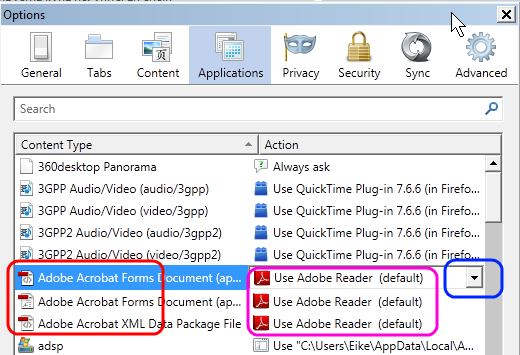
After the installation is done you have to do a simple setting in Firefox to avoid problems. In Firefox:
  1. Click Tools, Options, Applications.
  2. In the Options window:
    -   Find all entries for "Adobe Acrobat..." with a PDF icon (below marked red).
    For every entry:
    -   on the right side click on the entry and then on the drop down arrow (below marked blue)
    -   and select "Use Adobe Reader (default)", below marked pink.
  3. Click OK and all should be fine.
The Options window should look like this:

As usual I welcome comments and suggestions right here in the blog. Thank you in advance.

Click here
for a categorized Table Of Contents.

Wednesday, January 26, 2011

Manual Upgrade for Microsoft Security Essentials


Recently some customers had problems upgrading Microsoft Security Essentials to the new version 2.

If your firewall is turned ON you can do that yourself:

  1. Go to this Microsoft web page.
  2. Click Download and choose the version of MSE that is correct for your OS.
  3. Open Control Panel.
  4. In Vista/7 open Programs and Features,
    in XP open Add/Remove Programs.
  5. Uninstall (or Remove) Microsoft Security Essentials.
  6. Restart the computer.
  7. Run the installer program you downloaded in step #2 and follow the prompts.

Everything should be okay again.

You will loose the desktop icon for MSE; the new version does not have it anymore.

As usual I welcome comments and suggestions right here in the blog. Thank you in advance.

Click here for a categorized Table Of Contents.

Thursday, January 13, 2011

To Save or Not to Save – an Older Notebook

An acquaintance sent me the following email that touches on the important issue whether it is feasible or sensible to fix and update an older computer. After I had written my reply I thought this might be of interest to more people and I got the gentleman’s permission to use his email and my response publicly. Here are his email and my response as he got it, only names were removed and minor editing for readability was done, no changes were made to the content:

Hi Eike,

I was recently working on a laptop (which I received with XP Service Pack 1).
After updating everything, I noticed that the hard drive was partitioned to a C and D drive.  The D drive (recovery partition) was at about 38GB (of which less than 2GB was being used) and the C drive had about 13GB (about half of which was being used).  Is there any free utility that you could recommend that would reallocate some of the D drive and put it into the C drive?  Is this a difficult or dangerous thing to do?

I would appreciate any comments you might have.

Loved the new blogs today.

[Signed]

- - - - - - - - - - - - - - -

Dear [friend],
Thanks for reading my blog.

To your questions: Yes, no and YES!

The recovery partition is established by the manufacturer and usually replaces the OS installation CD that we got with computers a very long time ago. I would get the answers to some questions first.

  • What is in the used space on the D drive?
  • What manufacturer and model is the laptop in question?
  • When was it bought?
  • What is the size of the disk drive in Disk Manager (Administrative Tools)?
  • How much memory (RAM) is in the machine?
  • How fast (or slow?) is the CPU?

Yes, the free utility for that purpose is EASUS Partition Master Home Edition.
No, it is not at all difficult to do; I did learn it... Winking smile

YES, it can be potentially very dangerous. If D: is a restore partition any change could "kill" the restore feature. But my guess is that D: contains My Documents or some other data; that can be relocated to C:

On another note: Who would want to keep a restore partition around that would restore to a WAAAY outdated state of XP? Not me.

Here is what I recommend:

  1. When the system is clean (NO malware of any kind!) backup eventual data from D:
  2. Download HD-Tune version 2.55 from here.
  3. Install and run HD-Tune.
  4. Does the disk drive in the Health tab show yellow or red line(s)?
  5. If Yes to #4 toss the whole thing on the big pile and get a Starbucks; it's not worth the pain!
  6. Create Restore CD #1, not a recovery CD; just in case as a fallback option.
    Here is one recipe
    how to do that.
  7. Install Easus Partition Master.
  8. Wipe D:
  9. Enlarge C: to occupy the whole drive.
  10. Create Restore CD #2; just in case as a fallback option.
    #1 from step 6 gets tossed!
  11. Upgrade to SP3!!!!
    If Windows Update does not want to do it, I have the CDs.
  12. Download and install all updates until it tells you "No more updates available".
  13. Create Restore CD #3; this is the "good one" you want to keep!
    #2 from step 13 gets tossed!
  14. Ready to go.

Depending on what kind of disk drive is in there (speed and cache size), how fast the CPU is, how much memory (!!!) the box has and how fast the Internet connection is I roughly estimate the whole procedure to be anything between eight and twelve hours!

Is it worth it? Maybe as a learning experience if there is nothing else to do; I would rather have a play day with my grandchildren. In the end you still will have an older, relatively lame notebook.

I hope this helps. Do you mind to please keep me posted? Thanks.

BTW, I just thought that this would be a good "Case From Real Life" for my blog. May I please use the text from your email and this reply for that purpose? Naturally it will all be anonymous!

Oops, I just realized that you said "... after updating everything ..."; if that includes SP3 and Windows update please ignore #14 and #15; sorry.

Please don't blame me for the long reply, you asked for my suggestions... Angel
Regards
Eike

- - - - - - - - - - - - - - -

Cleaning up, upgrading and updating an older computer can require substantial time – which for my customers translates directly to money.

I always attempt to explain that as of a certain point it might just not be prudent to spend money for fixing an older computer. As you can see my guesstimate for what he wants to do gets us to a (minimal) price of around $450.

For $450 you can buy really decent basic brand new notebook computers with MUCH more memory, much more disk and computing capacity than the older machine AND Windows 7 pre-installed.

That’s why I would not even attempt to do this job!

As usual I welcome comments and suggestions right here in the blog. Thank you in advance.

Click here for a categorized Table Of Contents.

Wednesday, January 12, 2011

RAM – Neither Truck Nor Animal

On Windows Guides I found a fairly easy to understand article about RAM (Random Access Memory), the work space in our computers.

If you are interested in more you find this article here.

As usual I welcome comments and suggestions right here in the blog. Thank you in advance.

Click here for a categorized Table Of Contents.

Back Up – Foster Child of Home Computing

Please be honest, do you have a back up of your data? See, I thought so.
But finally you have bought the external disk drive for back-ups that “your” Geek always talked about. The next questions regularly asked are
-   “What do I need to back up?” and
-   ”What program should I use to make my back up?”
Here is my attempt at an answer. For simplicity’s sake I restrict myself to examples for Windows Vista and Windows 7.
Why that latter restriction? Vista was released over about three months at the end of 2006 and beginning of 2007. That in turn means if you are still using Windows XP your computer is at least four years old but very likely five years or older. After five years you should be thinking seriously about a new machine anyway.
Here is my answer to the question what to backup.

  • Documents: You should backup your entire Documents folder every time you backup.
  • The path is “C:\Users\<username>\My Documents”.
    The path is “C:\Users\<username>\App Data”.
    Actually this should be a no-brainer.

  • Music: If you’ve paid money for music or spent countless hours downloading music you probably don’t want to lose these files.
    If you use iTunes make sure to backup your iTunes folder; usually it’s inside the Music folder – but better check it, I have seen wildly different locations. 
  • The path is “C:\Users\<username>\My Music”.

  • Desktop Email: If you’re using Thunderbird you will backup everything as part of the Application Settings; see the next paragraph. Should you (against my advice) be using Outlook Express (outdated!), Outlook or Windows Live Mail, make absolutely certain that you back up their files!  Here’s how to find the files of these applications. Please don’t ask me by email about backing up email other than Thunderbird, I do not support using anything but Thunderbird.
    If you have serious reasons to stick with any MS email programs I will naturally be happy to help you on site to set up the back up of these important files.
     
  • Application Settings: Within every User’s folders is a normally hidden folder AppData. It’s sub folders contain the settings for each and every (well behaved!) application you have installed. These settings can be restored from a backup.
  • The path is “C:\Users\<username>\App Data”.
     
  • Bookmarks: If you follow my strong recommendation and use Mozilla Firefox you have done what is needed by backing up Application Settings; you can ignore this. If you insist on using Internet Explorer your Favorites are in 
    “C:\Users\<username>\Fovorites”.  

    For other browsers I will naturally be happy to help you on site to set up the back up of your bookmarks.

  • Here is my answer to the question what program to use.

    I am very wary of ANY back up program that comes in a bundle from the manufacturer of your external disk drive. Too many of these programs back up in formats specific to these programs, they may compress your data in a proprietary format or even encrypt your data. All these techniques have their proponents but I prefer to simply copy your data. This way the files are accessible with normal means and on any system that can read your external disk drive. You should never require any special software to access your files in a backup.

    Likewise I am wary of using Windows Vista and Windows 7 built-in backup programs. I don’t fully trust Microsoft to keep in all future a program around that can read the back up we create today with a Vista or 7 specific program! Having said that I have to admit that especially since Windows 7 the built-in backup features seem to do their job dependably; they are fairly easy to set up and definitely better than no backup at all.

    Currently I recommend Cobian Backup, a free backup program that runs on any Windows system since XP and newer and can just copy your files in nicely named and time stamped folders. Cobian’s documentation is a good primer on the ins ad outs of backup.

    As usual I welcome comments and suggestions right here in the blog. Thank you in advance.

    Click here for a categorized Table Of Contents.

    Monday, January 10, 2011

    Malicious Software - Definitions

    Personally I do not assign a lot of importance to differentiate the many kinds of malicious software I encounter almost every day. I take the general approach “It is malicious and we don’t want it on your computer; remove it.”

    But sometimes customers ask if it was a virus or a worm and I find it hard to explain the difference in terms accessible to a lay person.

    I my web travels I found Squidoo and on Squidoo I found some hopefully useful definitions; I felt I had to mostly copy the definitions and use them as boilerplate for my own text because the same site recommends commercial anti virus and security software that I tell my customers NOT to use.

    Rogue Security Software
    Currently this class of malware is an outright epidemic. Rogue software is a form of malware that manipulates and scares people into buying a so called “full version” of fake applications, mostly supposed virus removal software. Rogue software displays bogus scan reports and alerts to trick the user into paying good money to the crook who got the rogue program on your computer. In the process of paying you give your credit card information directly to the crook as well! These rogue programs can take over the whole computer system to prevent their removal and in most cases block other applications including legitimate anti-malware programs from running. Some rogue programs are relatively easy to remove but some use stealth techniques that make removal very difficult and time consuming. 

    Browser Hijacking
    Hijacking is a form of malicious software behavior. Browser and network settings on the user's computer are changed; user activity is redirected to web sites of choice of the Hijack’s creator. Usually you will be redirected to start pages and search pages for paid advertising and/or web pages that attempt to install other malicious software.

    Rootkits
    A Rootkit is the sum of software and techniques that allow itself and some other, mostly malicious piece of software to be hidden from detection with regular means of the operating system. The hidden malicious components of rootkits often are Key Loggers or Trojans that allow backdoor access to the computer. Rootkits are among the most difficult to remove pieces of malware. Some rootkits are so well hidden and protected from ANY access that re-building the operating system from scratch is the only viable solution.

    Key Loggers
    Key Loggers are programs created to monitor user keystrokes; the information is logged and reported to the person or organization who installed the key Logger. They may be used by organizations to monitor employees activities. Key Loggers are also used as spyware to steal confidential information and commit identity theft. The logging of keystrokes takes place long before “classic” security measures like encryption can be employed.

    Computer Viruses
    A computer virus is infectious and sometimes destructive software that can replicate itself and go on to infect other computers. A computer virus is usually executable software. Computer viruses can be contacted through downloads and various modes of email and instant messaging attachments. The virus then attaches itself to existing programs on the target computer. The main aim is to corrupt the computer system. 

    Worms
    Similar to a computer virus, worms are infectious and self-replicating; they replicate on computer networks and via email. The worm utilizes a computer network or email to send replicas of itself to connected computes on that network or to email addresses. 

    Trojan horse
    A Trojan horse program (or Trojan for short) is a form of computer malware that gets installed on a computer system through deceptive means. Trojans often are presented to the user as a form of free software or an add-on. However, once installed, the Trojan gives it’s creator access to the computer; then the hacker can carry out their mostly criminal operations using the infected computer without any knowledge of the computer’s user.

    Spyware
    Spyware is a form of malware that collects and sends information about computer usage and other confidential and personal data to it’s creator. It generally gets installed secretively through deception such as free online scanning, a browser add-on or plugin, dubious websites and/or infected images or PDF files. Even search results have been “poisoned” and abused to install spyware.

    Adware
    Adware is short for Advertisement-supported software. These programs are designed to display advertisements on a computer system. Most adware programs are secretly collecting information on what you do and look at on the Internet so they can show you “relevant” ads; therefore they can also be classified as spyware. 

    Please stay tuned as I intend to publish an updated article on how to avoid the all too common obstacles and dangers posed by malicious software.

    As usual I welcome comments and suggestions right here in the blog. Thank you in advance.

    Click here for a categorized Table Of Contents.

    Saturday, November 6, 2010

    Fake MS Security Essentials – User Beware!

    Microsoft’s Windows Security Blog reports in great detail about a fake rogue program posturing to be Microsoft Security Essentials. Here is a short excerpt from MS’s Security Blog:

    This imposter is known in the technical world of antimalware combat as “Win32/FakePAV”. FakePAV is a rogue that displays messages that imitate Microsoft Security Essentials threat reports in order to entice the user into downloading and paying for a rogue security scanner. The rogue persistently terminates numerous processes such as Windows Registry Editor, Internet Explorer, Windows Restore and other utilities and applications.

    This fake software is distributed by a tactic commonly described as a “drive-by download” and shows up as a hotfix.exe or as an mstsc.exe file. Additionally, after the fake Microsoft Security Essentials software reports it cannot clean the claimed malware infection, it offers to install additional antimalware rogues (with names such as AntiSpySafeguard, Major Defense Kit, Peak Protection, Pest Detector and Red Cross). Lastly, this fake program will try to scare you into purchasing a product.

    The skinny of it is this: Don’t be fooled! Microsoft Security Essentials is free and will never ask you to download additional programs. It updates itself automatically or you update it by using Windows Update.

    If something asks for money in direct or indirect connection with Security Essentials it is fake!

    For me personally the “good side” of it all is that this happens to be one of the rogue infections that are relatively easy to remove, it won’t cost you an arm and a leg.

    Stay safe.

    As usual I welcome comments and suggestions right here in the blog. Thank you in advance.

    Click here for a categorized Table Of Contents.

    Tuesday, October 19, 2010

    On Java

    I am writing this while on vacation because it is so important that I want it to be out as soon as possible. Again it underlines the requirement to proactively check for updates regularly; that means not when you happen to remember, once a month or anything like that. Do it at least once every week if you want to stay safe. Those updates have to be done for security reasons, not to just have the newest gadget!

    In the following I will quote from an Australian computer technicians blog and add my comments right after a quote.

    This past year something has been brewing in the underbelly of the Internet that has only recently come to light, causing security experts to sit up and taking notice.

    Exploits on Java have multiplied tremendously in number and they are proving to be incredibly effective.

    Many of you may have heard of rogue programs; some of you may even have had to battle one or call me for assistance. Much of that is due to Java.

    Three recent vulnerabilities in Java have paved the way for malware exploitation and all three have had patches available for some time.

    So why in all the world don’t people keep the software in their computers up to date?  Actually, this is a rhetorical question; mostly because people never have been told, some don’t do it because of complacency and all don’t do it because Microsoft did not design a “standardized” method to do it.

    … notable is that two of the [Java] vulnerabilities went from hundreds of thousands of attacks per quarter [year] to millions.
    Now that we know what is going on, what can we do to avoid malware drama?

    Make sure to update Java frequently; in fact, a very important update for Java was just released today [Oct. 18 2010] with fixes for 15 highly severe vulnerabilities.

    I have updated the Java paragraph of my article on What To Update to reflect this renewed importance of keeping Java up to date.

    As of October 18, 2010 the most current version of Java is 6.0.22. In Add/Remove Programs on Win XP or in Programs and features in Vista and Win7 the entry looks like this:
    ScreenShot026 I recommend to remove (or uninstall) all other Java versions. Future updates or releases will have higher version or update numbers. All eventually left behind older versions need to be removed manually, that is from within Add/Remove Programs or Programs and Features respectively.

    Make sure you check for Java Updates regularly!

    As usual I welcome comments and suggestions right here in the blog. Thank you in advance.

    Click here for a categorized Table Of Contents.

    Friday, October 1, 2010

    Cyber Security Awareness Month

    What a monster of an expression! Such stuff normally turns me off almost immediately.

    But thanks to my daily work I know how hugely important it is to educate the public about the very real dangers and risks on the and from the Internet. The lack of even most basic understanding and some reluctance to learn that I encounter are again and again baffling me.

    One of the best ways to stay safe on the Internet to be informed; the following seems to be an excellent opportunity to catch up on know how.

    There is an organization called the Internet Storm Center out there; it “provides a free analysis and warning service . . . and is actively working . . . to fight back against the most malicious attackers.”

    Every single day during the month of October they will post materials to an astounding wide variety of computer and Internet security related issues in understandable terms; in their words: “It's a non-technical, people friendly line-up . . .”. 

    You can get an easy overview about what they offer here.

    The first entry titled Securing the Family PC is here.

    Keep reading!

    As usual I welcome comments and suggestions right here in the blog. Thank you in advance.

    Click here for a categorized Table Of Contents.

    Monday, September 6, 2010

    Email Passwords – BIG Annoyance

    One of the most annoying questions I get all too often is something like:

    I installed the new version of xyz (any email program here) and the program asks me for an email password. Can you help?

    NO, I do not know your email password! I should not know it, it is your password! And actually I do not want to know your email password! 

    The other annoying statement in this context is:

    “I never had to type a password for my email; I don’t have one and never had one!?”

    In my admittedly limited knowledge EVERY email account worldwide has a password. If you don’t know the password it is comparable to not knowing your home address or your birthday!

    If I have set up your email account (the account, not the email program!) you may be lucky if you find a file name similar to “_Email Settings.txt” in your Documents folder; look there. 

    If you use Thunderbird as your email program you may be lucky if you look in Tools, Options, Passwords, Saved Passwords, Show Passwords. This is for Thunderbird version 3.*!

    Oh, and the part with “and never had one” is plainly wrong. Again, in my admittedly limited knowledge EVERY email account worldwide has a password.

    This whole issue demonstrates excellently how much we have come to rely on our artificial memories, the computers. You definitely have typed your email password at least once and then set the email program to remember it. So you never got asked again and you forgot that you even have an email password. 

    I am truly sorry, but I can’t help if you “forgot” your email password.

    If you are seriously stuck you will have to call your ISP and ask for an email password reset. Write this new password down, precisely, including upper- and lower case! If you have trouble getting that into your email program I am glad to help. We can do that remotely!

    As usual I welcome comments and suggestions right here in the blog. Thank you in advance.

    Click here for a categorized Table Of Contents.

    Sunday, September 5, 2010

    Resetting a High-Speed Internet Connection

    If you have DSL or cable service your computer may loose it’s Internet connection. You get "server not found" messages or the like.

    You may have one or two of these three types of connecting equipment:

    1. A Modem; it converts the high speed signal from either the phone line or the TV cable into something a computer can understand.
      The modem has one cable that connects either to your computer or to a router.
    2. A Router typically has one input from a modem, four output connectors for computers or network printers and eventually a wireless antenna.
    3. A Gateway is a combination of a modem and a router in one physical box.

    These three boxes usually have a small “Reset” button on the back. Do NOT push the reset button! If you do it anyway the unit will forget the connection specific settings that have been stored in there and the parameters have to be set again. Do you know how to do that? If yes please feel free! 

    Here are the first and most important steps to do before you call your Internet Service Provider (ISP). They would have you do the exact same things anyway.

    Please do the following in exactly this sequence:

    1. Turn everything OFF.
      That means to shut down (turn off!) all computers and
      shut down (turn off) the router and modem or gateway by removing the power cables from the modem and the router or gateway.
    2. Then wait one minute; this is important!
    3. Turn the modem (or gateway) back on (re-connect the power cable).
    4. Then wait one minute; this is important!
    5. If you have a router turn it back on (re-connect the power cable).
    6. Then wait one minute; this is important!
    7. Turn your computer(s) back on.
    The connection should be working now.

    If it’s not working more detailed hands-on troubleshooting is required. Please call your ISP’s technical support before you call me. When you talk to tech support do NOT allow them to install their mostly crappy and expensive “security” software. If I did set up your computer it is protected!

    As usual I welcome comments and suggestions right here in the blog. Thank you in advance.

    Click here for a categorized Table Of Contents.

    Thursday, August 5, 2010

    Hoaxes, Scams and Urban Legends

    Here is a good and comprehensive list of reliable sources to check out the next email that asks you to “Send this to everybody you know” and/or tries to scare you into forwarding it.

    PLEASE use these free services instead of just hitting Forward.

    As usual I welcome comments and suggestions right here in the blog. Thank you in advance.

    Click here for a categorized Table Of Contents.

    Remarks on Security Suites


    In the paid version of the Windows Secrets blog I read an article; among others it talks about an anti virus suite causing horribly long boot times. Due to the rules and organization of this blog I can not link directly to this part of the article. So I quote the relevant pieces here.

    To set the stage: Generally I recommend to remove all those big, cumbersome and expensive security suites like McAfee, Norton, Trend Micro and so on. When I try to get the customer’s permission for this the most common question I encounter all too often is “Why?”. Here are some of the many more relevant answers, as I said above quoted from an article in the paid version of the Windows Secrets blog.

    Feature duplication: 

    For example, Trend Micro lists 13 major features and subsystems in its security suite, McAfee lists 14, and Symantec lists 33!

    Many of these features duplicate abilities already built into Windows and the major browsers. For example, Internet Explorer and Firefox have built-in link-checkers, pop-up-blockers, parental controls, and more.

    Windows itself (especially Win7) has a capable firewall built in.

    Overhead:

    So the large security suites are including features you probably already have, and all of these redundant features consume memory and CPU time.

    Solution:

    … my current favorite security tool, Microsoft's free Security Essentials (site), lists just two major functions: antivirus and anti-malware protection.

    When used with Windows' built-in firewalls and a fully current browser (say, IE8 or Firefox 3.6.x), you end up with essentially the same capabilities provided by the huge commercial security suites.

    Price:

    What's even better, it's all free!

    I hope this is enough to convince even those people that say “But I paid for it”.

    As usual I welcome comments and suggestions right here in the blog. Thank you in advance.

    Click here for a categorized Table Of Contents.

    Friday, July 30, 2010

    On Rogue programs

    I found an intriguing article on TechPaul’s blog. It is so good that I venture to quote the IMHO relevant parts almost literally. Additions or edited text within the quote appear in dark blue. Paul, I hope you can forgive me.

    * * * * * * begin quote
    Currently there is an epidemic of fake anti-malware software on the Internet – which is collectively called “rogue anti-malware” or  “scareware”. These fake programs are ‘marketed’ under hundreds of different names, such as “Internet Security 2010″, “Online Scanner”, and “Antivirus XP 2009″.
    At our current state of Internet insecurity, you will see one of these scans pop open sooner or later - if you haven’t already seen it.
    This ‘rogue’ software scares people by giving false “a virus has been detected!” notifications, and then tries to deceive them into using a credit card and paying for removal of non-existing “infections”.
    Worst part is, many are designed to appear to be legitimate products,  professionally packaged/presented including customer testimonials etc.
    • The user is tricked or better scared into providing their credit card information to clean infections that weren’t there before they clicked and aren’t really there now.
    • The ‘false positives’ are not “cleaned”, but more adware and spyware is installed.
    • These clever programs use the latest techniques to combat removal, and it can be quite tough and sometimes next to impossible to truly remove them.
    In case I wasn’t clear:
    1. The alerts are fake.
      The scans are fake.
      The results are fake.
      Don’t fall for it.
    2. When you see these “scans” it is to late, your machine has been successfully attacked and you should start a virus removal process immediately - and/or get help. 
    3. Epidemic? You bet!
      Thousands of websites get poisoned each week and cybercriminals create bogus websites at the rate of thousands a day.
    Oh, yes, I almost forgot. A new ‘variant’ of the better rogues is released on the Internet roughly twice a week.
    * * * * * * end of quote

    If you choose to call me, shut down your computer and do not, I repeat, do not try anything else. The more you fiddle yourself the worse it will likely get and thus the longer I will need to remove the junk. And as you well know ‘time is money’, your money in this case.

    So what can you do?
    • Use and heed WOT (Web Of Trust)
      (Changed 2011 after many months of problems with McAfee's Siteadvisor) 
    • Always use Firefox or Google Chrome instead of Internet Explorer to browse the web – and see that all family members and their visitors (Kid’s friends!) adhere to this policy as well, no exceptions.
    • In Firefox:
      Use Adblock Plus with the Easylist (USA) filter list and WOT and heed it..
      In Chrome use Adblock (by gundlach). 
    • Be prepared, maybe having read and understood this article.
    • Don’t panic, use common sense!
    • Oh, did I mention it already? Be prepared!
    As usual I welcome comments and suggestions right here in the blog. Thank you in advance.

    Click here for a categorized Table Of Contents.

    Friday, July 23, 2010

    Routers Can Get Hacked – Act Immediately

    A newsletter for computer technicians writes about a pretty nasty attack that could open your computer to the (hacker-) world. This article goes into quite some technical detail; if you prefer to avoid this type of geek speak here is the skinny of it:

    Many, many home routers can be hacked! Here is a link to a table with model numbers and information whether the specific router is vulnerable. I you have a router there is a good chance that your model is in that list.

    What you can do about it? This literal quote from the newsletter says it best:

    The best way to protect against this attack is to change the password on the home router and change the default IP address along with keeping firmware up to date.

    A few remarks to the table with the results of the tests:

    In the last column you see either Yes or No; yes means this router has been hacked successfully. If your router model is not in this list your system more likely than not is a potential candidate for being hacked this way. To be safe I would treat it as a Yes.

    Sadly but understandably 2Wire routers and gateways are missing. They are fairly ubiquitous since they get often installed with ATT DSL or U-Verse service. I recommend to treat them as a Yes.

    • If you have one of the models with a Yes I suggest you act immediately, BEFORE hackers take advantage of this opportunity.
    • If you have one of the models with a No you can at least sleep in peace.
      I suggest that as a precaution you change at least the router’s password; it would be ideal to update the router’s firmware as well if applicable.

    If you are technically inclined and still have your router documentation you certainly can do the password change yourself.

    If you feel uncomfortable about changing the default IP address and/or updating the firmware then you know who to call, do you?

    Now, if you call to make an appointment for this then PLEASE have your router’s manufacturer, the precise model number and version information available; thank you in advance (look on the underside or back of the router for this information). If you don’t find that information, no big problem, I can establish that on site.

    I found it interesting that
       -   all of the five tested D-Link routers are safe,
       -   all of the two tested Netgear routers are safe,
       -   four out of five tested Belkin routers are safe and 
       -   only two out of eight tested Linksys routers are safe.
    These four manufacturers likely sell the bulk of routers in our neck of the woods – but they sell many more different models not tested here.

    July 6, 2008 I wrote about Wireless Router Setup. I just now have updated this article from 2008 to reflect above new information.

    As usual I welcome comments and suggestions right here in the blog. Thank you in advance.

    Click here for a categorized Table Of Contents.

    Thursday, July 22, 2010

    Windows Live = NO Privacy At All

    One of the more technically oriented newsletters I receive regularly arrived with this article: Windows Live shares your Messenger contacts

    Already in April 2010 I wrote about Microsoft and Privacy. Now on top of all that comes above mentioned article from the Windows Secrets newsletter. Again, in my opinion the author is a reputable man and a very experienced computer journalist; I trust his words.

    You may want to wade waist deep through the original article; if you prefer to save yourself some time here are selected literal quotes:

    With the new Live format, Microsoft pays a great deal of lip service to maintaining your privacy; but my tests show you can't trust what you see on the screen.

    Now, imagine my surprise when I discovered that the so-called new and improved, privacy-conscious version of Windows Live — the social-networking sphere containing Messenger and Hotmail — continues to share my personal information, even when I explicitly tell it to keep my info and communications private.

    Windows Live's most pernicious form of privacy invasion is what I call third-party tattling. Here's how it works: You and Mr. A have a conversation via Live Messenger. Days, weeks, or even months later, you and Mr. B also have a conversation. In Windows Live parlance, you are now friends with both Mr. A and Mr. B.
    Tattling comes into play when Mr. A signs on to Messenger or Hotmail or Windows Live and sees that "[You] and Mr. B are now friends."

    I'm sure you can think up many different scenarios where that kind of sharing could be quite embarrassing (even lethal) — an informational gold mine for business rivals, political opponents, love triangles, wanted nuclear scientists; you get the picture. To put it succinctly, it's none of Mr. A's freakin' business who else I've contacted with Messenger.

    Microsoft tattles — dishes up lists of my new-found Friends every time they log on to Messenger, Hotmail, or the main Windows Live page.

    Microsoft has taken Hotmail and Messenger accounts and turned them into Windows Live Spaces accounts. What's more worrisome, MS has also taken the liberty of converting your Messenger contacts into Friends. It then shares information about these new Friends with each other. To try to prevent this sharing (and, based on my tests, you can't), you have to navigate a mind-boggling labyrinth of privacy settings.

    It has a bad odor to it. When I use Facebook, I fully expect that other people will be able to see what I'm doing. No problem — I would never use Facebook for sensitive business communications. But when I use Messenger, I expect it to be as private as a phone call.

    I hope this is enough to keep you from using ANY of Microsoft’s Live services, be it Messenger, Hotmail, cloud storage or whatever other service under the umbrella of a Windows Live ID.

    Please distinguish between services and some useful programs Microsoft freely offers as part of what currently is called Windows Live Essentials.

    For example I write this blog with Windows Live Writer; it is a God-sent for me. Other Windows Live Essentials programs that some of my customers use – but I don’t have any experience with:

    1. Windows Live Movie Maker to edit family videos,
    2. Windows Live Photo Gallery for photo organizing and basic editing,
    3. Windows Live Family Safety to protect kids from Internet smut.

    The big risk is that these programs are offered together with Live Messenger and Live Mail and every time you update one of them you again and again will get inundated with requests to set your home page to MSN, make Live Search (and/or Bing) your main search provider and to get a Windows Live ID. User beware!

    As usual I welcome comments and suggestions right here in the blog. Thank you in advance.

    Click here for a categorized Table Of Contents.

    Monday, July 19, 2010

    End Of An Era: Goodbye Windows 2000, XP SP2 and Vista

    An era has ended it appears. An era in the Microsoft centered world of computers at least. Don’t get me wrong here, it’s not that I am bemoaning this fact, not at all!

    With the end of update support for above mentioned Windows versions Microsoft applies pressure on the holdout community that IMHO not only lives in dangerous surroundings but thus potentially endangers everybody else. How so? These technically obsolete systems will most likely become hosts to malicious software that from this almost safe heaven will attempt to get into other machines as well.

    I have been asked why someone would still want to run something like Windows 2000? The answer in most cases is surprisingly simple: Old application software!

    Companies can fall into this trap if at the managerial level they either don’t see the need to keep the IT infrastructure up-to-date or can not update due to financial constraints. The former reason seems to me to be more of a philosophical (and/or educational?) problem, the latter being due to insufficient budgeting and planning. Over my four and a half decades in IT I have seen this scenario all too often.

    Small home office and normal home users IMHO fall into this trap mostly because they got used to using some old piece of software and/or were unwilling to upgrade earlier when they were reminded.

    The world of computers is likely the fastest changing field of technology ever. It appears that we are not yet adapted to thinking in update and maintenance cycles. So here is my $0.02 worth on updating from my side of the fence:

    • Computers should be updated, that is exchanged for a new one, about every five years. Depending on technical circumstances like what hardware is in a machine or what new operating system has just been released (Windows 7!) even only three years may be reasonable.
    • The operating system always and continually has to be kept up-to-date. If you are still running Windows 2000 then the time to buy a new computer is now, no matter what!
    • Critical application software has to be kept up-to-date as well. If this requires a new operating system and/or a new computer then so be it, period.

    If you can’t keep up in Chicago rush hour traffic on the interstate with your nice old Ford Model T then you are endangering yourself and others! Either get off the road or get a car that can keep up in these conditions, sorry!

    As usual I welcome comments and suggestions right here in the blog. Thank you in advance.

    Click here for a categorized Table Of Contents.

    Sunday, July 18, 2010

    What Malware Can Do

    I just read an IMHO great article about the Conficker worm. Yes, I know, Conficker is a story from November/December 2008 but this article in The Atlantic magazine is not only factually correct, it is great reading.

    You may not want to read through the many, many partially good and partially quite silly comments so here is the link to a website that gives you a simple optical indication if your computer is infected with Conficker or not. Note: This may not work on computers in certain types of mostly corporate networks.

    Should your computer be infected, you know who to call, don’t you?

    As usual I welcome comments and suggestions right here in the blog. Thank you in advance.

    Click here for a categorized Table Of Contents.

    McAfee Siteadvisor Setup

    McAfee seems to feel the heat, maybe generated by Microsoft Security Essentials?

    McAfee’s IMHO very valuable Siteadisor service is increasingly being used to run with settings that help only McAfee and not the unsuspecting end user.

    Here is a short tutorial on how I would set Siteadvisor’s options. This is based on the currently latest version of Siteadisor.ScreenShot001

    Click on the little vertical arrow to the right of the green (or grey) McAfee icon in the right bottom corner of the Firefox window. 


    ScreenShot002
    Then click on Options and in the General tab set “Add color-coded highlighting…” to Yes.


    ScreenShot003

    In the Secure Search tab Un-check the check box by “Add Secure Search to…”.


    I strongly suggest NOT to set Yahoo as the browser’s home page and NOT to use McAfee’s so called Secure Search as your browser’s default search engine.

    Update July 18, 2010:

    Just this moment I had to do remote support to help a customer who did not see the McAfee icon in the right bottom corner of the Firefox screen.ScreenShot005

    1.   The status bar was turned off. Naturally you can’t see something that is being displayed there if the status bar is turned off. You turn it on here:


    ScreenShot004

    2.   Almost every add-on in Firefox can be independently disabled or enabled. In this customer’s Firefox the McAfee Siteadvisor add-on was disabled. You can check and/or change that by clicking Tools, Add-ons. You get a window like this:
    Highlight Extensions and find McAfee Siteadvisor. If the marked button reads Enable then it is disabled; click on Enable to do just that. You have to restart Firefox for the change to take effect.

    End of Update July 18, 2010 

    As usual I welcome comments and suggestions right here in the blog. Thank you in advance.

    Click here for a categorized Table Of Contents.

    Sunday, July 4, 2010

    Safe Computing in 2010

    The world of computers run by Microsoft Windows operating systems has changed so much since I began this blog in 2008! The posts from May and June 2008 drew heavily on papers that I used with and for my customers some time earlier, mainly in 2005 through 2008.

    In politically correct terms, the threat landscape has undergone major changes.

    It is about time that I give an updated “digest version” of what I recommend now to keep a computer as safe as possible. Here it is.

    1. Use Open DNS.
       
    2. Use Firefox with AdBlock Plus and McAfee Siteadvisor add-ons. In Siteadvisor you have to turn “Highlight search results” on and turn the Safe Search function OFF; if Safe Search is on then do not use it!
       
    3. Use Thunderbird instead if any Microsoft email program! In Thunderbird version 3.x I recommend to use “CompactHeader” and “Extra Folder Columns” add-ons. 
       
    4. Never open any email attachment unless you are sure of the source and always virus scan the attachment first.
       
    5. Firewall:
      Please ask yourself the following two questions:
         A: Are you capable of and do you wish to learn about network ports and ow to configure firewall rules?
         B: Are you able to answer correctly lots of alerts and questions about the things in question A?
       
      If you say NO to either or both of above questions stick with the standard Windows firewall, period!
       
      If You answer Yes to both questions you may consider Outpost Free.
      If you do the latter be aware that you will be subject to “upgrade” offers to the for-pay version. User beware!
       
    6. If you are a self proclaimed “computer illiterate” home user then use Microsoft Security Essentials as your anti virus, anti malware and anti malvertisement (malicious advertisement) solution.

      More info from me on MSE: Go to the table of contents of this blog, find and click label “MSE” and read the articles that come up.
       
    7. Always ensure that your operating system and security software is updated with the latest signatures and patches. Try to use an automated function for this where one exists but don’t totally rely on any automatic update function. Check manually and regularly for updates! 

      You want to know what to update? Read this article on my blog.
       
    8. In Google search results: Never enter a site rated "Red" or “Yellow” by Siteadvisor. There will be 100s of other safe alternatives to choose from.
       
    9. Only download programs from trusted sources and still virus scan the downloaded file first before you actually use it! The IMHO most comprehensive scanning is done by VirusTotal and Jotti.
       
    10. Never run software from borrowed removable media without first virus scanning the content.
       
    11. If you lend your removable media to someone else virus check it when it comes back!
       
    12. If anything on or from the Internet looks like the offer of a lifetime then your online life is likely to end or at least massively change abruptly!
       
    13. Cracked software is only for cracked heads or people dumb enough to think differently.

    I know, some of the above are harsh words, please forgive me. But they are the truth nevertheless.

    As usual I welcome comments and suggestions right here in the blog. Thank you in advance.

    Click here for a categorized Table Of Contents.

    Monday, June 28, 2010

    Dell Publicly Uncovered – Finally

    Please read this NY Times article about a lawsuit against Dell.

    Finally I have at least some independent third party support when the next customer wants to buy a Dell computer and has a hard time concealing his doubts about my competence when I advise against it.

    As usual I welcome comments and suggestions right here in the blog. Thank you in advance.

    Click here for a categorized Table Of Contents.

    Saturday, June 26, 2010

    Thunderbird 3.1.* Finally Usable!

    It has happened – finally! Yesterday Thunderbird (TB) version 3.1 was released and my two major gripes with the 3.0.* versions have been alleviated.

    Upon the first start of TB after installing version 3.1 it asked if I wanted to install the CompactHeader add-on and the ExtraColumns add-on. I said yes to both and now TB version 3 has important functionality that I did not want to miss – and many customers had confirmed that choice.

    Don’t despair if you miss above windows and questions or if you already have TB 3.* running without these add-ons. You can find and install the add-ons from this web page. Search for “Compact Header” and “Extra Folder Columns”, go to their description and download them. Don’t forget to install them after the download!

    Happy emailing.

    As usual I welcome comments and suggestions right here in the blog. Thank you in advance.

    Click here for a categorized Table Of Contents.

    Friday, June 25, 2010

    10 Myths of Safe Web Browsing


    I found an interesting article written by a Sophos product manager. The man is generally correct but I was amazed at the amount of what I perceive as spin. To save you the trouble of downloading the PDF file I quote the 10 myths here verbatim and will give you my opinion right after each paragraph – if applicable nad indented for readability.

    Sophos is one of the better anti-virus and computer security companies geared squarely at the business market; just their ant-virus solution for a single computer is priced at $186.25 and thus of little interest to the vast majority of my customers.

    Myth #1: The web is safe because I’ve never been infected by malware
    You may not even know you’re infected. Many web malware attacks are designed to steal personal information and passwords or use your machine for distributing spam, malware or inappropriate content without your knowledge. For example, one Sophos customer recently installed a Web Appliance at its network gateway and immediately flagged more than 50 machines on its network for suspicious behaviour—calling home to a malware network for further instructions.

    Myth #2: My users aren’t wasting time surfing inappropriate content
    Without any kind of web filtering, you really have no idea what users are doing with their internet connection. The fact is that more than 40% of corporate internet use is inappropriate and going unchecked—an average of 1 to 2 hours per day per user. To make matters worse, the potential for employees being exposed to inappropriate content can have serious legal ramifications to any organization. The internet is full of studies related to internet use in the work place, from gambling and pornography to less nefarious activity such as social networking and travel planning. Furthermore, incidents of internet addiction disorder are increasing, with current estimates suggesting up to 5% to 10% of internet surfers have some form of web dependency.
    The author speaks of “users” meaning employees in a company. But do you really know what family members and friends do when they use your computer?

    Myth #3: We control web usage and our users can’t get around our policy
    Anonymizing proxies make it easy for employees to circumvent your web filtering policy and visit any site they like. Anonymizing proxies are readily available and regularly exploited by school kids and employees alike. Hundreds of new anonymizing proxies are published daily to keep ahead of web security companies and resourceful users have even been known to setup their own private proxy at home to enable them to surf the web freely and unchecked. If you don’t think this is an issue, you can simply Google “bypass web filter” to see there are over 1.8 million ways to do this.
    And even middle school kids often already know how to do this!
    Myth #4: Only porn, gambling, and other “dodgy” sites are dangerous
    Hijacked trusted sites represent more than 83% of malware hosting sites. That’s correct. The majority of infected sites are websites that you trust and visit daily—they’ve just been hacked to distribute malware. Why? Because these sites are popular, high-traffic venues that silently distribute malware to unsuspecting visitors. Download the infected sites list to see just a small sampling of these kinds of sites.
    Yes, 83% are trusted sites; it's gotten that bad. But don't go and try to find “the infected sites list”; I believe it does not exist. Should you find it please let me know!
    Myth #5: Only naive users get infected with malware and viruses
    Malware from drive-by downloads happens automatically without any user action, other than visiting the site. Therefore, it doesn’t matter what level of computer expertise you have. The fact is, if you are visiting sites on the internet, you are at risk. The infected sites list provides just a small sampling of recently infected sites that distribute malware. If you visit sites like these, you are at risk.
    FUD! (Fear, Uncertainty and Doubt). I can forgive him, he is a marketing manager.
    Myth #6: You can only get infected if you download files.
    Most malware infections now occur through a “drive-by” download. Hackers inject the malicious code into the actual web page content, then it downloads and executes automatically within the browser as a by-product of simply viewing the web page. The malware is typically part of a professional exploit kit marketed and sold to hackers that leverages known exploits in the browser, operating system or plug-ins to infect the computer and download more malware. Again, it does all of this without a user having to do anything other than visit a hijacked web site. This graph shows the most popular exploit kits used in drive-by download attacks. Source: http://www.blade-defender.org/eval-lab/
    Yes, he is basically correct.
    But the graphics he links to are full of what I call spin; I strongly object to this.
    If you are my customer or ever have listened to me on WTKM Radio you'll know how strongly I advocate to update, update and then update. To even test Internet Explorer 6 and 7 is in my opinion outright dishonest. Microsoft's main reasoning for creating new versions is improved security! Stay with an old version at your own risk.
    And on top of it all we are not told what versions of Firefox 3 were used!
    Myth #7: Firefox is more secure than Internet Explorer
    All browsers are equally at risk because all browsers are essentially an execution environment for JavaScript, which is the programming language of the web and therefore used by all malware authors to initiate an attack. In addition, many exploits leverage plug-ins such as Adobe Acrobat reader software, which runs across all browsers. Although the more popular browsers may get more publicity about un-patched exploits, it’s the unpublicized exploits you should be most concerned about. The fact is, there is no safe browser; when security research firm Secunia tabulated the number of browser exploits reported in 2008, Firefox was actually the least secure by a large margin:Source: http://secunia.com/gfx/Secunia2008Report.pdf
    The gentleman IMHO is a true master of marketing spin. All this based on data from 2008; in the super fast world of computers that is age old! Please see the end of this article for more background on Firefox vs. IE relating to the source quoted here.
    Myth #8: When the lock icon appears in the browser, it’s secure.

    The lock icon indicates there is an SSL encrypted connection between the browser and the server to protect the interception of personal sensitive information. It does not provide any security from malware. In fact, it’s the opposite because most web security products are completely blind to encrypted connections: it’s the perfect vehicle for malware to infiltrate a machine. Furthermore, some malware can exploit vulnerabilities to spoof SSL certificates to make users feel more secure or enable devious connections to fake banking sites. There are numerous recent examples of hackers creating elaborate phishing schemes that emulate bank, credit card, or PayPal sites complete with spoofed SSL certificates that are extremely difficult for the average user to identify as fraudulent. This is becoming an increasingly important security risk.
    True; the lock icon only says that data transferred via the Internet is encrypted; this means your password and other data can not be understood by some crook passively listening to the Internet traffic with help of a sniffer or packet analyzer.
    Myth #9: Web security requires a trade-off between security and freedom
    While the internet has become a mission critical tool for many job functions, whether it’s Facebook for HR or Twitter for PR, it’s completely unnecessary to create a trade-off between access and security. A suitable web security solution provides the freedom to grant access to sites that your users need while keeping your organization secure. Policy settings for groups or individuals don’t need to be complex—a few quick steps through a wizard are all a user needs to secure and enable your organization.
    When evaluating a web security solution, be sure to focus on the administration tasks you will use most often, such as establishing special policies for users or groups. How easy are these tasks? How much time do they take? How many steps are involved? Is documentation required to navigate through the process? Ask these questions and more.
    Good marketing, isn't it?
    Myth #10: Endpoint security solutions can’t protect against web threats
    Typically, this has been the case because the web browser is essentially its own execution environment: It downloads content, renders it, and executes scripts all without any visibility outside the browser to endpoint security products. However, this is changing. As a result, it’s opening up a whole new approach to web security, particularly for mobile workers who are operating beyond the traditional boundaries of the corporate network. Be sure to check out the new Sophos Live Protection Web Filtering, which is part of our new Endpoint 9.5 security solution. Live Protection enables real-time malicious site filtering at the endpoint to protect mobile or remote workers who may be operating off the corporate network.
    Now that we’ve busted several common myth’s and exposed the truth about web security risks, you’re probably thinking “Ok, how do I protect my organization and users?”. Good question. Fortunately, there’s a simple answer: Visit Sophos.com for more tips, tricks and more expert advice.

    Now my comments.
    So much for the scary world of myths. If you are still with me THANK YOU and congratulations for your determination.

    Following myth #7 I promised to come back to the Firefox (FF) vs. Internet Explorer (IE) issue. For this purpose I have to insert a screen shot of the relevant part of the Secunia article the author quotes as his source.
     Yes, in 2008 there were more reported vulnerabilities in Firefox than in IE. What they don't say is that the FF vulnerabilities were fixed very timely compared to Microsoft all too often taking weeks and months to fix IE – if at all. It seems worth noting here that my Secunia PSI still claims that IE8 has a non-fixable vulnerability!

    And look at the number of ActiveX vulnerabilities; almost 4 times as many as all the others TOGETHER! And as my customers know, ActiveX needs IE to be able to run! 
    This makes it pretty clear to me that I seem to be on to something when I always say “Firefox is less insecure than IE”; even these old numbers show it!

    To conclude this already way too long article here are three short quotes from this article:
    • The probability of a user getting infected from a malvertisement [malicious advertisement] is twice as likely on a weekend and the average lifetime of a malvertisement is 7.3 days.
    • 97% of Fortune 500 web sites are at a high risk of getting infected with malware due to external partners (such as JavaScript widget providers, ad networks, and/or packaged software providers).
    • Fortune 500 web sites have such a high risk because 69% of them use external Javascript to render portions of their sites and 64% of them are running outdated web applications
    Especially the very last sentence makes me cringe. These Fortune 500 companies run outdated software, thus putting the safety of our computers, our data and in the end effect our money at risk. 
    And the publishers of this, here ZDNet as an example for all the others, are not giving us the names of the companies in question; IMHO a clear (but maybe unconscious) case of collusion.

    As usual I welcome comments and suggestions right here in the blog. Thank you in advance.

    Click here for a categorized Table Of Contents.


    Friday, June 18, 2010

    Letter To The Greeks (not Computer Related)


    The following “Open Letter To The Greeks” was published in the German magazine “Der Stern”, best described as Life, Time Magazine, venerable (Saturday Evening?) Post and US News and World Report rolled into one. I received this text via email on a long and twisted path.

    What strikes me most about it is the thought that one day some Chinese might write an astonishingly similar letter to the Americans.

    This is an unauthorized free translation; please don't bust me.


    Dear Greeks!
    Do you know in your country the kind of money-aunt that for all childhood and youth has been feeding your piggy bank? The first bike, the first radio, your first vacation, she always added a few bills. And she expected nothing more than a friendly “Thank you” every once in a while.

    Dear friends, this is a letter from your money-aunt. Don't worry, you're not even expected to say thank you.

    The thing we are hoping for: Put yourself in our situation. Since 1981, over 29 years, we belong to the same family, the EU. In this time no other member of the family has paid as much money into the common budget as we did, a net of 200 billion Euro. And per capita nobody has received vaguely as much as you, altogether almost 100 billion net. About half of what we have poured into the EU pot, you have skimmed off with a big ladle.

    In other words: Statistically over the years we Germans have given all you Greeks, from infant to the elderly, a gift of more than 9,000 Euro. Wasn't that nice, right? Probably there has never been a people voluntarily and generously supporting another people over such a long period of time. You truly are our dearest friends.

    You have never asked how we fared in all those years . I suspect that even today you don't really want to hear anything about our worries But I'll tell you anyway:

    Our roads are full of holes like old buildings because we lack the money for maintenance. Libraries and swimming pools have to be closed.  At night some cities have to turn off every other street light because otherwise they can't pay the electricity bill.

    Since the introduction of the Euro unlike your wage increases our wages have had virtually no increase at all. And now we are expected to save you Greeks. That concern is just what we have been missing.

    You did fairly earn our distrust: Every summer you set ablaze this beautiful land that God has given you and then you call for our fire department because you can't extinguish it yourself.

    All of  you want to work in public service, but no one wants to pay taxes. If only a part of the reports that we read in the last few weeks are true, then you are only willing to work after you receive a bribe. Especially your doctors and hospital staff seem to ask for big bribes.  You are cheating yourselves whenever you can get away with it.

    That does not matter to us. But you also deceive us. For many years. About that we do care. You collected EU subsidies for more olive trees than fit in all your country.

    Obviously, you know something about accounting; to meet the stability criteria for the Euro you have systematically cooked and falsified your books; for years you've done that so well that [the EU government in] Brussels has not noticed anything.

    In truth you have never deserved the Euro. Despite your fake data, since the introduction of the Euro Greece has never been able to meet the stability criteria. In 2006 you came up with  a neat sleight of hand to enlarge your GDP: You  just added the proceeds from money laundering, drug trafficking and smuggling in the annual economic output of your proud nation.

    It just will not work out over decades to continually spend more money than you earn, to continually live out of other people's pockets, to continually deceive and trick – it never works out okay. Eventually the house of cards will collapse. Eventually is now. Strictly spoken you are bankrupt, bust.

    Have no illusions. If [German chancellor] Angela Merkel promises "Greece will not be left alone" she is more concerned about us Germans than you Greeks. Our only concern is for our own future The trouble is: We are chained to you. If you drown, you draw us under water as well.

    For example by the 300 billion debt, which you piled up over the years. About 30 billion of which belong to savers in German banks, given to you in the form of government bonds. Will you ever repay that?

    Because of you the Euro is in free fall. We are facing inflation. This means that German savings accounts and life insurances for the future will always be worth less and less. And that is because of you. 

    Of course you are strangers to such thoughts, for saving or investing is not your thing. You prefer to just spend  your funds. In the EU, Greeks are the people that squander by far most of their money for consumption.

    The EU leaders have indeed decided that you should not receive any direct financial aid. For now. But you need help. And in the EU help in the end means more money; more precisely, our money.

    Slowly it becomes clear to Germans: First, we had to rescue banks, now we need to save the Greeks and eventually all PIIG countries with rotten economies; the PIIGS are Portugal, Italy, Ireland, Greece, Spain.

    A national bankruptcy of any one of these countries, experts exceptionally agree, would be a tragedy; the banking crisis would appear to be a comedy compared to this. Wise German constitutional lawyers have warned before the introduction of the Euro, warned that an Economic Union will not work without a political union.

    They were right. Now we see the dramatic democratic deficit. We Germans depend on decisions of the Government of Greece. But we can not elect it. Only you Greeks can elect it, but you have completely different interests. We want your Prime Minister Georgios Papandreou to runs his austerity program. At least that. It would even be better if he accelerated the reforms.

    But obviously you don't want that. You do what you always do: Your go on strike. Last week the public sector, next week all of you in a general strike.

    Dear Greeks, if you go on strike next week, if you demonstrate, then you do not you protest against your government but against us. The Zorro, who has always saved you and whom you expect to do even more saving, that guy you kick right between his knees.

    Dear Greek IRS officers, please do not go on strike next week, but finally get the taxes due from your millionaires by whom you have been royally paid for looking the other direction.

    Dear Greek doctors, please do not go on strike next week but treat your patients; from now on without first asking for a money envelope. And then just pay the taxes on your income. Yes you have to order the next Porsche a year later. You will survive.

    Dear retired Greeks, when in our country someone worked all his life he gets not even 40% of his average income as a pension. We are on the fourth place from last among the OECD countries.

    And who is number one? Correct: You. Over 95% of your average income you allow yourselves as a pension. To get this done you again get deep into the bag of tricks:
    You simply determine the amount of pension benefits not on the whole life, but only on the last three to five years of employment. Usually your employer pays you considerably more towards the end and again this increases your pensions. From the money that we have sponsored you with for almost 30 years, you have allowed yourselves a more comfortable retirement than we can afford. Does that seem fair to you?

    So, dear pensioners in Greece: You are the generation that has caused this misery. Now is the time to keep the feet still, do not go to demonstrate and let the government pull through their savings plans.

    And, dear citizens of Greece, do not excuse yourselves by saying that solely your politicians are to blame for the disaster. You did invent democracy and you should know that you, the people, govern and therefore are responsible. No one is forcing you to evade taxes, to accept bribes, to strike against any sound policy and to elect corrupt politicians.

    Politicians are populists. They do exactly what you want. Surely some of you will now argue: You Germans, you are not better off at all. Right. A pension scheme in which nobody has any trust anymore. Pensions for civil servants that no one knows how to pay for in the future. A tax system that looks as invented  by experienced tax evaders. Above all a mountain of debt on a slippery slope that eventually will bury everything – we too have exactly these problems. And on this path of vice you're not as far ahead of us as many believe.

    Long ago you Greeks have led the way, you have given democracy to the world, philosophy and first understanding of national economics.

    Now you show us the way again.

    Only this time it is the wrong path.

    Where you are is a dead end road.

    Sincerely,
    [signed] Walter Wüllenweber [editor at Der Stern magazine]

    Sunday, May 9, 2010

    Malware Infection – Witnessed In Real-Time

    I follow another repair technician’s blog. The lady owns and runs a computer repair business in the Minneapolis/St.Paul area. In this blog entry she describes in striking detail what she observed when her computer got “infected”. All she “did” was doing normal things in Hotmail. She did not mention though what web browser she was using; I have asked her but naturally not gotten an answer yet (it’s Sunday morning, even in Wisconsin). Update May 10th: Lisa has replied right away, thanks for that. And guess what, she was using Internet Explorer version 8!

    To all of my customers reading this: You know better, don’t you?

    The infection that her computer got seems to have been a version of currently fairly common “rogue” programs. Only a few of these are caught by commonly available anti virus programs. The behavior of the “rogues” appears not to trigger most virus protection programs, go figure.

    It may be besides the point here but for years I recommend NOT to use Hotmail and/or Yahoo accounts, especially not from within Internet Explorer! Update May 10th: It may not prove anything but I sure feel reassured in my constant preaching to shun IE.

    On March 4th 2010 I wrote this article titled “Sudden Virus Alert?”. Right after posting this here I will augment the post from March 4th with a bit more detail about the browser issue.

    Browse safely and stay warm (we had a frosty night).

    As usual I welcome comments and suggestions right here in the blog. Thank you in advance.

    Click here for a categorized Table Of Contents.

    Wednesday, April 28, 2010

    Vista and Windows 7 Keyboard Shortcuts

    Windows 7 and Vista both come with a plethora of keyboard shortcuts for those of us who want to be super efficient or who are just mouse weary.

    Here is a small, arbitrary and incomplete selection of some keyboard shortcuts that I find useful, at least sometimes.


    Alt + P (in explorer) Activates preview of the currently selected file
    Win + Up Maximizes the active window
    Win + Down Minimizes the active window
    Win + Shift + Up Stretches the active window to max. screen height but leaves the width unchanged
    Win + Shift + Down Active window:
    -    reduce maximized window to normal
    -    minimize normal window
    Win + + Turns the magnifier on
    Win + Esc Turns the magnifier off
    Win + Left/Right Repeated use on active window will
    -    fill exactly left/right half of screen
    -    flips window to other side of screen
    -    reduce window to original size and location
    Win + Home Minimizes all open windows except active window;
    repeating restores all previously minimized windows
    Win + T Cycles through preview thumbnails of all open programs
    (almost identical to Alt + Tab)
    Win + E Opens Explorer on “Computer”
    Win + (number) Launches programs pinned to taskbar (first, second a.s.o.)
    Win + Space Aero mode only: Make all windows transparent (toggle switch)

    I hope you too will find some of these useful.

    There are many, many more. Click on Start, Help and Support, search for Keyboard Shortcuts and click the Keyboard Shortcuts entry in the list of results.

    Lots to read, bring some spare time to the party ;-)

    As usual I welcome comments and suggestions right here in the blog. Thank you in advance.

    Click here for a categorized Table Of Contents.