I wan to save you the hassle and time to read this lengthy article your self and will quote a few selected and IMHO most relevant snippets.
My stance toward the remaining "free" security programs as well as the well known commercial offerings is known; I have expressed this here repeatedly. So let's begin:
- Free antivirus applications aren’t what they used to be. Free antivirus
companies are now bundling adware, spyware, toolbars, and other junk to
make a quick buck.... At one point, free antivirus was just advertising, pushing users to
upgrade to the paid products. Now, free antivirus companies are making
money through advertising, tracking, and junkware installations.
- Comodo ... change[s] your web browser’s search engine to Yahoo! and
bundles the GeekBuddy paid tech support software. It also bundles other
Comodo products you might not want, including changing your DNS server
settings to Comodo’s servers and installing “Chromodo,” a Chromium-based
browser made by Comodo. ... As the Comodo-affiliated PrivDog software contained a massive security hole similar to the one Superfish had, there’s a good chance you don’t want a bunch of other Comodo-developed software and services thrown onto your computer.
- Lavasoft’s Ad-Aware pushes “Web Protection” that will “secure your
online search” by setting SecureSearch as your web browser’s homepage
and default search engine. Despite the name, this isn’t actually a
security feature. Instead, it just switches your web browser to use a
branded search engine that actually uses Yahoo! in the background — this
means it’s powered by Bing.
If you prefer Bing, that’s fine — just use the full Bing website. You’ll have a better experience than using Lavasoft’s rebranded, stripped-down search engine.
- Avira encourages you to install “Avira SafeSearch Plus.” This is just a
rebranded version of the Ask Toolbar, redirecting your search results
through a rebranded version of Ask.com’s search engine. If you wouldn’t
want the Ask Toolbar installed, you wouldn’t want this rebranded version
of it installed either.
- ZoneAlarm also wants you to enable “ZoneAlarm Search” as your browser’s
default homepage and search engine, along with installing a ZoneAlarm
toolbar that is - once again - a rebranded version of the Ask Toolbar.
- Panda {Free Antivirus] attempts to install their own browser security toolbar as well as
change your browser’s search engine to Yahoo, and its home page to
“MyStart,” which is powered by Yahoo. To Panda’s credit, they at least
don’t attempt to trick you by offering you a renamed Yahoo search engine
or home page.
- avast!’s installer also tries to install additional software you
might not want. We’ve seen Dropbox offered here in the past, but avast!
attempted to install the Google Toolbar when we tried installing it.
Programs like the Google Toolbar and Dropbox are high-quality software you might actually want, so avast! comes out looking very good compared to the other options here. But even avast! has done done some questionable things in the past — witness the avast! browser extension inserting itself into your online shopping.
-
AVG has its own suite of obnoxious utilities, including the AVG Security Toolbar, AVG Rewards, AVG Web TuneUp, and SecureSearch.
- BitDefender offers a stripped-down free antivirus. ... BitDefender is still pursuing the strategy of attempting to upsell you to the paid product.
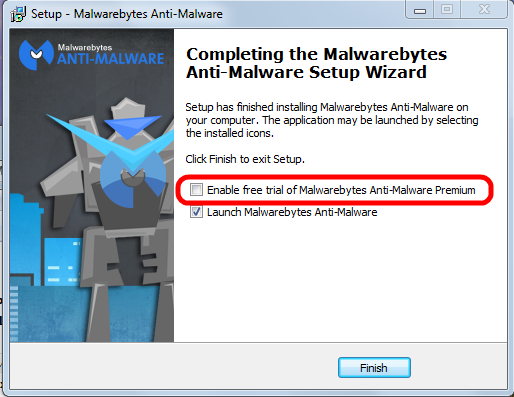
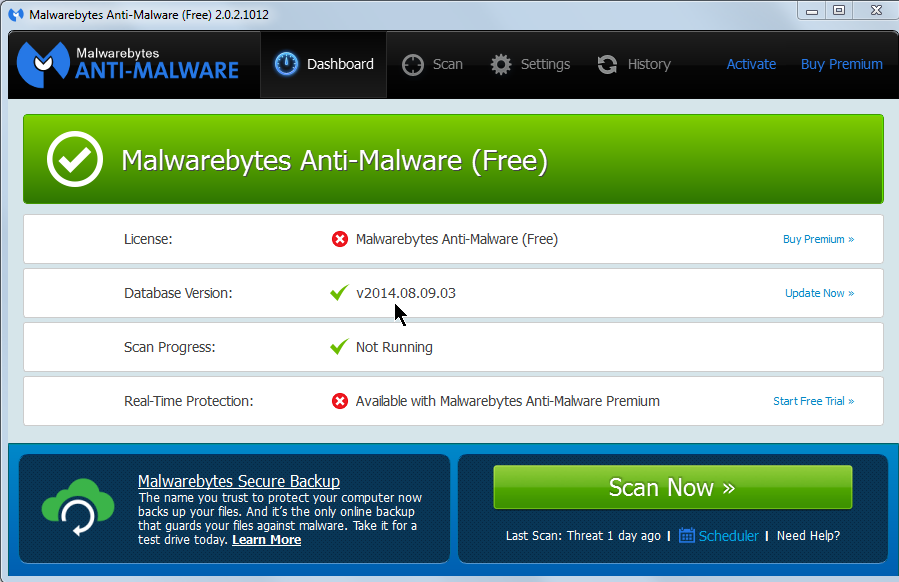
- MalwareBytes doesn’t attempt to install any extra junk on your
computer, although the free version doesn’t offer real-time protection.
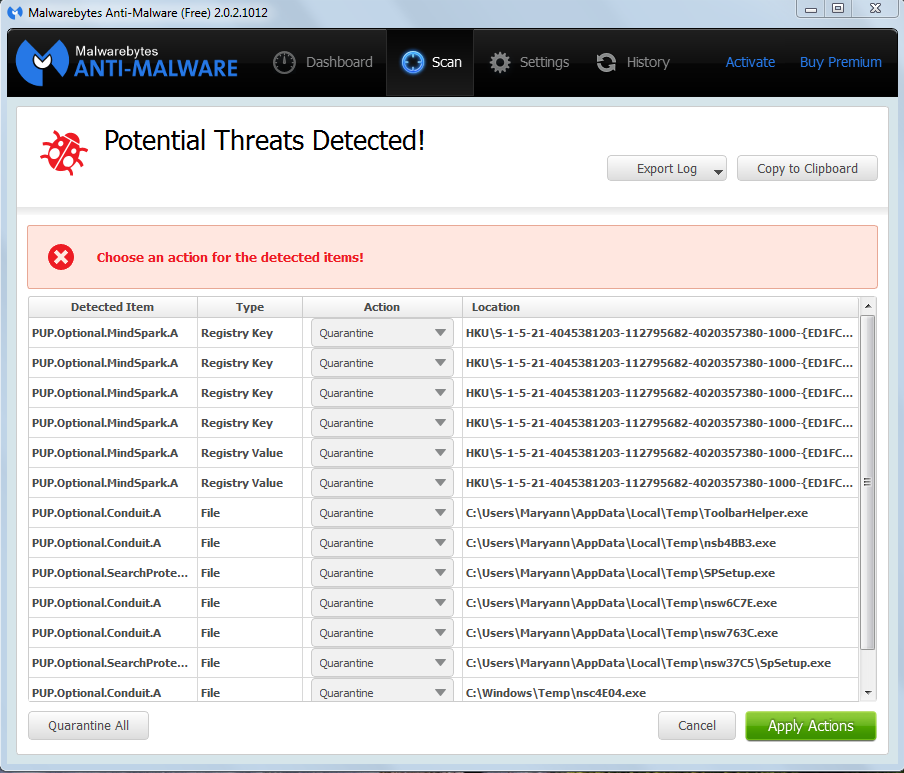
To their credit, MalwareBytes is offering a free tool that’s useful for
manual scans - it even picks up and detects [and removes!] much of the adware other
programs install - and encouraging you to pay for a more full-featured
product.
This tool could be quite useful in combination with another antivirus, like Microsoft’s free Windows Defender or Microsoft Security Essentials solution. But it’s not a standalone free antivirus you can depend on, as it lacks the real-time scanning.
Don't despair, a good, time proven free solution is available since about 2009.
For now over 13 years I "fix" my customer's home computers by removing all sorts of viruses and other malicious or obnoxious software. Most of my customers call themselves "computer illiterate". All of them have lived safely with mostly little or no manual effort.
The only malware infections happen now when someone "falls" for a social engineering trick; that is in effect when the customer for a moment was inattentive. And hat is just a human weakness, I know from my very own experience.
If you want to know details about this solution plese drop me a personal email; thank you.