Saturday, June 18, 2011

Wireless Disconnecting - Windows 7 64-bit mostly


Several Windows 7 64-bit systems (laptop computers mainly) seem to loose their wireless network connection at varying and not specified times under varying circumstances.

Searching in Google and in Microsoft's support forum I found three different methods documented that seem to have done the trick for various people. I post these methods here in an attempt to give at least some help.

Method 1: Disable IEEE 802.1X authentication
To disable IEEE 802.1X authentication, follow these steps:

  • Click Start, type ncpa.cpl, and then hit Enter.
  • Right-click your wireless network connection and click Properties.
  • Click the Wireless Networks tab.
  • In Preferred networks, click your wireless network and click Properties.
  • Click the Authentication tab, click to clear the Enable IEEE 802.1X authentication for this network check box, and then click OK two times.

Method 2: Remove and re-create the wireless network connection
To remove and re-create the wireless network connection, follow these steps:

  • Click Start, type ncpa.cpl, and then hit Enter. 
  • Right-click your wireless network connection and click Properties.
  • Click the Wireless Networks tab.
  • Under Preferred networks, click your wireless network and click Remove.
  • Click View Wireless Networks.
  • Under Network Tasks, click Refresh Network List.
  • Under Choose a wireless network, click the wireless network to which you want to connect and click Connect.

Method 3 requires to work within your router.
If you are not used to do that - frankly, you better call me.

But for those of you that are not faint of heart: Here it is, written for a D-Link 655 router. If you have a different router the same things may be called VERY differently; be cautious!

  • Un-check WMM (Wireless Multi Media)
  • Un-check Short GI (Guard Interval) and
  • Un-check Extra Wireless Protection.

Warning: These are methods that have helped other people with this problem to varying degrees. If you have a D-Link router I might actually try method #3 first.

Either way you apply any of these methods exclusively at your own risk. I did not have this problem and thus can not test any of the above.

As usual I welcome comments and suggestions right here in the blog. Thank you in advance.

Click here for a categorized Table Of Contents.

Set-Up Job

Edited March 24, 2018: Problems with Windows 10 "Feature Updates" (twice every year!)Edited March 9,   2016: Block Windows 10 from snooping and Picasa discontinued
 
Every brand name computer you buy in a store or on the internet brings with it three areas of concern: Gunk software, missing updates and costly and questionable "security" software. I'll address these three concerns separately and then offer my suggestion to deal with these concerns before they become a problem.

1. Gunk software: Brand name computers come with some (and sometimes a lot of) "gunk" software pre-installed. You'll find anything from trial versions of programs that will cost additional money to outright spyware and even back door programs.

It goes without saying that this gunk should be removed before you even connect the computer for the first time to the internet.

I even consider programs like Microsoft's Internet Explorer and MS's email programs and Microsoft Office trial versions to be "gunk". By virtue of the very technology used TO WRITE them (called ActiveX) they will enable a large percentage of malicious software to be executed on your computer. Just by using alternative programs that were built without ActiveX technology you avoid all this malicious ActiveX software automatically.

Microsoft's Office is by now always a trial version; it will cost you additionally about $100 to $150 depending on where you buy the product key that you will need to use MS Office for more than 60 days.

There is a commercial program being offered to do this removing of gunk software but the computer manufacturers regularly modify what they pre-install and the names of what they install. Thus a program attempting the clean-up will almost always be outdated and work only incompletely. Or it will offer you a list of installed non-Microsoft programs and ask for your decision on what to remove; and you bought the program because you don't know that in the first place!

2. Missing Updates: The brand name computer you buy was designed and originally configured months ago, sometimes many months ago. For good reasons software companies like Microsoft, Adobe and others regularly release security relevant updates. Microsoft used to do that up to Windows 7 on a monthly schedule; since Windows 8 MS updates more or less continually.

All these mandatory updates from when your computer model was designed until when you bought it are missing. That mostly is a lot to download and install. These downloads should be done in a safe environment to protect the machine from eventual hack attacks before all required updates are installed.
Edit March 2018: Microsoft has a new method to upgrade Windows 10 every six months. These upgrades are HUGE and can take many hours to download and run. IMHO it is imperative to supervise this process and to know what to do (or not to do) when problems arise.
There sheer size and the volume of work to install them is the main reason that I recommend to buy computers with SSD drives; with HDD drives these big updates just take too long!  

3. "Security" Software: All of the commonly preinstalled anti virus programs or "security systems" will in the future cost additional money. Some are considerable, clearly perceivable heavy workloads making your computer slow; see this article for real life experiences with security suites slowing down perfectly well working computers.

Some others are not always working correctly and/or proving their questionable quality by not
uninstalling correctly or quietly stopping to work altogether.

After seemingly error-free uninstalling of some security suites I have found that they left sometimes parts of their software still running. Due to the nature of what these programs have to do these left-over drivers and orphaned processes can wreak havoc.

This clearly calls for a knowledgeable human doing the uninstalling and checking for left-overs.

My Solution: I offer a set-up job for new computers; I even offer a fixed price if I can do it at my house because I can overlap some of the time with answering my emails and other activities.
This set-up job includes:
  • De-gunking the computer (manually and completely removing unwanted, potentially risky programs and all kind of trial software)
  • Updating the operating system and all other software in a safe environment.
  • Installing and updating (or enabling) free security software (currently Microsoft Security Essentials on Win7, enabling Windows Defender on Windows 8.x and Windows 10)
  • Edit March 2016: On Windows 7, 8.1 and 10 I install a free program that blocks Windows from reporting back to Microsoft what you do and how you do it (I call that spying!).
    Since about November 2015 Microsoft has begun to "enhance" Windows 7 and 8.1 with some of the reporting features of Windows 10. That is called progress...
  • Installing Mozilla's Firefox web browser, my choice as alternate web browser including the best available advertisement blocker and a utility that warns you if search results would lead to known malicious web sites
  • Installing Mozilla's Thunderbird email client if so desired including the best available advertisement blocker
    • Installing Libre Office (Microsoft file compatible office software)
    • Installing Google Earth
    • Installing Picasa (photo management and editing program) if so desired;
      Edit March 2016: Only upon request; the Web Album Service was discontinued by Google;
      you can keep using Picasa to organize, edit a.s.o. locally stored pictures just as in the past; there will be no more program updates for Picasa (the current version is VERY stable!).
    • Installing an easy to use screen shot program (so you can send me a picture of the pesky error message that is bugging you)
    • Installing a remote control program that enables me to give you remote support  
    • Replacing the always out-of date preinstalled version of Adobe Reader with a free, faster and safer alternative called PDF-XChange Viewer
    • Installing a virtual PDF printer; it creates PDF files from anything you can print. You don't want to email a job application as a Word document that anybody could modify! 
    • Establishing desktop icons leading directly to Documents, Downloads, Pictures and so on. 
    • On Windows 8 and Windows 10 install a proven, small program that starts the computer directly into desktop mode and establishes a Start button and a Programs menu like we have been used to since Windows XP (that is since 2002)!
    All above mentioned software is of excellent quality, officially FREE for home use and guaranteed to be free of advertisements and spyware.

    All this can take many hours and will seriously confuse the normal "non geek" computer user.
    If I can do the Set-Up job at my house I offer it for a flat fee! Should you be interested please send a personal email to ejheinze_at_gmail_dot_com; thank you.


    As usual I welcome comments and suggestions right here in the blog. Thank you in advance.

    Stay safe!


    Tuesday, June 7, 2011

    LibreOffice - What Is It - Installed Correctly

    Once upon a time there was an office software suite called OpenOffice, worldwide free (as in no money!) and used in many European and third world countries. OpenOffice was an OSS system. The technical infrastructure (server computers, storage space a.s.o.) for this sizeable project was mainly supported by Sun Microsystems, a now defunct computer manufacturer. Then the software behemoth Oracle Corp. bought Sun and got OpenOffice as an Easter egg with the whole basket. They, Oracle, imposed some fees and apparently a whole lot of red tape and typical "big company" overhead which did not sit well with many of the major developers, that is the programmers who mostly as volunteers wrote the code and did all the nitty-gritty detail work.

    Quote from another blog:

    "Oracle's imposition of fees for some OpenOffice capabilities caused some of the venerable open source office suite's creators to head out on their own and create LibreOffice as a truly free OSS tool."

    So the developers of OpenOffice spoke, parted from Oracle's realm and alas, we had LibreOffice.

    Basically LibreOffice is almost exactly the same as OpenOffice, only better. Better because it can read files from Microsoft Works and Word Perfect and handle SVG graphics files.

    There are two major differences:

    1. OpenOffice came with an always outdated Java version and LibreOffice requires a Java environment already installed on the computer. If I have set up your computer that is covered. If I did not set up your computer you need to install the most current version of Java and remove all older versions.
    2. OpenOffice came with Help files integrated in one huge download, LibreOffice comes in two files; you need both.

    There are a few things you ought to know if you want to install LibreOffice.

    1. Install or update to the latest version of Java (as of July 2011 version 6 update 26 is current).
    2. Remove (un-install) all eventually still existing older versions of Java.
    3. Remove (un-install) OpenOffice - if it was on your computer at all.
    4. Download LibreOffice from this web page. As of end of July 2011 the current stable version id 3.4.2. You need two files:
      1. LibO_3.4.2_Win_x86_install_multi.exe, the LibreOffice installer program.
        Caution: This is a 214MB download!
      2. LibO_3.42_Win_x86_helppack_en-US.exe, the installer for the Help package.
      3. Above version numbers will be different for future versions!

    Some important installation instructions (not meant to be comprehensive!):

    Install LibreOffice itself by running the installer in file LibO_x.x.x_Win_x86_install_multi.exe.

    For everything here not explicitly mentioned you can accept the default values/selections.

    When you are being asked to select the type of installation please select Custom:
    ScreenShot001

    You will have to de-select the following features:
    In Optional Components the Python-UNO Bridge:
    ScreenShot002

    In LibreOffice Program Modules de-select Draw, Base and Math; it should look like this:
    ScreenShot003

    Then select all three Microsoft Office modules:
    ScreenShot004

    Install the Help package by running the installer in file LibO_x.x.x_Win_x86_helppack_en-US.exe.

    With these hints you should be able to install LibreOffice with the ability to open and write Microsoft Office Word, Excel and Powerpoint files. If you prefer to have me do the installation then please download both files that I mentioned above, I can do the rest remotely.

    After the installation you will find two folders named "LibreOffice 3.x (random) Installation Files" and "LibreOffice 3.3 Help Pack (English) (random) Installation Files" on your desktop. Please delete these two folders.

    As usual I welcome comments and suggestions right here in the blog. Thank you in advance.

    Click here for a categorized Table Of Contents.

    Monday, May 30, 2011

    Windows 7 - Everything Else Is FREE

    I read a two part article series on the WindowsSecrets blog written buy Woody Leonhard. If you follow my blog you have read about WindowsSecrets before. I like the skinny of these two articles so much that I "stole" their text from the second part of the article to post it here, with some textual changes and additions to enhance the readability and understanding by non-geeks, IMHO at least.
    Most if not all of the software that stores will try to sell you when you buy a new computer does not need to cost any additional money. But since stores and dealers live from selling you something they will try - and sometimes really hard. The most often applied method to up-sell an unsuspecting not-too-PC-literate customer is good old FUD, Fear, Uncertainty, Doubt. The sales guys in some stores can scare the daylights out of you just to get you to buy some additional software.
    The kicker is that if you steadfastly refuse these software add-ons they sometimes even will throw it in the bag anyway "because it's free"; stuff they five minutes ago wanted to charge you for! If my customers got any antivirus program in this manner I always tell them to give it as a gift to their best enemy.
    If you buy a new PC with Windows7 Home Premium pre-installed then there is hardly anything else you need to pay money for besides your fast Internet connection.
    Let me go into a few more details for the most commonly offered add-on packages. This first part is from the WindowsSecrets blog with some textual additions.
    Antivirus: Microsoft Security Essentials is free and works for the average PC-user just as good as commercial products and often even better.
    It runs totally unobtrusive in the background and it's work load balancing is so good that even on weaker older computers you hardly ever will recognize that it is running.
    Even while it is scanning your machine you can still work with your computer; I don't know any other antivirus program that does that in such a graceful way.
    And if it has to "talk" to you it speaks in clear, simple English; you don't need a college degree to understand what it's telling you.
    Backup programs: Windows 7 backup isn't particularly neat or fancy, but it covers the bases automatically and (almost always) works well.
    I strongly recommend to invest a little bit of time to learn the ins and outs; it's all right there in the Windows 7 Help and Support displays.
    And I strongly recommend to buy an external disk drive to keep the backups outside of the computer. A backup on the C: drive is no backup at all, at best it's a fig leaf.
    Defragmenters: Windows 7 defragments your drives automatically (once a week by default), and you don't need to lift a finger or spend a penny. But you can set it to your liking, like have it defragment daily at a certain time - or only manually started. The latter then very soon gets forgotten anyway.
    Disk Partitioning: Windows 7 does all you'll need!
    No, Windows 7 doesn't have a full-fledged disk-partition manager. But it does everything with partitions that most people need (if you need it at all!) -- and it gets the job done without messing up your hard drive. Which is more than I can say for some third-party disk-partition managers.
    Where is Windows 7's partition manager you ask? In an administrator account, click Start and in the Search box type "Administrative Tools", without the quotes naturally. In the resulting window double-click Computer Management. In the left panel, under Storage, click Disk Management.
    You will see all your disk drives and the partitions on the disk drives.
    Again, I strongly recommend to invest a little bit of time to learn the ins and outs; it's all right there in the Windows 7 Help and Support displays.
    Registry Cleaners: Some do more harm than good.
    I have never seen a real-world example of a Windows 7 machine that improved in any perceivable way after running a registry cleaner. Registry cleaners and Defragmenters may have been useful for Windows XP (before SP 2) and certainly were a good thing for Windows 98 and ME as long as these programs worked correctly - what sometimes they did not. With Windows 7 I think they're useless, if not worse than useless.
    In my experience, working with hundreds of Windows 7 machines, I have never found a single Registry cleaner that caused any perceivable change in performance.  The Registry is an enormous database, and all this cleaning really doesn't amount to much. It is like sweeping out one parking space in a parking lot the size of Texas.
    Even Microsoft has abandoned its Registry cleaners. E.g. Windows Live OneCare (precursor to Microsoft Security Essentials) once included an online scanner and Registry cleaner.
    (Disclaimer: I can not confirm this claim but usually Woody Leonhard is a dependable source of such information.)
    Windows 7's Firewall works only one way, that is inbound.
    Like its predecessors, the Windows 7 firewall only keeps outside threats from getting in — it is an inbound firewall. Outbound firewalls alert you when an unauthorized program attempts to send data out of your computer. At least that's the theory. In practice, many outbound firewalls bother you mercilessly with inscrutable warnings saying that obscure processes are trying to send out data.
    If you simply click through and let the program phone home, you're defeating the purpose of the outbound firewall. On the other hand, if you take the time to track down every single outbound event warning, you might spend half your life chasing firewall snipes.
    Some people think an inbound-only firewall is woefully inadequate. I think it's good enough for almost everybody. It certainly is big time good enough for the computers in my household.
    It's surprising how much old advice isn't valid any more!
    So much for the part that was inspired by and partly copied from WindowsSecrets. Let me add a few categories that are not part of MS Windows.
    Office software: Almost all new brand name computers I have seen over the last 6 or 7 years came with some Microsoft Office package pre-installed.
    When you just start to use these programs they will work for 30 or even 60 days. After that point in time you will have to buy a license from Microsoft or your favorite computer store. Depending on the version of MS Office the sales clerk talks you into that is anything between $100 and $300. Ka-ching says the cash register and sales guys in the store smile.
    You don't need to pay for this! There are at least three packages with office programs around that will not cost you a single penny! They can read and write files in the commonly used Microsoft formats, at least for texts, spreadsheets and presentations.
    Currently I favor LibreOffice; it covers 99% to 100% of what the average home user ever uses or needs; only in very "tricky" formatted text or spreadsheet files you will find some features that maybe are not 100% compatible; in this case the Help forum mostly has a workaround.
    A category by itself: Google Earth just because it is such a great toy. Whether you want to check out a new vacation location before you book or just see the Kremlin or Tiananmen Square from the birds eye view, it is worth trying it. Even on average decent basic computers like I recommend to my customers it works very well; the speed of the Internet connection is much more important.
    Photo Management and Editing: For the average home user Google's program Picasa IMHO is unbeatable. just watch it finding and removing the red rabbit eyes from the photos of your loved ones. And that for FREE! You can build albums with it, publish photos to the internet so the family members on the other side of the planet can see them and, and, and…
    Web browser: If you are my customer or listen to me on WTKM then you know that I strongly favor Mozilla's Firefox web browser. Although quality and security wise Google's Chrome browser is a very serious contender as well.
    Email Client: If you are my customer or listen to me on WTKM then you know that I strongly favor Mozilla's Thunderbird email client. I don't even know whether there is another alternative still around.
    Should you require any other software and don't know where to begin to look for it, I will gladly help. For much if not most of what you may want to do on your computer there likely is a free solution available.
    As usual I welcome comments and suggestions right here in the blog. Thank you in advance.
    Click here for a categorized Table Of Contents.

    Saturday, May 28, 2011

    Help Requests - Correct, Complete And Courteous Please

    Just about a week ago an email conversation with an acquaintance and customer of mine went totally, horribly wrong. On first impulse I wanted to completely post the email exchange with my background thoughts added but all names except mine and all locations neutralized. My dear wife convinced me not to do that but rather try to explain why I asked the questions I asked. All this appears to be sufficiently important (to me at least!) to put it in a generalized form and to publish it here.

    I need to write something that truthfully and forcefully makes it clear beyond excuses, cop-outs and exceptions why I do request certain information. I have to get this across in a way that “hits home” with the vast majority of my customers; if I can't get this done I am going to burn out.

    Here we go:

    I receive many, many emails from customers with questions about technical issues and so far I believe not a single email has remained unanswered, either by an email reply or a phone call. And please consider that my email advice is a free service!
     

    Please remember, I do not retain any personal information about my customers! No phone numbers, no address information and no information about their computer configuration. Why you ask? Simply because I need to avoid any risk of eventually being accused of “leaking” any of that to someone who is not entitled to this info and may misuse it.

    From my side I see these emails with support questions as business communications, not personal ones. What I would expect in business communications is at least proper identification and contact info, that is the sender's full name, phone number and eventually address info. An example: A sending email address like risibisibear@isp.com signed with John is NOT correct identification. “risibisibear” does not resemble any name I know and I know at least twenty gentlemen named John.

    And I ask to please include that information in every email you send to me or I have to go on a wild goose chase, either scrolling and scrolling through a long thread or even read through potentially many old emails from that customer to find that info. Frankly, I don't have the time to chase this sort of wild geese. If this info is missing most likely you will get a standard reply asking for the missing info.

    As far as I know email is a fast and convenient way to send someone a written note, aka a little letter. Do you like to get letters that miss addressing you with your name and/or missing a signature at the end? I didn't think so.

    In this context I point you to one of the IMHO better web sites about Netiquette (etiquette on the Internet), especially the pages about email etiquette.

    Every week I see many customers and I get many support questions via email. If I were to remember all technical and environmental details of all the many installations I have seen there wouldn’t be space left for anything else in my scatterbrain. And if I had to hunt down contact information every time I get a request from a customer there wouldn't be any time left to do actual customer visits.

    Please include technical info on what you are asking about; that includes all technical details, like what operating system you use, what program you are asking about, the version number and so on. Simply give as much detail as humanly possible if you want fast and good answers. These details can be (but are by no means limited to)

         - a screen shot instead of re-typing lengthy messages
         - tell me what program you are using
         - what you were attempting to do or achieve  
         - please spell names correctly
         - please use the reply button; this leaves the context in a longer conversation so I don't need to go on a wild goose chase to establish the context again
         - if your question is about emails please tell me whether you “do” emails in a web browser and which one it is or in an email client like Thunderbird or Outlook.

    Did you see my request to please send a screen shot? If that seems too difficult please read this article on my blog for more details; thank you.

    Should you send your email from another than your own email account then please tell me so. I don't care for your reasons to do so but I do care about correctly addressing my reply!

    PLEASE remember above explanations and understand that I need to insist on everybody's cooperation. I do not want to get forced into a situation where I would have to charge for this service; that really is the last thing I want to do!

    Lastly I want to quote two snippets of text from this article on the NetManners blog:
    "Simply because one is the “customer” certainly doesn’t give them permission to e-mail without any details, courtesy or proper e-mail etiquette."

    "… when you e-mail with courtesy, details and clarity, you can bet the other side will value your business and go out of their way … to promptly answer your requests with the same! "
    Am I asking too much? Frankly, I don’t think so.

    As usual I welcome comments and suggestions right here in the blog. Thank you in advance.

    Click here for a categorized Table Of Contents.

    Friday, May 13, 2011

    Backup - My Final (?) Words

    Here a quickie, I've got to run.

    Okay, the skinny is that at least for Windows 7 and to some extent for Windows Vista users there is no longer any excuse not to have a backup and a Repair Disk if something serious happens.

    Please read this article on the Windows Secrets web site. Most of it is applicable to Vista as well.

    And if you are still on Windows XP. all I can say is PLEASE, your system is at least about 5 years old.

    You should upgrade to a Windows 7 computer rather now than later! 

    As usual I welcome comments and suggestions right here in the blog. Thank you in advance.

    Click here for a categorized Table Of Contents.

    Saturday, April 30, 2011

    Password Too Simple - What to Do About It


    Update June 15, 2013:
    I stand by what I wrote here but please read as well my article "Passwords - The Latest".


    Very recently a customer of mine asked me for help because a lot of obvious spam emails were sent from his Yahoo email account.

    First we ensured that his computer was clean, that is that there was no virus software or the like running. We found and removed a few remnants of apparently earlier removed malware but nothing showed up currently running. I wanted to know more about where the emails truly came from and with help from a tech forum we established Guam as the geographical source.

    And with help from the forum I realized that I had failed to give my customer the most obvious advice, that is to change his Yahoo password. LK, I apologize again for this dumb failure. Once the customer had changed the password the emails stopped immediately.

    This proved beyond a doubt that his password had been guessed. This in turn reminded me of questions about passwords that I permanently discuss with my customers.

    Tonight I stumbled over an article titled "The Usability of Passwords" that discusses password usability and security in depth but in understandable form and language. The latter truly is a positive exception.

    In the future I will base recommendations about passwords on this article; it is the first time that I found anything written about passwords with respect of usability and security. Many other discussions in this area focus on technical aspects of security only and all too often ignore that a really secure password like 5rF#2kLn7@ simply is impossible to fully remember and type correctly.

    Passwords are meant to secure and/or guarantee the privacy of our communications and data; correct? In this context I have to admit that the mentioning of Yahoo and/or Hotmail together with "privacy" always makes me cringe; "cringe" because I don't want to laugh deridingly about a customer who uses Yahoo, Hotmail, MSN, Earthlink, Gmail or any other email service that leaves the mails on the ISP's servers.

    Why do I cringe? Read this article about data mining on Yahoo and this one about privacy on Hotmail as examples.

    If all the articles I linked to here are too much reading that's fine. But please read and heed at least the article titled "The Usability of Passwords".

    Thank you.
    As usual I welcome comments and suggestions right here in the blog. Thank you in advance.

    Click here for a categorized Table Of Contents.

    Tuesday, April 26, 2011

    Words on Printing

    Considering the enormous troubles and cost of printing associated with commonly offered ink-jet printers here in condensed form my take on the average bunch of low cost ink-jet printers.

    A few things to keep in mind:

    1. Printer manufacturers don't make money on the printer, they make oodles of money in the ink. Printer ink is said to be the most expensive liquid in the world with up to $35,000.- for a gallon.
    2. Most pictures printed on ink-jet printers will fade after only a few years.
    3. Printing pictures on ink-jet printers is extremely expensive because it uses lots of the expensive ink to have good coverage.
    4. Many ink-jet printers can print pictures only in one format, 4x6 for example.
    5. Printing pictures on ink-jet printers is mostly very slow.
    6. Dried out ink cartridges or clogged nozzles are a major problem for many ink-jet printers that are not being used regularly on a daily basis.

    My recommendations for "normal" household usage is twofold:

    1. Photos:
      Edit the photo to be what you want it to look like (cropping, color correction and so on).
      Copy the file to a USB drive (at the time of writing $6.- and up at Walmart).
      Take the USB drive to Walmart, Walgreens, Sam's Club or the like and print your pictures on the machines there.
      Better quality and all in all much less money - but admittedly not quite as "convenient".
    2. Text:
      Drop the dream of color and print your text in black on white.
      Excellent quality b/w laser printers can be had at the time of writing from $60.- and up.

    IMHO the biggest advantage of laser printers: They can not dry out! And on top of that the cost per printed page is a fraction of what it is with ink-jet printers.

    As usual I welcome comments and suggestions right here in the blog. Thank you in advance.

    Click here for a categorized Table Of Contents.
    Thursday, April 21, 2011

    ComboFix Or Not To ComboFix

    Once more a question from a customer gives me a hopefully good idea for an article. This is what the customer wrote:

    We had a family get together last weekend, and during a computer conversation, our one son-in-law said he has this great anti virus software on his computer. This week he sent me the name, with instructions for downloading.

    The name is ComboFix, on Bleeping Computer.com website.

    I have Microsoft Security Essentials on my computer. Isn't this ComboFix just another piece of anti virus software? Why would I want two like programs running?

    I have done nothing, and won't until I hear from you.

    Here is my reply: (Begin quote)

    [Customer's name],
    Good question, Thank you and congratulations on the wise choice to ask first!

    Yes, no doubt, Combofix is a good and VERY powerful program. In this power lie the pits waiting for a normal user to fall into.

    Just read the first few paragraphs of the instructions "How to use ComboFix" on Bleepingcomputer.com (this is the only legitimate web site to download this program from).
    I have added red color to the important parts that your son-in-law IMHO might not fully understand in all consequences.

    ComboFix is a program, created by sUBs, that scans your computer for known malware, and when found, attempts to clean these infections automatically. In addition to being able to remove a large amount of the most common and current malware, ComboFix also displays a report that can be used by trained helpers to remove malware that is not automatically removed by the program.
    . . .
    You should not run ComboFix unless you are specifically asked to by a helper.
    Also, due to the power of this tool it is strongly advised that you do not attempt to act upon any of the information displayed by ComboFix without supervision from someone who has been properly trained. If you do so, it may lead to problems with the normal functionality of your computer.
    . . . .
    Please note that this guide is the only authorized guide for the use of ComboFix . . . . It is also understood that the use of ComboFix is done at your own risk.
    Let me summarize:
    1. It can detect but sometimes NOT automatically remove some malicious software.
    2. You run it at your own risk if you use it on your own.
    3. The information it displays is for trained people, NOT for the casual home user!
    4. If you run into problems there is NOBODY who might be able and willing to help you!

    If your son-in-law is a trained helper than he does well; if he is a "normal" self-taught user he will create problems for himself down the road.

    Since you asked here my advice to you:

    Don't touch it!

    Again, thanks for asking this question. This is so intriguing that I might make an article for my blog out of this.

    (End quote)

    And now a few additional remarks:

    Some things I did not mention in my reply:

    Microsoft Security Essentials (MSE) is a full fledged anti virus program that is always running and continuously monitoring ALL file operations (and much more) during normal operations of the computer.

    ComboFix is an on-demand scanner that DOES NOT RUN continuously scanning file operations.

    Just having ComboFix sitting on the computer and occasionally running it can IN NO WAY be compared let alone equaled to the workings of a "real" anti virus program. It is beyond my understanding how someone can assume that to be sufficient protection.

    ComboFix gets updated fairly often; it has NO provisions at all to dynamically download new virus definitions or the like when it is being run. You would have to download it every time you want to run it just to have the latest and greatest version. That is a far cry from a dependably self-updating program like MSE.

    The people that maintain BleepingComputer.com know what they are doing; I depend since many years on their evaluations and advice. To ignore the clear warnings and instructions in the short quotes above IMHO is blatantly foolish and ignorant. Dear unknown son-in-law, I apologize for eventually hurting your feelings but that's how I see it.

    As usual I welcome comments and suggestions right here in the blog. Thank you in advance.

    Click here for a categorized Table Of Contents.

    Tuesday, April 19, 2011

    Phishing Revealed In Detail

    Here is an outstanding article on how to spot a phishing email. Although taken from real life this example naturally does not cover exactly what you may encounter. But the principal method to spot phishing emails is always the same, simply be observant and use common sense.

    Yes, I know, the problem with common sense is that it is not all that common . . .

    I suggest you stop reading when you reach the header line "The Attachment" unless you want to learn the geeky stuff. This has several reasons:

    1. When you already suspect an email to be phony than still downloading an attachment would be outright dumb and suicidal. Pardon my French.
    2. I REALLY don't want you to even try to download a suspect attachment! Way too many virus infections happen this way.
    3. After the discussion of the attachment it gets very quickly very technical.

    As usual I welcome comments and suggestions right here in the blog. Thank you in advance.

    Click here for a categorized Table Of Contents.

    Thursday, April 7, 2011

    How A Rogue Program Gets On Your Computer

    Folks, this is really important because rather sooner than later your computer will get nailed! if you don't know what to look out for, here is an excellent example to learn from. 

    I am a (paying!) subscriber of the Windows Secrets newsletter. The latest issue begins with an article on LizaMoon, the newest mass threat from the internet. The article begins with these words:

    A nasty piece of malware known as LizaMoon has hijacked links on millions of websites in the past weeks, including some normally safe iTunes and Google links.

    The author describes in detail what happened and that he had to deliberately co-operate four times(!) for the real infection with that rogue program to take hold on his computer.

    I highly recommend the article to all who read this!

    If you want to know how to avoid LizaMoon (or other rogue programs) if it shows up on your computer reading this above mentioned article is a must!

    Now that you know how to spot this sort of thing you want to know how to combat it? Firstly, know how to close these kind of program windows without giving them a chance to interpret your action as an invitation. This kind of infection needs your cooperation and at least one click on the "wrong" link or button. Please read this article here in this blog for more information. One of several methods to "kill" these attacks is detailed after the heading "How do I stop the attack that just started?" towards the end of the article.

    As usual I welcome comments and suggestions right here in the blog. Thank you in advance.

    Click here for a categorized Table Of Contents.

    Friday, February 25, 2011

    Recovery Disks vs. Repair Disk


    Recently I got this question from a customer:
    I got a message saying you need to create System Recovery Discs. Is this necessary with all the changes you did to our new computer?
    Please be aware of the difference between a Repair Disk and System Recovery (or System Restore) Disks. Some programs that can write System Recovery Disks can also write System Repair Disks.

    Repair Disks are operating system specific and can help to repair an operating system that does not boot anymore. They got introduced with Windows Vista.

    Vista and Windows 7 can create Repair Disks natively, that is without additional software.

    Recovery Disks (or Restore Disks) can restore a computer system completely to the exact state it was in when the Recovery Disks were created. On Windows 7 no special software is needed to create Recovery Disks. Many manufacturers now supply such software under various names pre-installed with their systems.

    But BEWARE: Many manufacturer programs will give you "Recovery Disks" that will recover the computer to the original, factory installed state. And trust me, you don't want to go back there and as a consequence loose all updates, additionally installed programs and personalized settings. And with one wrong selection you could loose ALL your data files as well! 

    In their own documentation Microsoft does not always clearly distinguish between system Repair and system Recovery (or Restore). Beware of the ensuing confusion.

    There is a fairly good explanation of the term "Recovery Disk" on Wikipedia. Only the sentence "OEM supplied recovery media is commonly shipped with most computers" is not correct any longer. Since the introduction of Windows Vista in late 2006 I see on new Vista and Win7 computers only software installed to create such disks; generally there are no disks being supplied any more. And any manufacturer supplied recovery disk will very likely restore your computer to it's original state; see the paragraph above that begins with "But Beware".
     
    After an eventual catastrophic event System Recovery Disks allow you to completely recover the system to exactly the state it was in at the moment the Recovery Disks were made, including all your programs and data. You need several DVDs for one set of Recovery Disks so you should buy at least 5 or 10 recordable DVDs, NOT CDs! Naturally your computer needs to be equipped with a DVD writer to be able to create the recovery disks.

    IMHO it is always advised to make System Recovery Disks, not even only once after a new computer has been set up but after every major change or update.

    And it is advised as well to create a System Repair disk; this needs to be done only once. If you did not do it or if this function got left out by the manufacturer of your system then I can help; I have a complete set of Repair Disks for Vista and Windows 7 in their 32-bit and 64-bit variants.

    After you have made the first set of Recovery Disks the reminder message mentioned in my customer's email will not come up anymore but the software should still be on your computer in the All Programs menu.

    In the past I have seen that some manufacturer in their eternal wisdom choose to remove the software after the first set of disks was created. Should that happen on your machine don't despair, there is other free software available that can write Recovery disks. Repair disks can be downloaded from Microsoft.

    If you got confused by the above please don't despair. The Windows Secrets blog has a completely different way to describe the same theme while talking about all these options quite differently.

    As usual I welcome comments and suggestions right here in the blog. Thank you in advance.

    Click here for a categorized Table Of Contents.

    Tuesday, February 22, 2011

    Firefox Does Not Show Adobe PDF Files

    Recently I get many calls because PDF files don't show correctly in Firefox.

    This is a known incompatibility between late versions of Adobe Acrobat Reader and Firefox. Here is what to do about it:

    First you have to make sure you have Adobe Reader version X running. By the way, the X stands for the Roman numeral 10. As of this writing Adobe Reader's most current version is 10.0.1. You find the version number by opening Adobe Reader, clicking Help, About Adobe Reader. The version number is in the bottom left corner of the About window.

    If you are on anything older than Acrobat Reader version 10 you should first download the latest version from a safe and fast download location for Adobe Reader like this one here. After the download you have to run the downloaded installer (or setup) program.

    After the installation is done you have to do a simple setting in Firefox to avoid problems. In Firefox:
    1. Click Tools, Options, Applications.
    2. In the Options window:
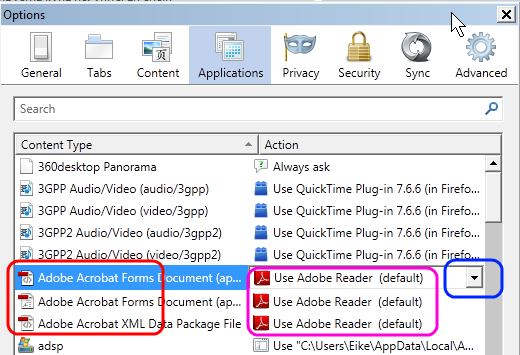
      -   Find all entries for "Adobe Acrobat..." with a PDF icon (below marked red).
      For every entry:
      -   on the right side click on the entry and then on the drop down arrow (below marked blue)
      -   and select "Use Adobe Reader (default)", below marked pink.
    3. Click OK and all should be fine.
    The Options window should look like this:

    As usual I welcome comments and suggestions right here in the blog. Thank you in advance.

    Click here
    for a categorized Table Of Contents.

    Wednesday, January 26, 2011

    Manual Upgrade for Microsoft Security Essentials


    Recently some customers had problems upgrading Microsoft Security Essentials to the new version 2.

    If your firewall is turned ON you can do that yourself:

    1. Go to this Microsoft web page.
    2. Click Download and choose the version of MSE that is correct for your OS.
    3. Open Control Panel.
    4. In Vista/7 open Programs and Features,
      in XP open Add/Remove Programs.
    5. Uninstall (or Remove) Microsoft Security Essentials.
    6. Restart the computer.
    7. Run the installer program you downloaded in step #2 and follow the prompts.

    Everything should be okay again.

    You will loose the desktop icon for MSE; the new version does not have it anymore.

    As usual I welcome comments and suggestions right here in the blog. Thank you in advance.

    Click here for a categorized Table Of Contents.

    Thursday, January 13, 2011

    To Save or Not to Save – an Older Notebook

    An acquaintance sent me the following email that touches on the important issue whether it is feasible or sensible to fix and update an older computer. After I had written my reply I thought this might be of interest to more people and I got the gentleman’s permission to use his email and my response publicly. Here are his email and my response as he got it, only names were removed and minor editing for readability was done, no changes were made to the content:

    Hi Eike,

    I was recently working on a laptop (which I received with XP Service Pack 1).
    After updating everything, I noticed that the hard drive was partitioned to a C and D drive.  The D drive (recovery partition) was at about 38GB (of which less than 2GB was being used) and the C drive had about 13GB (about half of which was being used).  Is there any free utility that you could recommend that would reallocate some of the D drive and put it into the C drive?  Is this a difficult or dangerous thing to do?

    I would appreciate any comments you might have.

    Loved the new blogs today.

    [Signed]

    - - - - - - - - - - - - - - -

    Dear [friend],
    Thanks for reading my blog.

    To your questions: Yes, no and YES!

    The recovery partition is established by the manufacturer and usually replaces the OS installation CD that we got with computers a very long time ago. I would get the answers to some questions first.

    • What is in the used space on the D drive?
    • What manufacturer and model is the laptop in question?
    • When was it bought?
    • What is the size of the disk drive in Disk Manager (Administrative Tools)?
    • How much memory (RAM) is in the machine?
    • How fast (or slow?) is the CPU?

    Yes, the free utility for that purpose is EASUS Partition Master Home Edition.
    No, it is not at all difficult to do; I did learn it... Winking smile

    YES, it can be potentially very dangerous. If D: is a restore partition any change could "kill" the restore feature. But my guess is that D: contains My Documents or some other data; that can be relocated to C:

    On another note: Who would want to keep a restore partition around that would restore to a WAAAY outdated state of XP? Not me.

    Here is what I recommend:

    1. When the system is clean (NO malware of any kind!) backup eventual data from D:
    2. Download HD-Tune version 2.55 from here.
    3. Install and run HD-Tune.
    4. Does the disk drive in the Health tab show yellow or red line(s)?
    5. If Yes to #4 toss the whole thing on the big pile and get a Starbucks; it's not worth the pain!
    6. Create Restore CD #1, not a recovery CD; just in case as a fallback option.
      Here is one recipe
      how to do that.
    7. Install Easus Partition Master.
    8. Wipe D:
    9. Enlarge C: to occupy the whole drive.
    10. Create Restore CD #2; just in case as a fallback option.
      #1 from step 6 gets tossed!
    11. Upgrade to SP3!!!!
      If Windows Update does not want to do it, I have the CDs.
    12. Download and install all updates until it tells you "No more updates available".
    13. Create Restore CD #3; this is the "good one" you want to keep!
      #2 from step 13 gets tossed!
    14. Ready to go.

    Depending on what kind of disk drive is in there (speed and cache size), how fast the CPU is, how much memory (!!!) the box has and how fast the Internet connection is I roughly estimate the whole procedure to be anything between eight and twelve hours!

    Is it worth it? Maybe as a learning experience if there is nothing else to do; I would rather have a play day with my grandchildren. In the end you still will have an older, relatively lame notebook.

    I hope this helps. Do you mind to please keep me posted? Thanks.

    BTW, I just thought that this would be a good "Case From Real Life" for my blog. May I please use the text from your email and this reply for that purpose? Naturally it will all be anonymous!

    Oops, I just realized that you said "... after updating everything ..."; if that includes SP3 and Windows update please ignore #14 and #15; sorry.

    Please don't blame me for the long reply, you asked for my suggestions... Angel
    Regards
    Eike

    - - - - - - - - - - - - - - -

    Cleaning up, upgrading and updating an older computer can require substantial time – which for my customers translates directly to money.

    I always attempt to explain that as of a certain point it might just not be prudent to spend money for fixing an older computer. As you can see my guesstimate for what he wants to do gets us to a (minimal) price of around $450.

    For $450 you can buy really decent basic brand new notebook computers with MUCH more memory, much more disk and computing capacity than the older machine AND Windows 7 pre-installed.

    That’s why I would not even attempt to do this job!

    As usual I welcome comments and suggestions right here in the blog. Thank you in advance.

    Click here for a categorized Table Of Contents.

    Wednesday, January 12, 2011

    RAM – Neither Truck Nor Animal

    On Windows Guides I found a fairly easy to understand article about RAM (Random Access Memory), the work space in our computers.

    If you are interested in more you find this article here.

    As usual I welcome comments and suggestions right here in the blog. Thank you in advance.

    Click here for a categorized Table Of Contents.

    Back Up – Foster Child of Home Computing

    Please be honest, do you have a back up of your data? See, I thought so.
    But finally you have bought the external disk drive for back-ups that “your” Geek always talked about. The next questions regularly asked are
    -   “What do I need to back up?” and
    -   ”What program should I use to make my back up?”
    Here is my attempt at an answer. For simplicity’s sake I restrict myself to examples for Windows Vista and Windows 7.
    Why that latter restriction? Vista was released over about three months at the end of 2006 and beginning of 2007. That in turn means if you are still using Windows XP your computer is at least four years old but very likely five years or older. After five years you should be thinking seriously about a new machine anyway.
    Here is my answer to the question what to backup.

  • Documents: You should backup your entire Documents folder every time you backup.
  • The path is “C:\Users\<username>\My Documents”.
    The path is “C:\Users\<username>\App Data”.
    Actually this should be a no-brainer.

  • Music: If you’ve paid money for music or spent countless hours downloading music you probably don’t want to lose these files.
    If you use iTunes make sure to backup your iTunes folder; usually it’s inside the Music folder – but better check it, I have seen wildly different locations. 
  • The path is “C:\Users\<username>\My Music”.

  • Desktop Email: If you’re using Thunderbird you will backup everything as part of the Application Settings; see the next paragraph. Should you (against my advice) be using Outlook Express (outdated!), Outlook or Windows Live Mail, make absolutely certain that you back up their files!  Here’s how to find the files of these applications. Please don’t ask me by email about backing up email other than Thunderbird, I do not support using anything but Thunderbird.
    If you have serious reasons to stick with any MS email programs I will naturally be happy to help you on site to set up the back up of these important files.
     
  • Application Settings: Within every User’s folders is a normally hidden folder AppData. It’s sub folders contain the settings for each and every (well behaved!) application you have installed. These settings can be restored from a backup.
  • The path is “C:\Users\<username>\App Data”.
     
  • Bookmarks: If you follow my strong recommendation and use Mozilla Firefox you have done what is needed by backing up Application Settings; you can ignore this. If you insist on using Internet Explorer your Favorites are in 
    “C:\Users\<username>\Fovorites”.  

    For other browsers I will naturally be happy to help you on site to set up the back up of your bookmarks.

  • Here is my answer to the question what program to use.

    I am very wary of ANY back up program that comes in a bundle from the manufacturer of your external disk drive. Too many of these programs back up in formats specific to these programs, they may compress your data in a proprietary format or even encrypt your data. All these techniques have their proponents but I prefer to simply copy your data. This way the files are accessible with normal means and on any system that can read your external disk drive. You should never require any special software to access your files in a backup.

    Likewise I am wary of using Windows Vista and Windows 7 built-in backup programs. I don’t fully trust Microsoft to keep in all future a program around that can read the back up we create today with a Vista or 7 specific program! Having said that I have to admit that especially since Windows 7 the built-in backup features seem to do their job dependably; they are fairly easy to set up and definitely better than no backup at all.

    Currently I recommend Cobian Backup, a free backup program that runs on any Windows system since XP and newer and can just copy your files in nicely named and time stamped folders. Cobian’s documentation is a good primer on the ins ad outs of backup.

    As usual I welcome comments and suggestions right here in the blog. Thank you in advance.

    Click here for a categorized Table Of Contents.

    Monday, January 10, 2011

    Malicious Software - Definitions

    Personally I do not assign a lot of importance to differentiate the many kinds of malicious software I encounter almost every day. I take the general approach “It is malicious and we don’t want it on your computer; remove it.”

    But sometimes customers ask if it was a virus or a worm and I find it hard to explain the difference in terms accessible to a lay person.

    I my web travels I found Squidoo and on Squidoo I found some hopefully useful definitions; I felt I had to mostly copy the definitions and use them as boilerplate for my own text because the same site recommends commercial anti virus and security software that I tell my customers NOT to use.

    Rogue Security Software
    Currently this class of malware is an outright epidemic. Rogue software is a form of malware that manipulates and scares people into buying a so called “full version” of fake applications, mostly supposed virus removal software. Rogue software displays bogus scan reports and alerts to trick the user into paying good money to the crook who got the rogue program on your computer. In the process of paying you give your credit card information directly to the crook as well! These rogue programs can take over the whole computer system to prevent their removal and in most cases block other applications including legitimate anti-malware programs from running. Some rogue programs are relatively easy to remove but some use stealth techniques that make removal very difficult and time consuming. 

    Browser Hijacking
    Hijacking is a form of malicious software behavior. Browser and network settings on the user's computer are changed; user activity is redirected to web sites of choice of the Hijack’s creator. Usually you will be redirected to start pages and search pages for paid advertising and/or web pages that attempt to install other malicious software.

    Rootkits
    A Rootkit is the sum of software and techniques that allow itself and some other, mostly malicious piece of software to be hidden from detection with regular means of the operating system. The hidden malicious components of rootkits often are Key Loggers or Trojans that allow backdoor access to the computer. Rootkits are among the most difficult to remove pieces of malware. Some rootkits are so well hidden and protected from ANY access that re-building the operating system from scratch is the only viable solution.

    Key Loggers
    Key Loggers are programs created to monitor user keystrokes; the information is logged and reported to the person or organization who installed the key Logger. They may be used by organizations to monitor employees activities. Key Loggers are also used as spyware to steal confidential information and commit identity theft. The logging of keystrokes takes place long before “classic” security measures like encryption can be employed.

    Computer Viruses
    A computer virus is infectious and sometimes destructive software that can replicate itself and go on to infect other computers. A computer virus is usually executable software. Computer viruses can be contacted through downloads and various modes of email and instant messaging attachments. The virus then attaches itself to existing programs on the target computer. The main aim is to corrupt the computer system. 

    Worms
    Similar to a computer virus, worms are infectious and self-replicating; they replicate on computer networks and via email. The worm utilizes a computer network or email to send replicas of itself to connected computes on that network or to email addresses. 

    Trojan horse
    A Trojan horse program (or Trojan for short) is a form of computer malware that gets installed on a computer system through deceptive means. Trojans often are presented to the user as a form of free software or an add-on. However, once installed, the Trojan gives it’s creator access to the computer; then the hacker can carry out their mostly criminal operations using the infected computer without any knowledge of the computer’s user.

    Spyware
    Spyware is a form of malware that collects and sends information about computer usage and other confidential and personal data to it’s creator. It generally gets installed secretively through deception such as free online scanning, a browser add-on or plugin, dubious websites and/or infected images or PDF files. Even search results have been “poisoned” and abused to install spyware.

    Adware
    Adware is short for Advertisement-supported software. These programs are designed to display advertisements on a computer system. Most adware programs are secretly collecting information on what you do and look at on the Internet so they can show you “relevant” ads; therefore they can also be classified as spyware. 

    Please stay tuned as I intend to publish an updated article on how to avoid the all too common obstacles and dangers posed by malicious software.

    As usual I welcome comments and suggestions right here in the blog. Thank you in advance.

    Click here for a categorized Table Of Contents.

    Saturday, November 6, 2010

    Fake MS Security Essentials – User Beware!

    Microsoft’s Windows Security Blog reports in great detail about a fake rogue program posturing to be Microsoft Security Essentials. Here is a short excerpt from MS’s Security Blog:

    This imposter is known in the technical world of antimalware combat as “Win32/FakePAV”. FakePAV is a rogue that displays messages that imitate Microsoft Security Essentials threat reports in order to entice the user into downloading and paying for a rogue security scanner. The rogue persistently terminates numerous processes such as Windows Registry Editor, Internet Explorer, Windows Restore and other utilities and applications.

    This fake software is distributed by a tactic commonly described as a “drive-by download” and shows up as a hotfix.exe or as an mstsc.exe file. Additionally, after the fake Microsoft Security Essentials software reports it cannot clean the claimed malware infection, it offers to install additional antimalware rogues (with names such as AntiSpySafeguard, Major Defense Kit, Peak Protection, Pest Detector and Red Cross). Lastly, this fake program will try to scare you into purchasing a product.

    The skinny of it is this: Don’t be fooled! Microsoft Security Essentials is free and will never ask you to download additional programs. It updates itself automatically or you update it by using Windows Update.

    If something asks for money in direct or indirect connection with Security Essentials it is fake!

    For me personally the “good side” of it all is that this happens to be one of the rogue infections that are relatively easy to remove, it won’t cost you an arm and a leg.

    Stay safe.

    As usual I welcome comments and suggestions right here in the blog. Thank you in advance.

    Click here for a categorized Table Of Contents.

    Tuesday, October 19, 2010

    On Java

    I am writing this while on vacation because it is so important that I want it to be out as soon as possible. Again it underlines the requirement to proactively check for updates regularly; that means not when you happen to remember, once a month or anything like that. Do it at least once every week if you want to stay safe. Those updates have to be done for security reasons, not to just have the newest gadget!

    In the following I will quote from an Australian computer technicians blog and add my comments right after a quote.

    This past year something has been brewing in the underbelly of the Internet that has only recently come to light, causing security experts to sit up and taking notice.

    Exploits on Java have multiplied tremendously in number and they are proving to be incredibly effective.

    Many of you may have heard of rogue programs; some of you may even have had to battle one or call me for assistance. Much of that is due to Java.

    Three recent vulnerabilities in Java have paved the way for malware exploitation and all three have had patches available for some time.

    So why in all the world don’t people keep the software in their computers up to date?  Actually, this is a rhetorical question; mostly because people never have been told, some don’t do it because of complacency and all don’t do it because Microsoft did not design a “standardized” method to do it.

    … notable is that two of the [Java] vulnerabilities went from hundreds of thousands of attacks per quarter [year] to millions.
    Now that we know what is going on, what can we do to avoid malware drama?

    Make sure to update Java frequently; in fact, a very important update for Java was just released today [Oct. 18 2010] with fixes for 15 highly severe vulnerabilities.

    I have updated the Java paragraph of my article on What To Update to reflect this renewed importance of keeping Java up to date.

    As of October 18, 2010 the most current version of Java is 6.0.22. In Add/Remove Programs on Win XP or in Programs and features in Vista and Win7 the entry looks like this:
    ScreenShot026 I recommend to remove (or uninstall) all other Java versions. Future updates or releases will have higher version or update numbers. All eventually left behind older versions need to be removed manually, that is from within Add/Remove Programs or Programs and Features respectively.

    Make sure you check for Java Updates regularly!

    As usual I welcome comments and suggestions right here in the blog. Thank you in advance.

    Click here for a categorized Table Of Contents.

    Friday, October 1, 2010

    Cyber Security Awareness Month

    What a monster of an expression! Such stuff normally turns me off almost immediately.

    But thanks to my daily work I know how hugely important it is to educate the public about the very real dangers and risks on the and from the Internet. The lack of even most basic understanding and some reluctance to learn that I encounter are again and again baffling me.

    One of the best ways to stay safe on the Internet to be informed; the following seems to be an excellent opportunity to catch up on know how.

    There is an organization called the Internet Storm Center out there; it “provides a free analysis and warning service . . . and is actively working . . . to fight back against the most malicious attackers.”

    Every single day during the month of October they will post materials to an astounding wide variety of computer and Internet security related issues in understandable terms; in their words: “It's a non-technical, people friendly line-up . . .”. 

    You can get an easy overview about what they offer here.

    The first entry titled Securing the Family PC is here.

    Keep reading!

    As usual I welcome comments and suggestions right here in the blog. Thank you in advance.

    Click here for a categorized Table Of Contents.

    Monday, September 6, 2010

    Email Passwords – BIG Annoyance

    One of the most annoying questions I get all too often is something like:

    I installed the new version of xyz (any email program here) and the program asks me for an email password. Can you help?

    NO, I do not know your email password! I should not know it, it is your password! And actually I do not want to know your email password! 

    The other annoying statement in this context is:

    “I never had to type a password for my email; I don’t have one and never had one!?”

    In my admittedly limited knowledge EVERY email account worldwide has a password. If you don’t know the password it is comparable to not knowing your home address or your birthday!

    If I have set up your email account (the account, not the email program!) you may be lucky if you find a file name similar to “_Email Settings.txt” in your Documents folder; look there. 

    If you use Thunderbird as your email program you may be lucky if you look in Tools, Options, Passwords, Saved Passwords, Show Passwords. This is for Thunderbird version 3.*!

    Oh, and the part with “and never had one” is plainly wrong. Again, in my admittedly limited knowledge EVERY email account worldwide has a password.

    This whole issue demonstrates excellently how much we have come to rely on our artificial memories, the computers. You definitely have typed your email password at least once and then set the email program to remember it. So you never got asked again and you forgot that you even have an email password. 

    I am truly sorry, but I can’t help if you “forgot” your email password.

    If you are seriously stuck you will have to call your ISP and ask for an email password reset. Write this new password down, precisely, including upper- and lower case! If you have trouble getting that into your email program I am glad to help. We can do that remotely!

    As usual I welcome comments and suggestions right here in the blog. Thank you in advance.

    Click here for a categorized Table Of Contents.

    Sunday, September 5, 2010

    Resetting a High-Speed Internet Connection

    If you have DSL or cable service your computer may loose it’s Internet connection. You get "server not found" messages or the like.

    You may have one or two of these three types of connecting equipment:

    1. A Modem; it converts the high speed signal from either the phone line or the TV cable into something a computer can understand.
      The modem has one cable that connects either to your computer or to a router.
    2. A Router typically has one input from a modem, four output connectors for computers or network printers and eventually a wireless antenna.
    3. A Gateway is a combination of a modem and a router in one physical box.

    These three boxes usually have a small “Reset” button on the back. Do NOT push the reset button! If you do it anyway the unit will forget the connection specific settings that have been stored in there and the parameters have to be set again. Do you know how to do that? If yes please feel free! 

    Here are the first and most important steps to do before you call your Internet Service Provider (ISP). They would have you do the exact same things anyway.

    Please do the following in exactly this sequence:

    1. Turn everything OFF.
      That means to shut down (turn off!) all computers and
      shut down (turn off) the router and modem or gateway by removing the power cables from the modem and the router or gateway.
    2. Then wait one minute; this is important!
    3. Turn the modem (or gateway) back on (re-connect the power cable).
    4. Then wait one minute; this is important!
    5. If you have a router turn it back on (re-connect the power cable).
    6. Then wait one minute; this is important!
    7. Turn your computer(s) back on.
    The connection should be working now.

    If it’s not working more detailed hands-on troubleshooting is required. Please call your ISP’s technical support before you call me. When you talk to tech support do NOT allow them to install their mostly crappy and expensive “security” software. If I did set up your computer it is protected!

    As usual I welcome comments and suggestions right here in the blog. Thank you in advance.

    Click here for a categorized Table Of Contents.

    Thursday, August 5, 2010

    Hoaxes, Scams and Urban Legends

    Here is a good and comprehensive list of reliable sources to check out the next email that asks you to “Send this to everybody you know” and/or tries to scare you into forwarding it.

    PLEASE use these free services instead of just hitting Forward.

    As usual I welcome comments and suggestions right here in the blog. Thank you in advance.

    Click here for a categorized Table Of Contents.

    Remarks on Security Suites


    In the paid version of the Windows Secrets blog I read an article; among others it talks about an anti virus suite causing horribly long boot times. Due to the rules and organization of this blog I can not link directly to this part of the article. So I quote the relevant pieces here.

    To set the stage: Generally I recommend to remove all those big, cumbersome and expensive security suites like McAfee, Norton, Trend Micro and so on. When I try to get the customer’s permission for this the most common question I encounter all too often is “Why?”. Here are some of the many more relevant answers, as I said above quoted from an article in the paid version of the Windows Secrets blog.

    Feature duplication: 

    For example, Trend Micro lists 13 major features and subsystems in its security suite, McAfee lists 14, and Symantec lists 33!

    Many of these features duplicate abilities already built into Windows and the major browsers. For example, Internet Explorer and Firefox have built-in link-checkers, pop-up-blockers, parental controls, and more.

    Windows itself (especially Win7) has a capable firewall built in.

    Overhead:

    So the large security suites are including features you probably already have, and all of these redundant features consume memory and CPU time.

    Solution:

    … my current favorite security tool, Microsoft's free Security Essentials (site), lists just two major functions: antivirus and anti-malware protection.

    When used with Windows' built-in firewalls and a fully current browser (say, IE8 or Firefox 3.6.x), you end up with essentially the same capabilities provided by the huge commercial security suites.

    Price:

    What's even better, it's all free!

    I hope this is enough to convince even those people that say “But I paid for it”.

    As usual I welcome comments and suggestions right here in the blog. Thank you in advance.

    Click here for a categorized Table Of Contents.

    Friday, July 30, 2010

    On Rogue programs

    I found an intriguing article on TechPaul’s blog. It is so good that I venture to quote the IMHO relevant parts almost literally. Additions or edited text within the quote appear in dark blue. Paul, I hope you can forgive me.

    * * * * * * begin quote
    Currently there is an epidemic of fake anti-malware software on the Internet – which is collectively called “rogue anti-malware” or  “scareware”. These fake programs are ‘marketed’ under hundreds of different names, such as “Internet Security 2010″, “Online Scanner”, and “Antivirus XP 2009″.
    At our current state of Internet insecurity, you will see one of these scans pop open sooner or later - if you haven’t already seen it.
    This ‘rogue’ software scares people by giving false “a virus has been detected!” notifications, and then tries to deceive them into using a credit card and paying for removal of non-existing “infections”.
    Worst part is, many are designed to appear to be legitimate products,  professionally packaged/presented including customer testimonials etc.
    • The user is tricked or better scared into providing their credit card information to clean infections that weren’t there before they clicked and aren’t really there now.
    • The ‘false positives’ are not “cleaned”, but more adware and spyware is installed.
    • These clever programs use the latest techniques to combat removal, and it can be quite tough and sometimes next to impossible to truly remove them.
    In case I wasn’t clear:
    1. The alerts are fake.
      The scans are fake.
      The results are fake.
      Don’t fall for it.
    2. When you see these “scans” it is to late, your machine has been successfully attacked and you should start a virus removal process immediately - and/or get help. 
    3. Epidemic? You bet!
      Thousands of websites get poisoned each week and cybercriminals create bogus websites at the rate of thousands a day.
    Oh, yes, I almost forgot. A new ‘variant’ of the better rogues is released on the Internet roughly twice a week.
    * * * * * * end of quote

    If you choose to call me, shut down your computer and do not, I repeat, do not try anything else. The more you fiddle yourself the worse it will likely get and thus the longer I will need to remove the junk. And as you well know ‘time is money’, your money in this case.

    So what can you do?
    • Use and heed WOT (Web Of Trust)
      (Changed 2011 after many months of problems with McAfee's Siteadvisor) 
    • Always use Firefox or Google Chrome instead of Internet Explorer to browse the web – and see that all family members and their visitors (Kid’s friends!) adhere to this policy as well, no exceptions.
    • In Firefox:
      Use Adblock Plus with the Easylist (USA) filter list and WOT and heed it..
      In Chrome use Adblock (by gundlach). 
    • Be prepared, maybe having read and understood this article.
    • Don’t panic, use common sense!
    • Oh, did I mention it already? Be prepared!
    As usual I welcome comments and suggestions right here in the blog. Thank you in advance.

    Click here for a categorized Table Of Contents.

    Friday, July 23, 2010

    Routers Can Get Hacked – Act Immediately

    A newsletter for computer technicians writes about a pretty nasty attack that could open your computer to the (hacker-) world. This article goes into quite some technical detail; if you prefer to avoid this type of geek speak here is the skinny of it:

    Many, many home routers can be hacked! Here is a link to a table with model numbers and information whether the specific router is vulnerable. I you have a router there is a good chance that your model is in that list.

    What you can do about it? This literal quote from the newsletter says it best:

    The best way to protect against this attack is to change the password on the home router and change the default IP address along with keeping firmware up to date.

    A few remarks to the table with the results of the tests:

    In the last column you see either Yes or No; yes means this router has been hacked successfully. If your router model is not in this list your system more likely than not is a potential candidate for being hacked this way. To be safe I would treat it as a Yes.

    Sadly but understandably 2Wire routers and gateways are missing. They are fairly ubiquitous since they get often installed with ATT DSL or U-Verse service. I recommend to treat them as a Yes.

    • If you have one of the models with a Yes I suggest you act immediately, BEFORE hackers take advantage of this opportunity.
    • If you have one of the models with a No you can at least sleep in peace.
      I suggest that as a precaution you change at least the router’s password; it would be ideal to update the router’s firmware as well if applicable.

    If you are technically inclined and still have your router documentation you certainly can do the password change yourself.

    If you feel uncomfortable about changing the default IP address and/or updating the firmware then you know who to call, do you?

    Now, if you call to make an appointment for this then PLEASE have your router’s manufacturer, the precise model number and version information available; thank you in advance (look on the underside or back of the router for this information). If you don’t find that information, no big problem, I can establish that on site.

    I found it interesting that
       -   all of the five tested D-Link routers are safe,
       -   all of the two tested Netgear routers are safe,
       -   four out of five tested Belkin routers are safe and 
       -   only two out of eight tested Linksys routers are safe.
    These four manufacturers likely sell the bulk of routers in our neck of the woods – but they sell many more different models not tested here.

    July 6, 2008 I wrote about Wireless Router Setup. I just now have updated this article from 2008 to reflect above new information.

    As usual I welcome comments and suggestions right here in the blog. Thank you in advance.

    Click here for a categorized Table Of Contents.